C
HAPTER
6
| VLAN Configuration
IEEE 802.1Q Tunneling
– 185 –
WEB INTERFACE
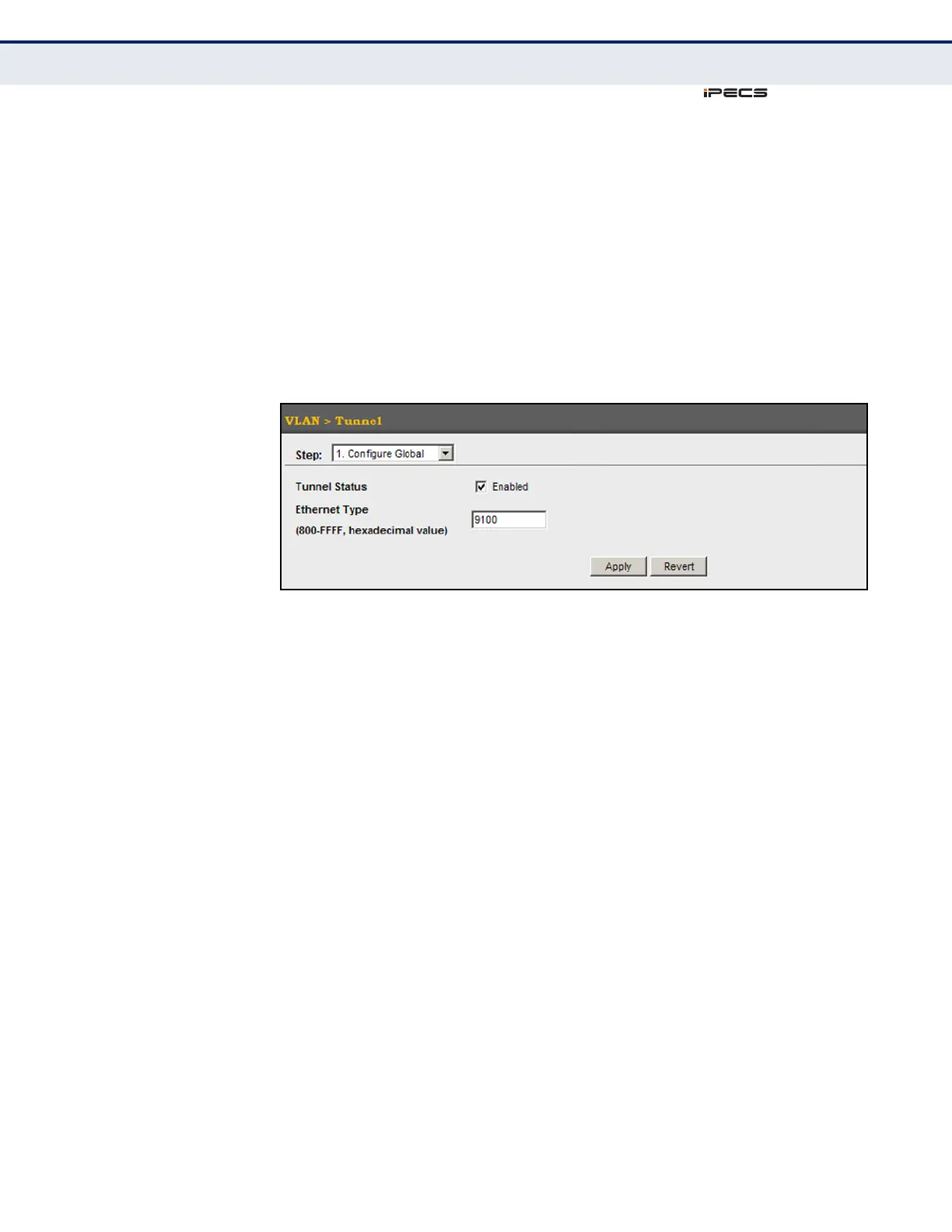
To enable QinQ Tunneling on the switch:
1. Click VLAN, Tunnel.
2. Select Configure Global from the Step list.
3. Enable Tunnel Status, and specify the TPID if a client attached to a
tunnel port is using a non-standard ethertype to identify 802.1Q tagged
frames.
4. Click Apply.
Figure 72: Enabling QinQ Tunneling
ADDING AN INTERFACE
TO A QINQ TUNNEL
Follow the guidelines in the preceding section to set up a QinQ tunnel on
the switch. Then use the VLAN > Tunnel (Configure Interface) page to set
the tunnel mode for any participating interface.
CLI REFERENCES
◆ "Configuring IEEE 802.1Q Tunneling" on page 858
COMMAND USAGE
◆ Use the Configure Global page to set the switch to QinQ mode before
configuring a tunnel access port or tunnel uplink port (see "Enabling
QinQ Tunneling on the Switch" on page 184). Also set the Tag Protocol
Identifier (TPID) value of the tunnel access port if the attached client is
using a nonstandard 2-byte ethertype to identify 802.1Q tagged
frames.
◆ Then use the Configure Interface page to set the access interface on
the edge switch to Access mode, and set the uplink interface on the
switch attached to the service provider network to Uplink mode.
PARAMETERS
These parameters are displayed in the web interface:
◆ Interface – Displays a list of ports or trunks.
◆ Port – Port Identifier. (Range: 1-52)



 To Next Page