How to change the user setting
29
①
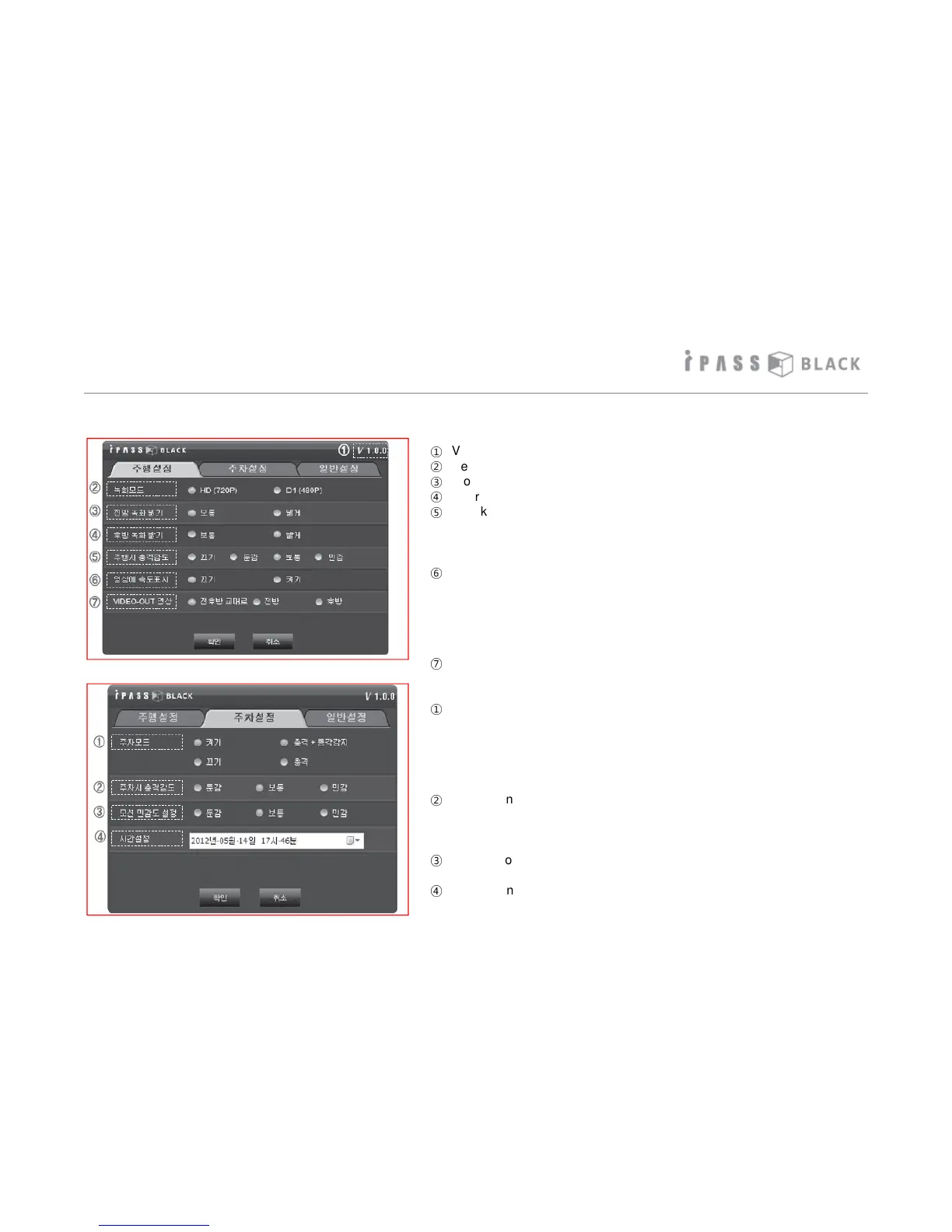
Version of the PC Player: Displays the version of the PC player.
②
Recording Mode: Set the Recording Resolution
③
Front Brightness: Set the brightness of Recording Image of Front camera
④
Rear Brightness : Set the brightness of Recording image of Rear camera.
⑤
Shock-sensitivity while driving: Set the sensitivity of 3-axis acceleration
sensor while driving. In case of setting to OFF, Event file (E) will not be
recorded while driving and you can not set the ratio of “Event” file (E) at
Deletion by File Type menu.
⑥
Speed Display on Image: It will display the speed of vehicle at the time of
recording and you can see the speed when playing the image on the other
media player other than exclusive PC player. Speed display will be shown
at the left upper part of image since after GPS signal is received and, in
case GPS signal is not received in underground parking lot etc., it will
show as “---”.
⑦
Select the display type of Live video on external monitor.
①
Parking Mode: Set Auto Parking Mode when parking and also set Event
recording type when setting Auto Parking Mode. In case of setting to OFF,
it will not enter to Parking Mode even while parking and you can not set
the ratio of “Parking” file (P) at Deletion by File Type menu.
(Shock: In case the impact on the vehicle, Motion : Motion is sensed by
Camera)
②
Shock Sensitivity while Parking: Set the sensitivity of 3-axis acceleration
sensor while Parking Mode Recording and, although the setting value is
same as the one of shock sensitivity while driving, shock sensitivity while
parking works much sensitive.
③
Setting Motion Sensitivity; Set the motion sensitivity while Parking Mode
Recording.
④
Time setting : You can set or correct the local time of your area manually.
Setting Driving Mode
Setting Parking Mode


 To Next Page