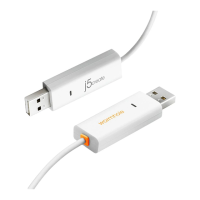
WORMHOLE SWITCH USER MANUAL
22
You can also do the following to transfer files between the two
computers.
o Copy & Paste:
1. Right-click on the files that you want to copy and select
Copy
2. Move the cursor to the other computer
3. Move the cursor to the location that you would like to
place the file and Right click, then select Paste
o Hotkeys (Shortcut on Keyboard) :
1. Click on the files that you would like to copy, and press
the (Ctrl+C) Keys from Windows OS computer
2. Move the cursor to the other computer
3. Move the cursor to the location that you would like to
place the files, and press the (Ctrl+V) Keys to paste the
copied files to another computer.
Note: Please use the original system hotkey settings on your computer
operating system (the keyboard always follows the mouse cursor).
For example, when you would like to copy content from a Mac OS Computer
and paste content to Windows OS Computer follow the steps below:
1. If you are using a Keyboard for MAC OS, you need to press the
“Command+ C” keys and switch the mouse cursor to the Windows OS
computer and press the “ Control + V” keys to paste the content onto
Windows OS.
2. Or from a Windows OS to a MAC OS: If you are using a Keyboard for
Windows OS, you need to press the ”CTRL+C”keys and switch the mouse
cursor to Windows OS computer and press “Command+V” keys to paste the
content onto a MAC OS.


 To Next Page