To access this Menu, press the MENU button and select [USB] using the
RIGHT/LEFT keys. The menu provides options to playback Music, Photo
and Multimedia files. It can support off-air DTV recordings made by this unit, as well as
various AVI, MPEG4, MP3, JPEG and BMP format files.
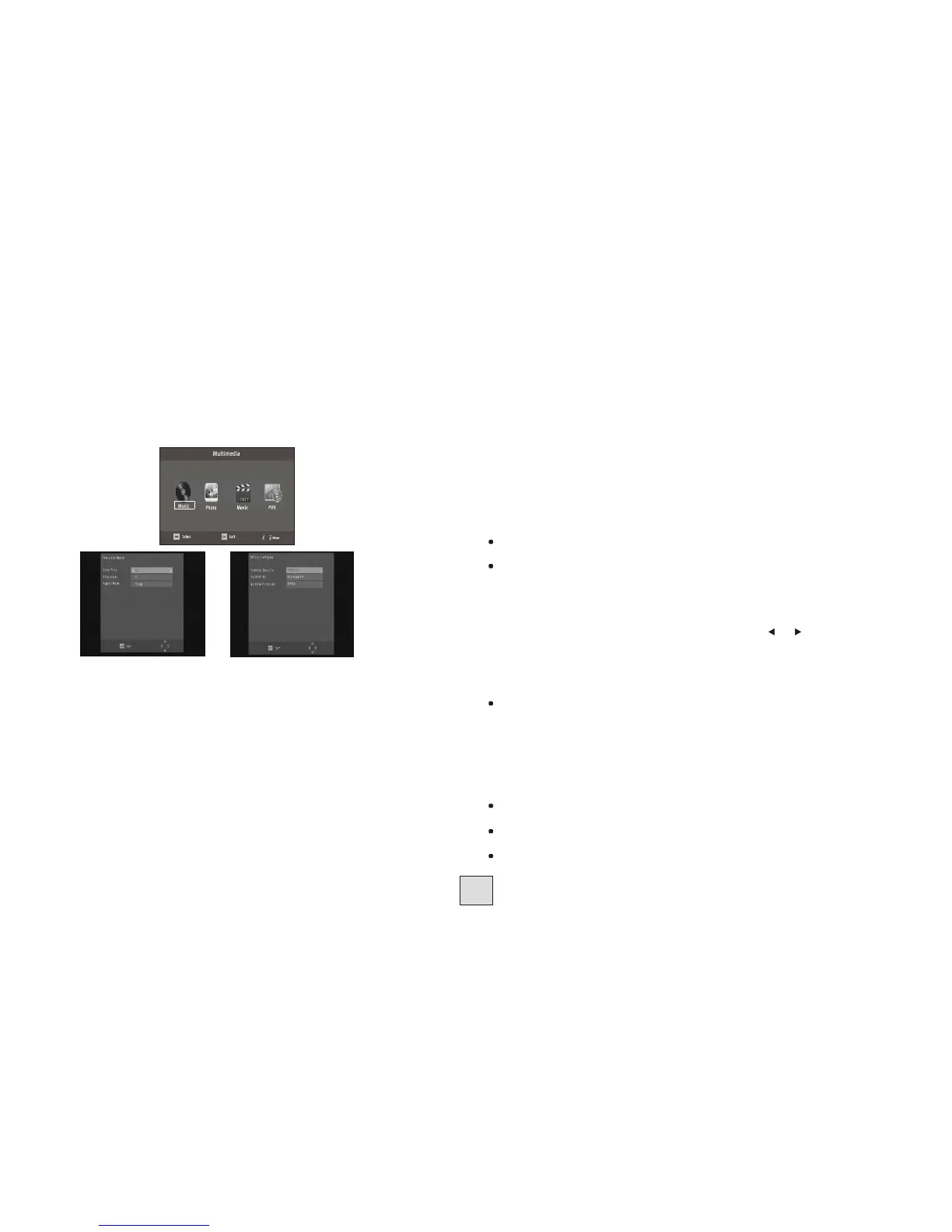
(a) Multimedia:
When a USB device is attached you can select from Music, Photo, Movie or PVR
options using the RIGHT/LEFT keys and OK to select. If a USB device
is not connected, the warning message "No USB device is Found" will appear.
(b) Photo configure:
-Slide Time: adjust slide show interval to 1~8 seconds.
-Slide Mode: adjust slide show effect as mode 0~59 or random.
-Aspect Ratio:
[Keep]: Play picture in its original aspect.
[Discard]: Play picture in full screen mode.
(c) Movie Configure:
- Subtitle Font:
[Small]: Displays the subtitle as small mode.
[Normal]: Displays the subtitle as normal mode.
[Big]: Displays the subtitle as big mode.
- Subtitle Background:
[White]: Displays the subtitle in white background. [Transparent]:
Displays the subtitle in transparent background. [Grey]: Displays the
subtitle in grey background.
[Yellowgreen]: Displays the subtitle in yellowgreen background.
- Subtitle Font Color:
Choose the subtitle font colors from Red, Blue, Green, Black or White.
Note:
- We cannot guarantee compatibility (operation and/or bus power
requirement) with all USB mass storage devices and assume no
responsibility for any loss of data that may occur when connected to this
unit.
- With large amounts of data already recorded, it will take longer for the
system to read the contents of a USB device.
- Some USB devices may not be properly recognized.
- Even when they are in an apparently supported format, some files still
may not play or display, depending on the content.
- USB extension cables should be avoided as they may degrade performance.
PVR FUNCTION
The XC4929 can also function as a Personal Video Recorder (PVR),
allowing you to record off-air Digital TV programs onto a (minimum) USB 2.0 flash
drive or USB 2.0 hard drive.
Media Requirements and Limitations:
FAT32 and NTFS-formattable USB drives are suitable. Standard
drives in a USB adaptor harness are unlikely to work.
Most modern USB Hard drives use the NTFS format file system. This STB can
format most USB hard-drives and flash drives to either the FAT32 or NTFS
formats.
Press “Menu”, select USB > PVR Configure >Format. There will be a short
delay while the drive is inspected, followed by details of the drive size and
format type. Select the File System line, press or to select the format
type, then select the Format line (typically “USB I/C”) then press OK to
format the drive.
Warning: All existing data and recordings will be erased by the formatting
process. Desired programs should first be copied onto another storage medium
(eg. via a computer's USB connection).
The USB PVR function relies on the use of high quality USB 2.0 drives
(or USB 3.0 drives operating in USB2.0 compatibility mode), and as such may
not be compatible with all USB devices.
USB drives up to at least 2 Terabytes (2,000GB) can be used; however:
• USB-powered drives larger than 500MB may exceed the USB socket's
power rating and need to be powered using an external power supply.
• Drives above 500GB may also take an unacceptably long time to start
recording or playing back material.
Most Flash Drives can record Standard Definition TV; drives with slower
memory components may not reliably record HDTV.
Camera Cards (SD etc) may work through a card-to-USB adaptor; but not all
adaptors are compatible with this unit.
There are no line inputs; recording is only possible from digital TV broadcasts.
Recordings are made by directly storing the unaltered data stream, so playback
quality is identical to transmitted quality (unlike VCRs and DVD recorders).



 To Next Page
 Loading...