Move a TV or Radio Program
1. Select the preferred program then press the RED button. A move symbol
will appear
2. Press UP/DOWN to move the program within the list of TV or Radio stations.
3. Press OK to confirm
4. Repeat the above steps to move more channels
Lock Program
You can lock selected programs for restricted view.
To Lock a TV or Radio Program:
1. Select the preferred program then press the YELLOW button. A lock-
shaped symbol is displayed. The program is now marked as locked
2. Repeat the previous step to select more programs
3. To confirm and exit the menu, press the EXIT button
4. Press the YELLOW button to disable the locked program
5. To view the locked program, you will then be required to enter the default
password '000000' or your last set password.
(3)
EPG - Electronic Program Guide (NZ users please see Page 13)
The EPG is an on-screen TV guide that shows scheduled programs up to seven
days ahead for every tuned channel. It also allows you to automatically set timer
recordings (see page 10). Press the EPG button on the Remote Control to
access, press again to remove.
[Service Name] - Sorts the channels according to the station.
[Service ID] - Sorts the channels by station ID.
(5)
LCN (Logical channel number)
Sets LCN On or Off. If LCN is off, during tuning, stations are simply numbered in
the order they are found.
If LCN is on, station numbers are assigned by the TV station themselves, eg ABC
is number 2, 7 network is number 7, 9 in number 9 and so on.
Note: If you want to use the “Sort by LCN” method, LCN must be set to “on”
before scanning the channels.
(6)
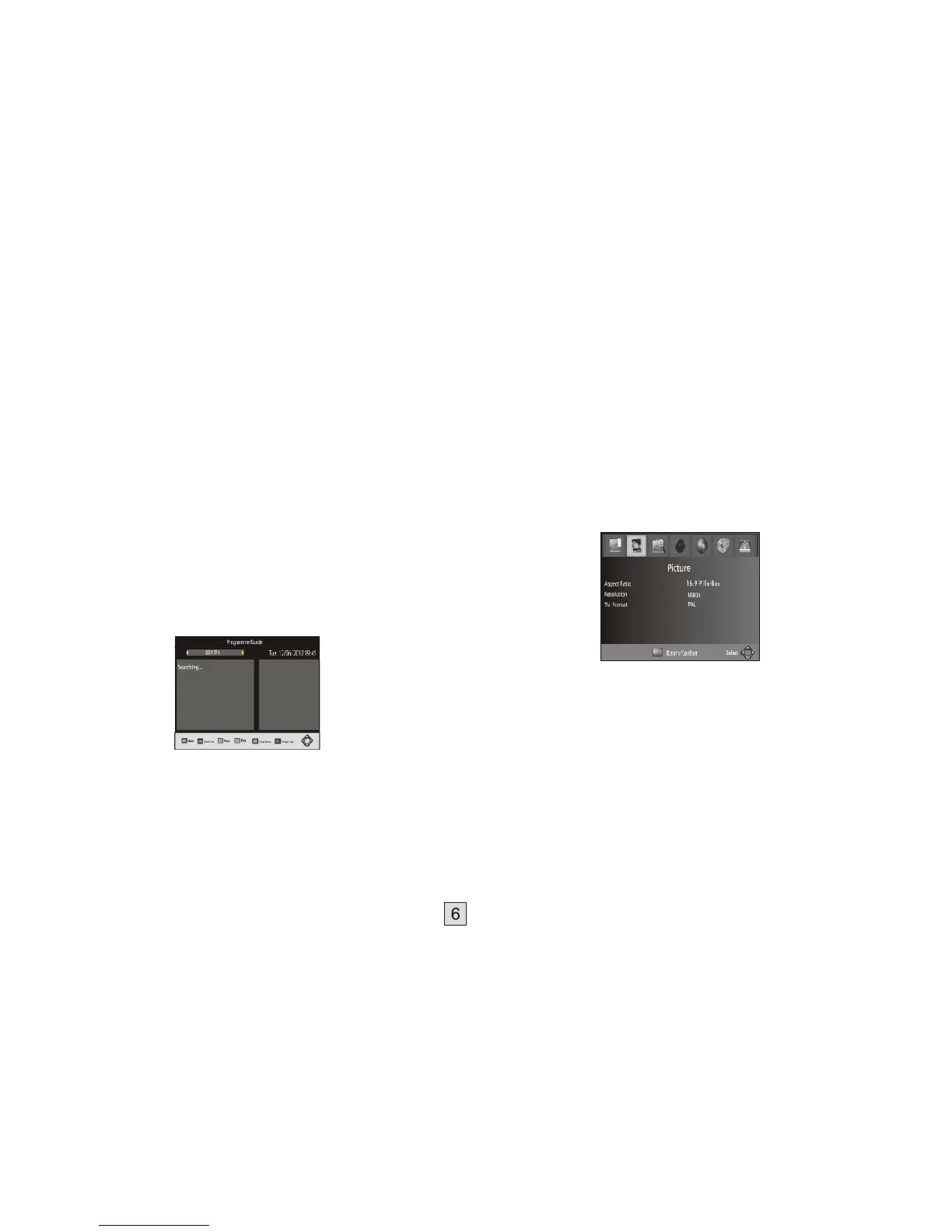
Video Setting
To access this Menu, press MENU then select [Picture]. The Menu
provides options to adjust the video settings. Press UP/DOWN to select an
option and press RIGHT/LEFT to adjust that setting. Press EXIT to exit the
menu and save the changed setting.
(1). Aspect Ratio (ie Width to height of your TV screen)
Your choices are 4:3 PanScan, 4:3 Letter Box,16:9 Wide Screen, 4:3 Full, 16:9
Pillar Box, 16:9 PanScan, or Auto to get the maximum display available from
your TV.
Use the UP/DOWN keys to step through the listing; the red and green
buttons allow you to jump through the listing a page at a time.
On the right side, a program description is displayed for the highlighted program.
If there is more than one page of information, the yellow and blue buttons allow
you access to the second page, or you can simply use the
up and down cursor buttons to step through the available programs.
Use the left and right cursor buttons to step through the different TV or radio
stations.
(4) Sort
Sort your channels from the following options:
[LCN] - Sorts the channels in ascending order, (Logical channel Number)
[Name] - Sorts the channels in alphabetical order.
(2).
Resolution
If the video does not appear correctly, change this setting. This setting is
to match the most common setting for HDMI.
[576i] for PAL system TV (most common old analog TVs)
[576P]: for progressive scan CRT TV (more recent CRT TVs)
[720P]: for older flat panel TV
[1080i]: for more modern flat panel TV
[1080p]: for most recent flat panel TV.
(3).
TV format
If the TV reception does not appear correctly, you may need to change this
setting. This should match the most common setting for TVs in your country.
[NTSC]: for NTSC system TV.
[PAL]: for PAL system TV.
(PAL settings are the ones most commonly used in Australia and NZ).


 To Next Page
 Loading...