EasyManua.ls Logo

JBL MSC1 - User Manual

JBL MSC1
36 pages
Print Icon
To Next Page IconTo Next Page
Loading...
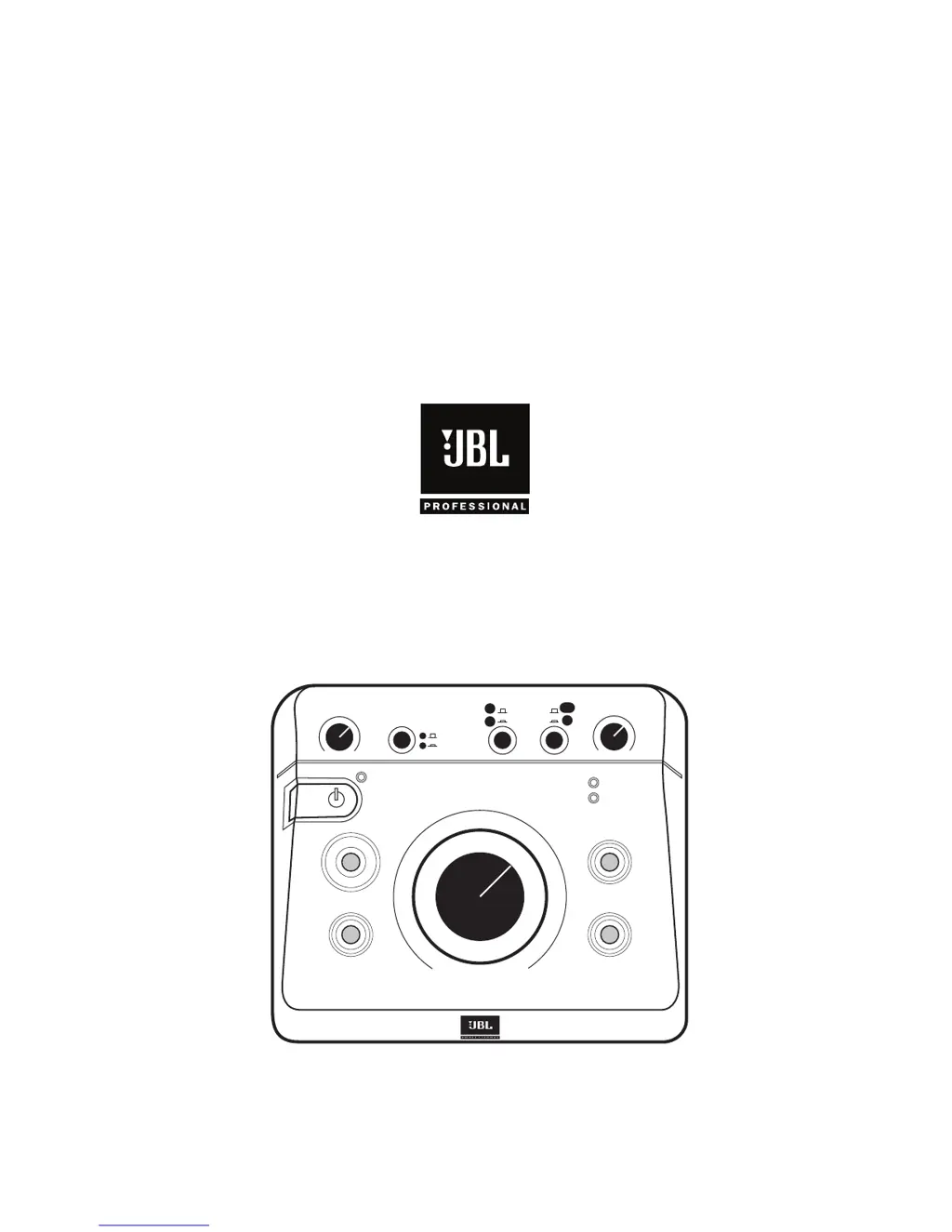
Owner's Manual
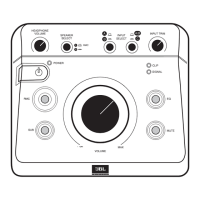
HEADPHONE
VOLUME
SPEAKER
SELECT
INPUT
SELECT
INPUT TRIM
POWER
CLIP
SIGNAL
EQ
MUTE
VOLUME
MAX
-
SUB
RMC
A
B
A
B
C
A/B
RMC
MSC1
MONITOR SYSTEM CONTROLLER
MSC1
MONITOR SYSTEM CONTROLLER
MSC1
MONITOR SYSTEM CONTROLLER
MSC1
MONITOR SYSTEM CONTROLLER
Document Version: 11.23.2010
by
HARMAN

Other manuals for JBL MSC1

Questions and Answers

  • J
    Jonathan BrooksAug 12, 2025
    How to troubleshoot no sound issue on my JBL MSC1?
    • A
      andrew26Aug 12, 2025
      If you are not getting any sound from your JBL Controller, first confirm that the power cable is connected and the POWER LED is illuminated. Next, ensure a signal source is connected and producing sound, and that the INPUT SELECT switches are set correctly. Also, check that the connected speaker system is powered on and the SPEAKER SELECT switch is set correctly. Make sure the MUTE button is not illuminated, and the VOLUME control is not set fully counter clockwise.
  • J
    Jeremy CollinsAug 17, 2025
    How to restore factory settings on JBL MSC1?
    • G
      gregorytheresaAug 17, 2025
      To restore the factory settings on your JBL Controller, press and hold the MSC1 front panel RMC control for 6 seconds, until the MUTE and RMC controls begin to flash. Continue to press the RMC control, and simultaneously press the MUTE control. Then release both buttons.
  • T
    Tammie MartinezAug 20, 2025
    What to do if the CLIP LED is illuminated and/or distorted sound is heard on my JBL Controller?
    • C
      Clarence HooverAug 20, 2025
      If the CLIP LED is consistently illuminated or you hear distorted sound from your JBL Controller, it could be due to a high output level from the connected equipment. Try reducing the setting of the INPUT TRIM control or reducing the output level of the connected equipment. If the CLIP LED illuminates with input "C" selected, disconnect the equipment from Input C and reconnect it to Input "A" or "B".
  • N
    nschroederAug 25, 2025
    Why is there a system "hum" coming from my JBL Controller?
    • A
      Andrew HopkinsAug 25, 2025
      If you are experiencing a 'hum' noise in your JBL Controller system, attempt connecting all signal source equipment, the computer, and speakers to the same electrical power outlet. If the hum persists, consider grounding the MSC1 to an available ground source.
  • Z
    zrobinsonAug 27, 2025
    What to do if there is no subwoofer signal from my JBL Controller?
    • E
      Erik WaltonAug 27, 2025
      If you are experiencing a lack of subwoofer signal with your JBL Controller, first confirm that the SUB Control is not illuminated if no subwoofer is connected. If a subwoofer is connected, ensure it is connected to Sub "A" output and is powered on, with its volume control set to maximum and its crossover control set to the highest available setting. Also, confirm that the SUB control is illuminated and the SPEAKER SELECT switch is set to "A".
  • A
    amandaroachAug 31, 2025
    Why is the subwoofer not loud enough on my JBL MSC1 Controller?
    • J
      Jeffrey EvansAug 31, 2025
      To address a subwoofer that isn't loud enough on your JBL Controller, use the MSC1 Control Center software to adjust the subwoofer level and Bass Management Crossover settings. If your system includes different models or brands of speakers and a subwoofer, you may need to adjust the subwoofer level or the Left and Right Speaker levels to balance the subwoofer in the system.
  • B
    ballenSep 4, 2025
    Why is there no difference in sound when the RMC control is activated or deactivated on my JBL MSC1 Controller?
    • J
      jenniferandrewsSep 5, 2025
      If you notice no difference in sound when the RMC control is activated or deactivated on your JBL Controller, use the supplied MSC1 Control Center software to confirm that RMC calibration has been performed. Also, confirm that the SPEAKER SELECT switch is set to "A".
  • J
    jasonwillisSep 7, 2025
    Why is there no difference in sound when the EQ control is activated or deactivated on my JBL Controller?
    • D
      danieldavisSep 8, 2025
      If you notice no difference in sound when the EQ control is activated or deactivated on your JBL Controller, use the supplied MSC1 Control Center software to confirm that an EQ setting has been made. Also, confirm that the SPEAKER SELECT switch is set to "A".

Summary

Important Safety Instructions

General Safety Guidelines

Key safety instructions for operating the JBL MSC1, covering reading instructions, warnings, and environmental precautions.

Quick Start Guide for MSC1

MSC1 Quick Start Steps

Step-by-step instructions to get the JBL MSC1 up and running quickly, covering software, connections, and basic controls.

Setting Up Your JBL MSC1

MSC1 Audio Connections Explained

Details the various audio input and output connectors on the MSC1 for speakers, subwoofers, and sources.

JBL MSC1 Setup and Operation

Achieving Sound with MSC1

Guide to achieving audio output by powering on devices, setting controls, and selecting inputs/outputs.

MSC1 Front Panel Features

Front Panel Controls and Indicators (1-4)

Details the power LED, power switch, MSC1 volume, and headphone volume controls on the front panel.

MSC1 Front Panel Operations

Front Panel Controls and Indicators (5-7)

Explains the Speaker Select switch, Input Select switches, and Input Trim control on the MSC1.

MSC1 Front Panel Functions

Front Panel Controls and Indicators (8-10)

Describes Input LEDs (Signal/Clip), RMC ON control, and EQ ON control on the MSC1.

MSC1 Front Panel Operations Continued

Front Panel Controls and Indicators (11-12)

Details the Sub ON control for subwoofer management and the Mute control on the MSC1.

MSC1 Rear Panel Reference

Rear Panel Connectors Overview

Details the connectors and ports located on the rear panel of the MSC1, including power and speaker outputs.

MSC1 Rear Panel Details

Rear Panel Input;Output and Grounding

Describes input connectors (A, B, C), headphone output, RMC mic connections, level pad, and ground connection.

Installing MSC1 Control Center Software

MSC1 Control Center Installation (Windows)

Windows Software Installation Steps

Step-by-step instructions for installing the MSC1 Control Center software from a CD-ROM or a downloaded ZIP file.

Managing MSC1 Control Center (Windows)

Launching MSC1 Control Center Software

Installing MSC1 Control Center Software (Mac)

MSC1 Control Center Installation (Macintosh)

Managing MSC1 Control Center (Mac)

Launching MSC1 Control Center Software (Mac)

Troubleshooting Common MSC1 Issues

Resolving No Sound and System Hum

Addresses common issues like no audio output, system hum, and grounding solutions.

MSC1 Troubleshooting Continued

Addressing CLIP LED and Distortion

Explains how to resolve consistent CLIP LED illumination and distorted audio output.

MSC1 Troubleshooting and Maintenance

JBL Service and Contact Information

JBL MSC1 Product Warranty

JBL MSC1 Specifications

General IconGeneral
TypeMonitor System Controller
Headphone Output1 x 1/4" TRS
Channels2
Inputs2 x TRS
Outputs2 x XLR
Dimensions8.5 x 8.5 x 2.5 inches
ControlsMute
ConnectivityTRS
FeaturesTalkback mic input

Related product manuals