Optipay® CC JCM Training Overview JCM Training Overview December, 2006
Part No. 960-000153R_ Rev. A © 2006, JCM American, Corporation
4 25
Lecture Notes
Lecture Notes
A-66 COIN VALIDATOR/DISPENSER FEATURES
A-66 C
OIN
V
ALIDATOR
/D
ISPENSER
The A-66 Coin Validator/Dispenser contains the following features:
• Manufactured for JCM by NRI (Crane) as the A-66 Centaur and is technically
similar to the NRI E-66 and G-46
• Same physical size as competitive industry standard Coin Changers
• Validates and dispenses coins under MDB control
• Reliable coin recognition via multiple parameter measurements
• U.S. version accepts nickels, dimes, quarters, half dollar and dollar coins - depend-
ing on programmed setup
• Removable/replaceable coin cassette
• Flexible float/security levels
• Mechanical protection against "stringed coins"
• Splash Proof Electronics
• Easy to read LED Indicators and Diagnostic Codes
• Interface for Palm PDA or PC programming. Palm M100 series, M500 series, and
Tungsten series handhelds are compatible.
• Features 32K Flash Memory for instant software updates
• Can be programmed to accept up to 16 different coin types
• Can be programmed to accept up to 3 user-defined tokens
• Can operate at MDB level 2 (VMC controls payout functions), or MDB level 3
(Coin Changer controls payout functions)
• When combined with a DBV-301 Bill Validator and an RC-10 Recycler, the A-66
Coin Changer functions as part of a JCM Optipay
®
System which can accept,
validate, and recycle both coin and paper currency.
•
MDB Feature Level: Use the 'down arrow' to set the Coin Changer’s
operation level to either MDB Level 2 or MDB Level 3:
P
ALM
A66US (C
ONTINUED
)
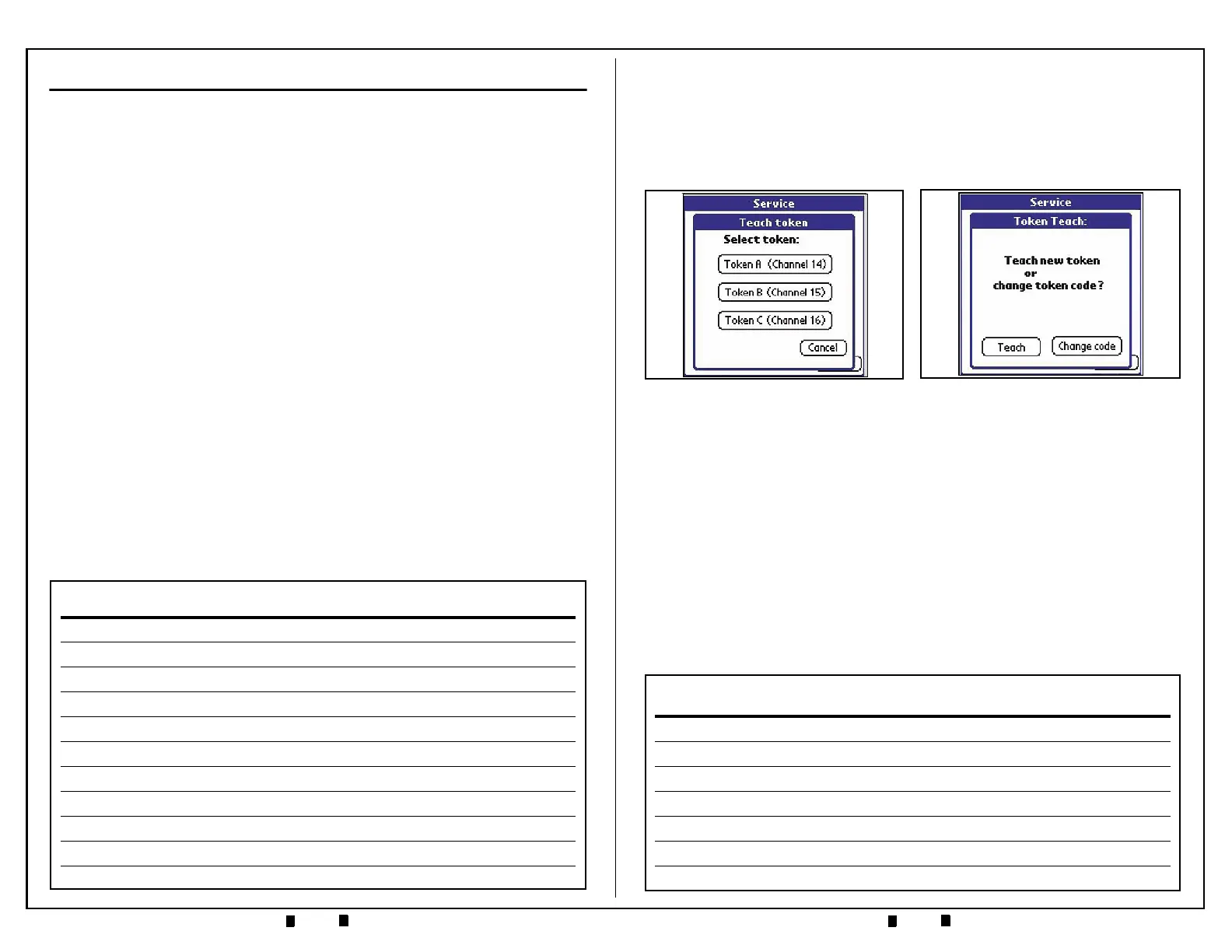
17.On the ‘Service’ Menu select the ‘Teach Token’ Screen Button. The Sub-menu
Screen depicted in Figure 33 will appear. Selecting the Token A, B or C Screen
Button will yield the Figure 34 Teach Token Sub-menu Screen.The user is
provided the option to “Teach” a new token or to change the attributes of a
previously existing taught token.
If the user opts to change a tokens attributes by clicking the ‘Change
code’
Screen Button, the Figure 35 screen will appear.
• Selecting ‘Vend token’ will allow a free vend to occur with the token being
sent to the Cash Box.
• Selecting ‘Reject token’ will allow a free vend to occur with the token
being returned to the customer
• Selecting ‘Value token’ will yield the Figure 36 Screen allowing the user to
assign a set monetary value to the token.
The following notes apply to Token Programming:
• Up to three (3) user-defined tokens may be programmed
• Coin Channels 14, 15 and 16 are used for token programming
• A minimum of ten (10) tokens is recommended for programming
• Both the 'Normal' and 'Wide' acceptance bands can be set
• Tokens may be inhibited or enabled by the ‘Inhibit Mask’ function.
Figure 34 Teach Token Sub-Menu
Figure 33 Select Token Sub-Menu


 To Next Page