1
2
5
3
4
2
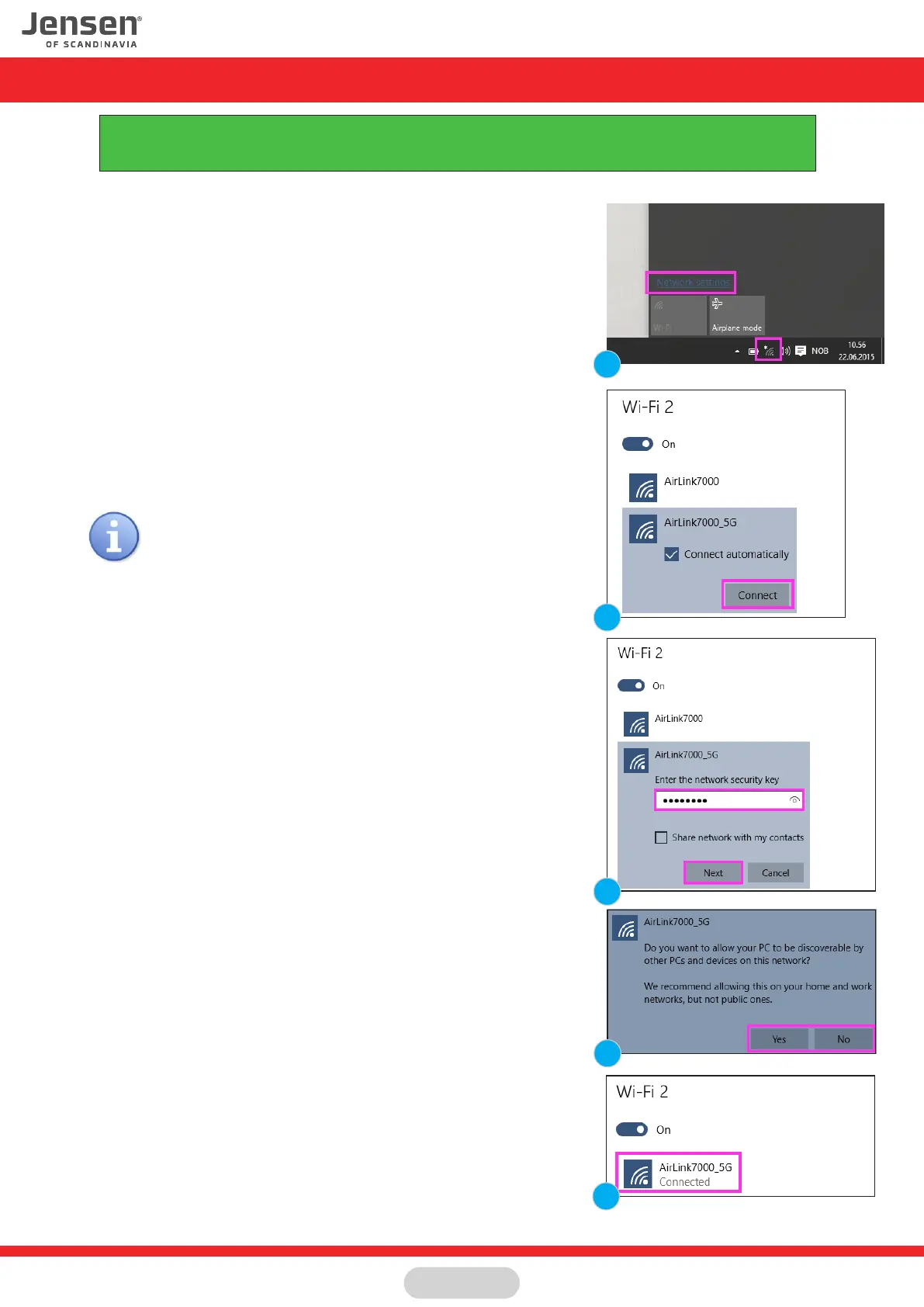
1. Click the icon for wireless network on the system tray and then
Network setings
2. You will now see a list of available wireless networks in your area.
Select your wireless network from the list and click Connect.
The name of your router can be found under your router.
3. Please enter the encryption key for your Jensen router and click Next.
The encryption key can be found on top or under the router.
The key is 8 digit with a mix of lower / upper case letters and numbers.
4. Please select if you wish to activate sharing of files between devices
in your network.
5.The PC is now connected to the wireless network.
If there are several AirLink routers in your neighbourhood,
it can be several AirLink routers on the list that look similar
Be carefull to select the AirLink router that matches the
network name of your router.
Connect to a wireless network using Windows 10
This guide show you how to connect to your Air:Link router based on the built-in wireless tool for Windows 8.
In some cases your computer is delivered with a third party software from the computer manufacturer.
If so, please contact the computer manufacturer support for more detailed information.
Page 7



 To Next Page