Adjusting
the
Fader
and
Balance
The
user
can
adjust front/rear fader settings,
L/R
balance settings, and subwoofer
levels here.
1.
Enter the
EQ
setup mode.
2.
Touch the [
~
~]
icon in the
EQ
interface menu.
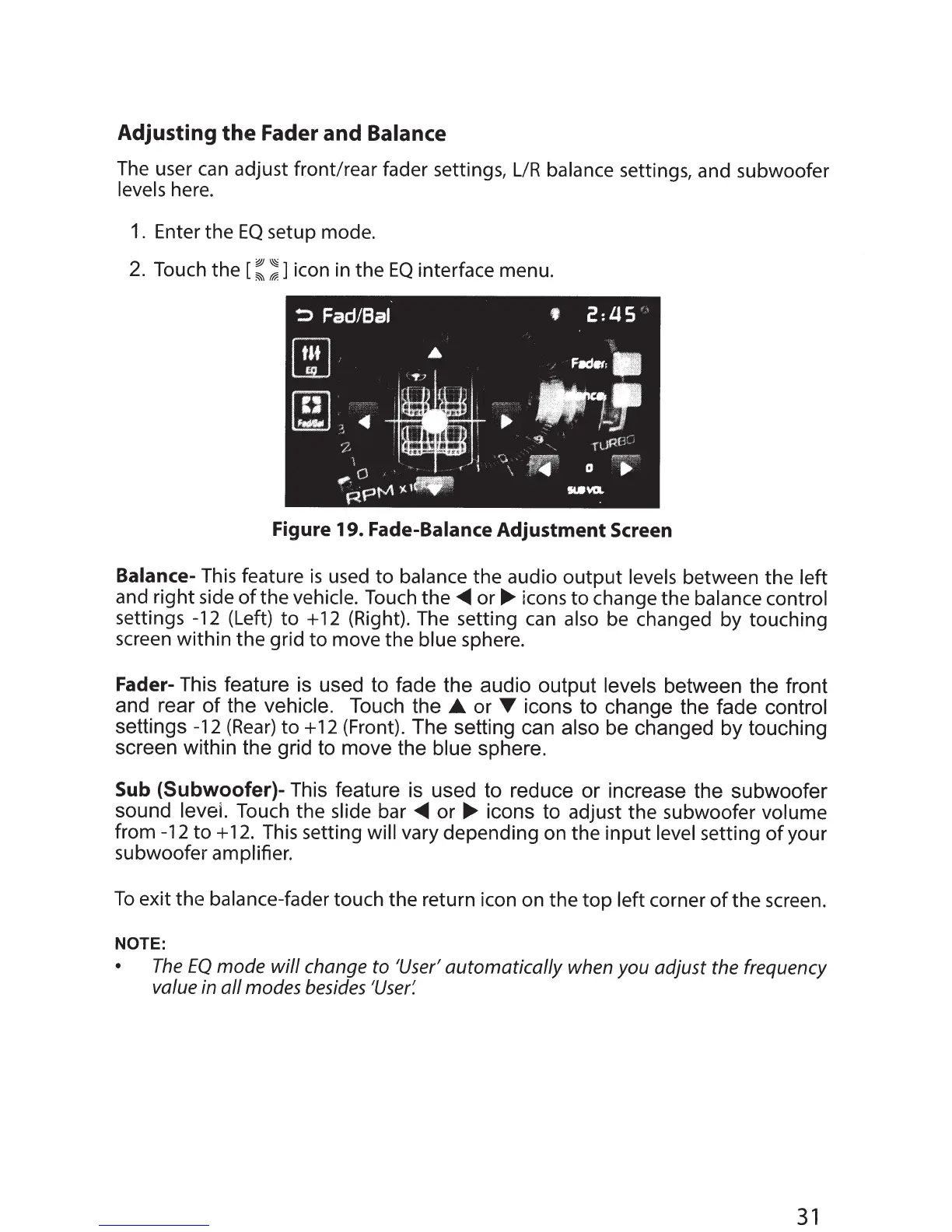
Figure 19. Fade-Balance Adjustment Screen
Balance-
This feature
is
used
to
balance
the audio
output
levels
between the
left
and right side
of
the vehicle. Touch the
<IIIII
or~
icons
to
change the
balance control
settings -12 (Left)
to
+ 12 (Right).
The
setting
can
also
be changed by touching
screen within the grid
to
move the
blue
sphere.
Fader-
This feature is used to fade the audio output
levels
between the front
and rear
of
the
vehicle.
Touch the • or
T icons to change the fade control
settings -12
(Rear)
to+
12 (Front). The setting can also
be changed by touching
screen within the grid to move the blue
sphere.
Sub
(Subwoofer)-
This feature is used to reduce
or
increase the subwoofer
sound
leveL Touch the slide bar
<IIIII
or
~
icons to adjust the subwoofer volume
from -12
to+
12. This setting will
vary depending on the
input
level
setting
of
your
subwoofer
amplifier.
To
exit the
balance-fader
touch the return icon on the
top
left
corner
of
the screen.
NOTE:
•
The
EQ
mode
will
change to 'User'
automatically
when you adjust the frequency
value in
all
modes besides
'User~
31


 To Next Page