Controlling Playback
To
access
the
on-screen controls, touch
the
screen anywhere except
for
the
upper
left
corner and touch again
to
cancel display.
Connect
an
USB
Device
1.
Open
the
USB
door.
2.
Connect an
USB
device
into
the
USB
connector. Play starts automatically.
NOTES:
1.
If
there are
audio
files supported
on
the
USB
stick, the system
will
enter the audio
files menu automatically.
If
there are
no
audio
files,
but
there are video files supported on the
USB
stick,
the system
will
enter the video files menu automatically.
If
there are
no
audio
or
video files,
but
there are
picture
files
supported
on
the
USB
stick, the system
will
enter the picture files menu automatically.
If
there
no
above audio/video/picture files supported in the
USB
stick, the screen
will
display: There are
no
audio/video/picture files supported.
2.
Not
all
USB
devices are compatible
with
the unit.
Play
Once a disc,
or
a
USB
device
is
inserted, play starts automatically.
Pause
When play
the
audio/video
file, press
the
[
~111]
key on
the
remote control
or
open the on-screen control
icons
menu
and
then
touch the [
~;11]
icon, press
the
[
~111]
again and continue
to
play.
Stop
For
audio
files
or
video files, press
the
Stop
[•]
Button on
the
remote
control
or
open
the
on-screen control icons menu and then touch
the
Stop
[•]
icon
to
stop.
Press
the
[
~;11]
to
resume
from
the
pausing point.
Touch
the
Stop
[•]
icon again
to
stop entirely, and press
the
Stop
[•]
Button on
the
remote control.
Press
the
[
~;11]
to
playback from
the
top
file.
Previous/Next
Touch [
~
] I [
11+1
] key
on
the screen to skip to previous I next track I chapter.
Search
for
a Folder
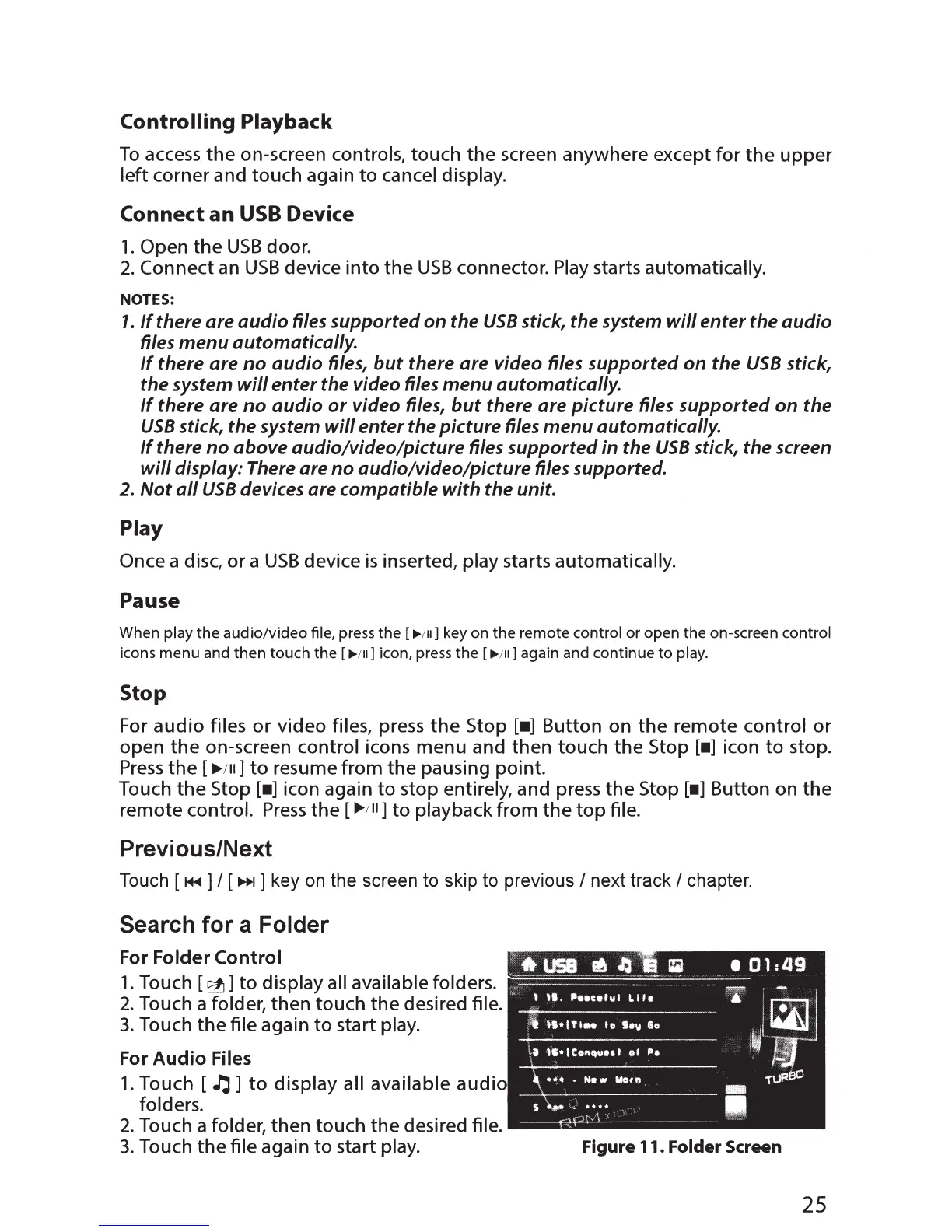
For Folder
Control
1.
Touch
[~]to
display all available folders.
2.
Touch a folder, then touch
the
desired file.
3.
Touch
the
file again
to
start play.
For
Audio
Files
1.
Touch [
.r:J]
to
display all available
audi
folders.
2.
Touch a folder, then touch
the
desired file.
3.
Touch
the
file again
to
start play.
Figure
11.
Folder
Screen
25


 To Next Page