14
4.GPS Satellite Search
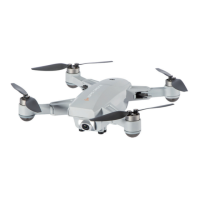
After the above steps are completed, place the drone on a wide flat outdoor ground (as shown in
Figure 1) and spread out all the blades In a horizontal line (as shown in Figure. 2), wait for the
back indicator light on the drone to change from slow flashing to constant flashing. The remote
controller will beep at the same time. (as shown in Figure 3). If the GPS signal light is on, that
means satellite search is successful. (The first satellite search will take about 2 minutes. If the time
interval between the last flight is less than 1 hour, the second satellite search time will be reduced to
about 50 seconds)
3.Calibrate the Gyroscope
All of the above steps must be completed before unlocking the drone.
Notes:
Gyroscope calibration: pull the left and right Joystick of the remote control at the same time (as
shown in Figure 1), and the drone will have 4 lights quick flashing after about 3 seconds(as shown
in Figure 2), It represents in calibrating. Release the Joystick and return to the flashing
state before the calibration. To ensure accurate data, the drone must be at a horizontal level, and
the gyroscope must be calibrated before each flight. (Do not do any operation during the drone is
calibrating)
Motors need to be unlocked before each flight.
Notes:
Figure 2Figure 1
5.Unlock
Pull Joysticks down-out as picture shows to
unlock the motors
6.Takeoff and Landing
Takeoff: slowly push up throttle joystick(left) to take off after motors are unlocked.
Landing:
Pull the throttle Joystick
down until the drone lands,
keep it in the lowest position
for 3-5 seconds, the motors will stop.
Figure 2Figure 1 Figure 3
Remote control light 3
is on
Light1 Light2 Light3 Light4
Email: nostech1@hotmail.com


 To Next Page
 Loading...