EasyManua.ls Logo

Johnson Controls TEC3030 - User Manual

Johnson Controls TEC3030
30 pages
Print Icon
To Next Page IconTo Next Page
Loading...
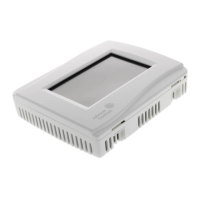
TEC3000 Series Networked and Wireless
Single- or Two-stage Economizer Thermostat
Controllers Quick Start Guide
North American emissions
compliance
United States
This equipment has been tested and found to comply with
the limits for a Class B digital device, pursuant to Part15
of the FCC Rules. These limits are designed to provide
reasonable protection against harmful interference ina
residential installation. This equipment generates, uses
and can radiate radio frequency energy and, if notinstalled
and used in accordance with the instructions, may cause
harmful interference to radio communications.However,
there is no guarantee that interference will not occur
in a particular installation. If this equipment doescause
harmful interference to radio or television reception,
which can be determined by turning the equipment
offand on, the user is encouraged to try to correct the
interference by one or more of the following measures:
Reorient or relocate the receiving antenna.
Increase the separation between the equipment and
receiver.
Connect the equipment into an outlet on a circuit
different from that to which the receiver is connected.
Consult the dealer or an experienced radio/TV
technician for help.
Canada
This Class (B) digital apparatus meets all the requirements
of the Canadian Interference-Causing Equipment
Regulations.
Cet appareil numérique de la Classe (B) respecte toutes
les exigences du Réglement sur le matériel brouilleurdu
Canada.
Installation
Parts included
One TEC3000 Series Thermostat Controller with integral
mounting base
One installation instructions sheet
Location considerations
For networked models, locate the TEC3000 Series
Thermostat Controller:
On a partitioning wall, approximately 5 ft (1.5 m) above
the floor in a location of average temperature, to allow
for vertical air circulation to the TEC
Away from direct sunlight, radiant heat, outside walls,
outside doors, air discharge grills, stairwells, and from
behind doors
Away from steam or water pipes, warm air stacks,
unconditioned areas (not heated or cooled), or sources
of electrical interference
In a clear path between the integrated passive infrared
(PIR) occupancy sensor (if equipped) and the space it
monitors
For wireless models, also locate the thermostat controller:
Outside of a recessed area, metal enclosure, or shelving
unit
On the same building level as the other wireless devices
on the same personal area network (PAN)
At least 2 in. (51 mm) away from any metal obstruction
In the direct line of sight to other wireless devices on
the same PAN. Signal transmission is best if the path
between the TEC3000 and other wireless devices is
direct as possible. Line of sight is desirable but not
required. See Table 1 and Table 2 for the recommended
and maximum distances.
Away from metal and large solid obstructions, that
includes equipment rooms and elevator shafts and
concrete or brick walls, between the TEC3000 and
the ZFR182x or ZFR183x Router/Repeater or ZFR Pro
Coordinator Radio
Within range of two or more wireless devices on the
same PAN. Redundancy in the layout provides the best
reliability in wireless installations
At least 20 ft (6 m) from a microwave oven
For integrated PIR models, make sure that the thermostat
controller is located centrally, where occupant movement
is frequent. Ensure that the unit is not blocked by a plastic
tamper resistant enclosure (such as the GRD10A-608). The
plastic enclosure blocks the occupancy sensing capability.
The use of insulating foam pads is necessary for
installations where wiring passes through the wall to the
thermostat.
For wireless models, the effective transmission range and
distance for indoor applications vary because of wireless
signal absorption and reflection due to metal obstructions,
walls or floors, and furniture that is found in building
interiors.
Note: Allow for sufficient clearance to insert a USB
drive into the USB port
Important: Only connect memory devices to the USB
port. Do not use it for charging external devices.
*241135300036E*
Part No. 24-11353-00036 Rev. E
2020-12-15
(barcode for factory use only)
TEC3330-1x-xxx, TEC3331-1x-xxx, TEC3630-1x-xxx,
TEC3631-1x-xxx, TEC3030-1x-xxx, TEC3031-1x-xxx,
TEC313x-14-xxx


Other manuals for Johnson Controls TEC3030

Questions and Answers

  • J
    Jean MartinezAug 27, 2025
    What causes Fan Lock on Johnson Controls Thermostat and how to resolve it?
    • A
      Abigail VelazquezAug 27, 2025
      If your Johnson Controls Thermostat displays 'Fan Lock', the switch connected to the BI configured for Fan Lock didn't sense airflow within 10 seconds of starting the fan, and control has been shut down. To resolve this: 1. Inspect equipment to ensure fan functions. 2. Check sensor functionality with an ohmmeter, and verify wiring to the TEC. 3. Reset fault by entering the menu, selecting Fault Status, and selecting the Fan Lock. 4. Order replacement units and return the affected devices to Johnson Controls under the RMA program.
  • L
    Linda HernandezSep 8, 2025
    What does 'Heating Ineffective' mean on my Johnson Controls Controller?
    • J
      Jennifer WebbSep 8, 2025
      If the Johnson Controls Controller displays 'Heating Ineffective', verify that the heating elements on the rooftop are functioning correctly. This happens because the supply air temperature has not increased above the configured Supply Air Temperature Alarm Offset while heating has been active for at least the Supply Air Temperature Alarm Delay.
  • B
    benjamin44Aug 27, 2025
    What to do if Johnson Controls Thermostat shows USB Malfunction?
    • B
      Briana CastilloAug 27, 2025
      If your Johnson Controls Thermostat displays 'USB Malfunction,' it means a USB drive has malfunctioned and drawn more current than allowed. Here's how to troubleshoot: 1. Try inserting and using the USB drive again. 2. Try a new USB drive. 3. If the problem continues, you may need to order replacement units and return the faulty devices to Johnson Controls under the RMA program.
  • K
    Kelly MoraSep 23, 2025
    Why doesn't the TEC3000 zone temperature change fast enough compared to a calibrated sensor?
    • W
      William JohnstonSep 23, 2025
      If the TEC3000 zone temperature doesn't change fast enough compared to a calibrated sensor, it's because the TEC3000 is configured by default for larger spaces with normal-sized equipment when a proportional device is active. To resolve this, select 'Control Setup > Tuning > Equipment Size > Oversized'.
  • B
    Brian PriceSep 15, 2025
    How do I fix Touchscreen Unavailable error on Johnson Controls TEC3030 Controller?
    • J
      Jonathan FlemingSep 15, 2025
      If your Johnson Controls Controller displays 'Touchscreen Unavailable', it means the touchscreen components have failed to initialize. Here’s how to troubleshoot it: 1. Reboot the controller. 2. If the problem persists, order replacement units and return the affected devices to Johnson Controls under the RMA program.
  • K
    Kathryn BerrySep 12, 2025
    What does 'Board Mismatch' mean on my Johnson Controls TEC3030?
    • K
      Kristina ThomasSep 12, 2025
      Match the baseboard to its corresponding CPU board. The error message on the TEC indicates the model number of the baseboard and CPU board. This issue appears because the baseboard and CPU board are paired incorrectly.
  • M
    monroejaimeSep 18, 2025
    What does Board Mismatch mean on Johnson Controls TEC3030 Controller?
    • P
      Paula BaileySep 18, 2025
      If your Johnson Controls Controller displays 'Board Mismatch', it means the baseboard and CPU board are paired incorrectly, with an error message indicating the model numbers. To fix this, match the baseboard to its corresponding CPU board. Consult Table 2 for information on ensuring the correct pairing.
  • T
    Timothy WoodwardSep 18, 2025
    Why is Heating Ineffective on my Johnson Controls TEC3030?
    • J
      Joseph OlsonSep 18, 2025
      If your Johnson Controls Controller indicates 'Heating Ineffective,' it means the supply air temperature hasn't increased above the configured Supply Air Temperature Alarm Offset, even though heating has been active for at least the Supply Air Temperature Alarm Delay. To resolve this, verify that the heating elements on the rooftop are functioning properly.
  • B
    Benjamin BradleyAug 28, 2025
    What to do if Johnson Controls Thermostat shows Supply Fan Fault?
    • N
      Nicole BradleyAug 29, 2025
      If your Johnson Controls Thermostat displays 'Supply Fan Fault', it means the Supply Fan Status configured for either BI1 or BI2 has not proved within the configured Fan Alarm Delay. To resolve this: 1. Verify that the Supply Fan is operating when turned on. 2. Verify that the Supply Fan Status wiring is connected correctly.
  • M
    Michelle YoungAug 29, 2025
    What causes Supply Fan Runtime Limit Extended on Johnson Controls Thermostat?
    • M
      Mark KeyAug 29, 2025
      If your Johnson Controls Thermostat displays 'Supply Fan Runtime Limit Extended,' it means the Supply Fan Runtime has exceeded the configured Supply Fan Runtime Limit. To address this: 1. Service the Supply Fan. 2. Reset the Supply Fan runtime.

Summary

North American Emissions Compliance

United States FCC Compliance

Details FCC Part 15 compliance for Class B digital devices in residential settings.

Canada Interference Regulations

States compliance with Canadian Interference-Causing Equipment Regulations.

Installation and Wiring

Installation Parts and Location

Lists included parts and provides guidance on optimal controller placement.

Mounting the Thermostat Controller

Step-by-step instructions for physically installing the thermostat.

Wiring Diagrams

Visual guides for connecting the thermostat to HVAC systems.

System Setup and Configuration

Home Screen and Display Customization

Personalizing the thermostat's home screen appearance and display options.

Touchscreen Interface and Icon Guide

Explains the meaning and function of all touchscreen icons.

User Access and USB Port Operations

Managing user lockout levels and utilizing the USB port for firmware.

Installer Configuration Menu

Accessing and performing initial controller setup tasks.

System Mode and Economizer Settings

Configuring HVAC modes, economizer availability, and related parameters.

Control, Fan, and Setpoint Configuration

Adjusting control modes, fan operation, and temperature setpoints.

Scheduling and Occupancy Management

Setting occupancy schedules and managing occupancy modes.

Advanced Control Features

Configuring dehumidification, optimal start, and motion sensing.

Auxiliary Output and Fan Circulation Control

Configuring auxiliary outputs and scheduled fan circulation.

Johnson Controls TEC3030 Specifications

General IconGeneral
BrandJohnson Controls
ModelTEC3030
CategoryController
LanguageEnglish

Related product manuals