To switch between the modern, classic, light, and
dark themes, complete the following steps:
1. Press the Menu icon.
2. Press Settings.
3. Press Display Settings.
4. Press Change Color Theme.
5. Select one of the four options available.
Result
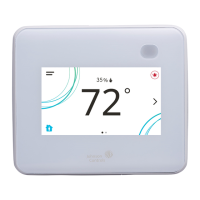
Multiple pages are available on the display. The page that
you currently view is emphasized with a filled dot. The
other available page displays as an empty dot.
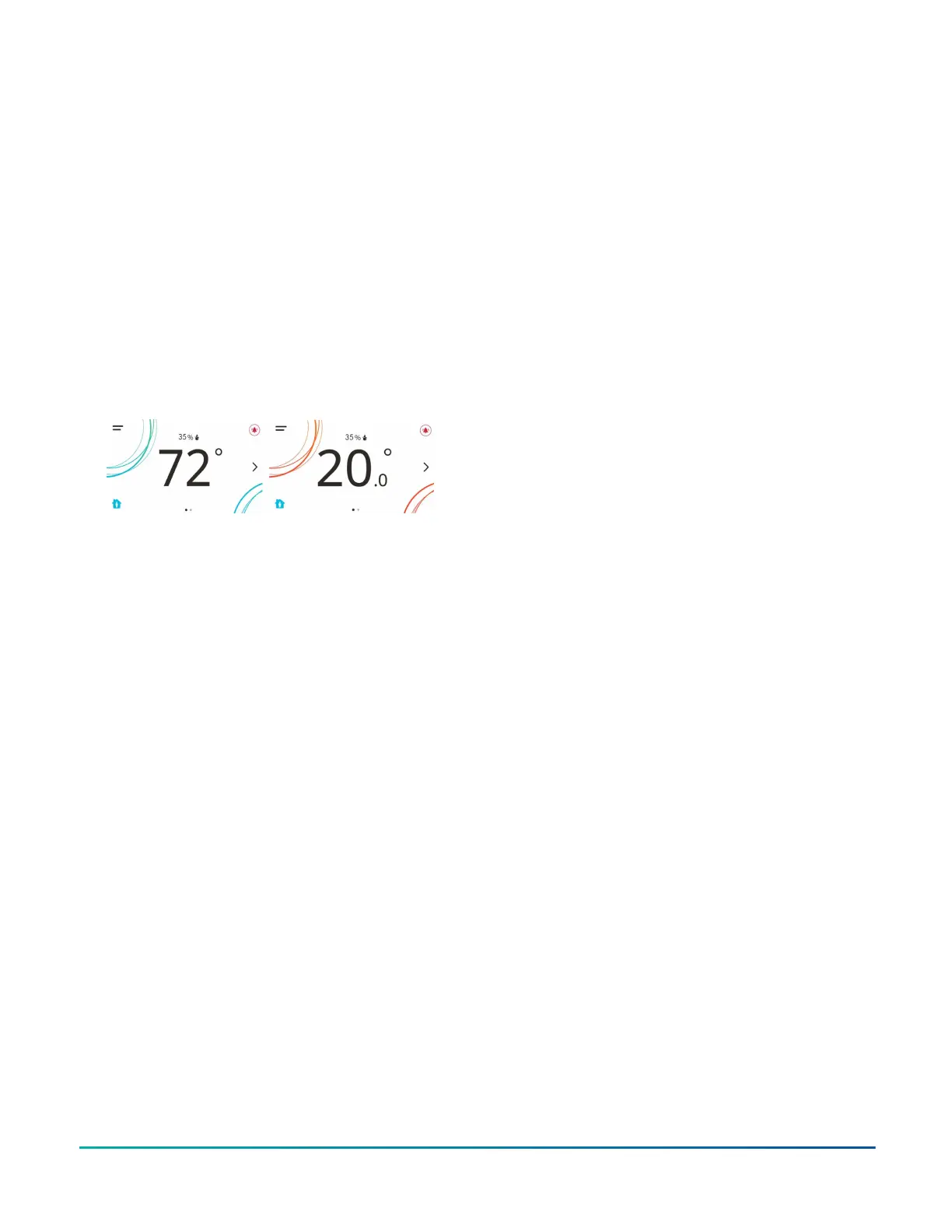
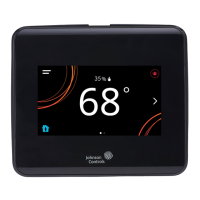
In the modern theme, the cooling, or blue, and heating, or
orange, circles show whether the cooling or heating mode
is active.
Figure 17: Thermostat controller home screen in
cooling mode (left) and heating mode (right)
Customizing the home screen
About this task:
Customizing the Home screen settings include:
• Brightness
• Enable Backlight
• Units
• Time
• Time Zone
• Time Format
• Date
• Date Format
You can also show or hide these items on the Home
screen:
• Fan Button
• Temperature
• Humidity
• Off Button
• Hold Button
• Setpoint
• Alarms
• Occupancy Status
• Unit Status
• Date/Time
To customize the Home screen, complete the following
steps:
1. Press the Menu icon.
2. Press Display Settings.
3. Enable or disable elements of the home screen as
appropriate for the building owner and occupants.
4. Set the passcode on the thermostat controller to
prevent the occupants from changing settings that
they should not have access to change.
TEC3000 Series Proportional Fan Coil Thermostats Installation Guide 9




 To Next Page