TP820 User’s Manual
- 11 -
3. Setting printer’s IP address
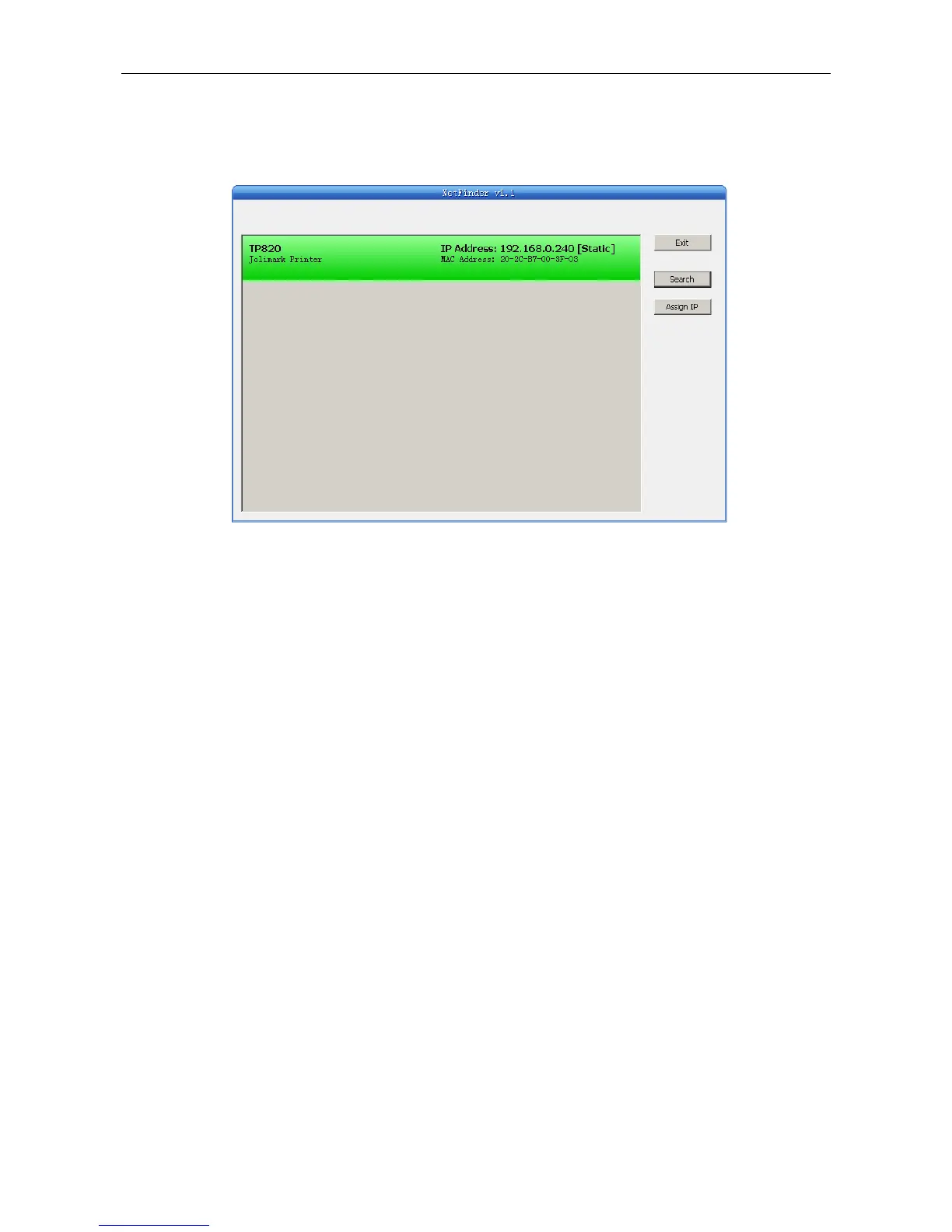
The printer’s information is listed in the main interface, the left side of which is the model and
description and the right is the IP and MAC address. What’s more, the assign mode
(dynamic/static) is noted behind the IP address.
1) Correlative description for IP address settings
In order to search and set printer’s IP address conveniently for the first time, the factory default
setting is DHCP mode which assigns IP address dynamically. If there is no DHCP server in the
connected LAN and printer is set to DHCP mode as well, then it will use the internal pre-set
address (IP: 10.0.0.1, Subnet Mask: 255.255.255.0) automatically.
It is suggested that printer’s IP set to static in actual usage, which can cut down the time when
initializing the Ethernet interface as the printer is turned on and prevent IP conflicts (The
dynamic address used in printer may conflict with another one). The network segment part of
the IP address and Subnet Mask must be the same as those of PC connecting with a printer.
For example, the address of working PC is 192.168.0.1/255.255.255.0 (IP/Subnet Mask),then
which of printer should be set to 192.168.0.x/255.255.255.0(x=2~254 and should avoid the IP
in used. It is not restricted for NetFinder to search printers in the same network but different
segment parts (can not stride gateway). Relative glossary of IP address may refer to
corresponding information.
2) Setting printer’s IP address
Select the printer information to be modified (black frame appears), click “Assign IP” button. Set
the IP in the dialog box appearing.
Check the “Use DHCP” if need to assign dynamic address, the settings above will be disabled
automatically. Please make sure there is a DHCP server in the network, or the printer can not
receive an effective IP address.
When to specify static address, uncheck “Use DHCP” and fill in “IP address”, “Subnet Mask”
and “Default Gateway”. If there is no gateway in the network, fill 255.255.255.255 in the “Default
gateway”. “IP address” and “Subnet Mask” should obey the assigning rules of local LAN
(Ethernet), please enquire the administrator of networks which the printer connects to for more
details.
Click “OK” to send address setting information to the specified printer. The printer takes
Fig2-12 Setting printer’s IP address


 To Next Page