FAA Approved Installation Manual for the Report No 908
EDM-900 and EDM-930 Page 34 of 55 Rev I
Primary Engine Data Management System Date 1-18-2013
4. Change the HP reading on the EDM-900 to 70 percent by adjusting the HP constant in the lower display by holding
or tapping the LF button. Percent HP should be close to 100 percent during takeoff at sea level.
5. Tap the STEP button to proceed to the next step.
43. Selecting Fuel Pressure Type (EDM-900 only)
To properly display Fuel Pressure values, the EDM must be told what type of Fuel Pressure sensor is connected to the
EDM. This is normally set at the factory for new installations. To set or modify the type of Fuel Pressure sensor
connected to the EDM, follow these steps:
1. Enter Pilot Program Mode by holding the STEP and LF buttons for 5 seconds
2. When the EDM enters Program Mode, tap the button labeled “NEXT” until END? Is displayed in the scanner
message area.
3. Again hold the STEP and LF buttons until the EDM enters Factory Program Mode.
4. After “Factory” is displayed in the scanner message area, tap the NEXT button until FUEL PRESSURE = is
displayed in the scanner message area.
5. Hold the STEP and LF buttons until the word ADJUST appears in the message area
6. Tap the PLUS or MINUS buttons to change the selected Fuel Pressure sensor type.
7. To save the selected value, hold the STEP and LF buttons until the word SET appears in the message area.
8. Tap the STEP button repeatedly until the message END? is displayed in the message area
9. Tap the button labeled YES to save changes and restart the EDM.
44. Customizing Non-Primary Data (EDM900 only)
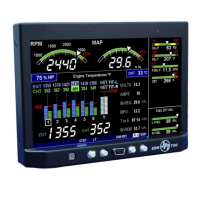
You can customize – change or re-order non-primary data channels in the non-primary portion of the EDM display
(non-primary values are displayed as text gauges without redline values – See Pilot’s Guide for more information).
Non-primary data channels are numbered from 1 up to 6, depending on your particular aircraft configuration and EDM
installation. To customize the LCD layout of non-primary data, follow these steps:
1. Enter Pilot Program Mode by holding the STEP and LF buttons for 5 seconds
2. When the EDM enters Program Mode, tap the button labeled “NEXT” until END? Is displayed in the scanner
message area.
3. Again hold the STEP and LF buttons until the EDM enters Factory Program Mode.
4. After “Factory” is displayed in the scanner message area, tap the NEXT button until CUSTOMIZE DISPLAY?
is displayed in the scanner message area.
5. Hold the STEP and LF buttons until the word ADJUST appears in the message area
6. You will see a prompt like “1=VOLTS” (or similar). This describes the data channel to be displayed in the first
non-primary data location.
7. Tap the “CHANGE” button to change to the next non-primary data channel. The new data channel selected
will be displayed in the
8. Tap the “NEXT” button to select the next non-primary location (such as 2=AMPS).
10. When all changes have been made, hold the STEP and LF buttons until the word SET appears in the
message area.
11. Tap the STEP button repeatedly until the message END? is displayed in the message area
12. Tap the button labeled YES to save changes and restart the EDM.
45. K Factor
The K factor is shown on the fuel flow transducer as a four-digit number, which is the number of pulses generated per
gallon of fuel flow. Before installing the transducer, write down the K factor here _________. To enter the number,
move the decimal point three places to the left. For example if the K factor on the fuel flow transducer is 29,123, enter
29.12 in the K factor parameter.



 To Next Page