Need help?
Do you have a question about the Juniper EX3300 and is the answer not in the manual?
Procedure for physically mounting the Juniper EX3300 switch onto two posts within a rack or cabinet.
Instructions for connecting the EX3300 switch to either AC or DC power sources.
Guide to performing the initial configuration of the EX3300 switch via the CLI.
Summary of essential safety warnings for installing and operating Juniper EX3300 switches.
Warning regarding the specific use of the attached power cable for the EX3300 product only.
Information on how to obtain technical support from Juniper Networks.
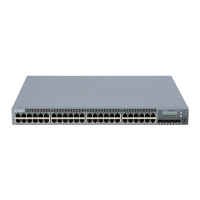
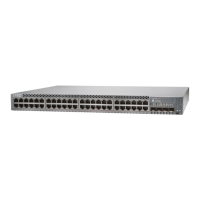
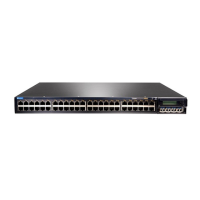
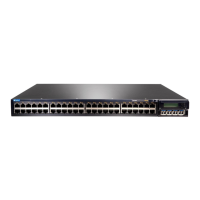
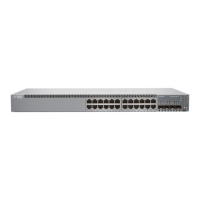
The Juniper Networks EX3300 Ethernet Switch is a robust networking device designed for efficient data transmission and network management. This Quick Start Guide outlines the essential steps for its installation, initial configuration, and ongoing maintenance, ensuring a smooth setup and reliable operation.
The EX3300 Ethernet Switch serves as a core component in a network infrastructure, facilitating the connection of multiple devices and managing data flow. It supports both AC and DC power systems, offering flexibility in deployment environments. The switch is designed to be mounted on a two-post rack, providing a secure and organized installation within a data center or network cabinet. Its primary function is to provide high-performance Ethernet connectivity, enabling seamless communication between connected devices. The initial configuration process, guided by the ezsetup script, allows for quick and straightforward setup of basic network parameters, including hostname, root password, and management options. The switch supports various management scenarios, including in-band management using a default or new VLAN, and out-of-band management through a dedicated management port, providing versatile options for network administrators to control and monitor the device.
The EX3300 offers several features that enhance its usability and integration into existing network environments. For installation, the switch requires two mounting brackets and eight mounting screws (provided), along with additional screws for securing the chassis to the rack (not provided). A Phillips (+) screwdriver (number 2, not provided) is needed for assembly. For AC systems, an AC power cord with an appropriate plug for the geographical location and a power cord retainer are provided, ensuring secure power connection. DC systems require DC power source cables (12-14 AWG, not provided) with ring lugs (Molex 0190700067 or equivalent, not provided) attached. Grounding the switch is crucial for safety and requires a grounding cable (minimum 14 AWG (2 mm²), minimum 90°C wire), a grounding lug (Panduit LCD6-14BH-L or equivalent), a pair of 10-32x.25-in. screws, and a pair of flat washers (none provided). An Ethernet cable with an RJ-45 connector is provided for network connectivity, and an RJ-45 to DB-9 serial port adapter is included for console access. A management host, such as a PC with an Ethernet port (not provided), is necessary for configuration.
The installation process emphasizes safety and efficiency. Two people are required to mount the EX3300 on a rack, ensuring proper handling and alignment. The guide advises placing the rack or cabinet in its permanent location with adequate clearance for airflow and maintenance. When mounting multiple units, the heaviest unit should be placed at the bottom, and subsequent units should be mounted from bottom to top in decreasing weight order. Mounting brackets are aligned along the front or rear of the side panels, depending on whether front-mounting or rear-mounting is desired, and then attached to the chassis with mounting screws. One person lifts the switch while the other secures it to the rack, aligning mounting bracket holes with threaded holes in the rack rail.
Connecting power to the EX3300 involves specific steps for both AC and DC systems. For AC power, the power cord retainer clip is inserted into holes next to the power cord inlet on the rear panel. The coupler end of the power cord is then inserted into the inlet, and the cord is pushed into the slot of the adjustment nut of the retainer. The nut is turned until it is snug against the base of the coupler, with the slot turned 90° from the top of the switch. If the AC power source outlet has a switch, it should be set to OFF (0) before inserting the power cord plug and then set to ON (|) after insertion. Grounding is required for DC systems and recommended for AC systems, with AC-powered switches gaining additional grounding when plugged into a grounded AC power outlet.
For DC power, the DC power supply has four terminals labeled A+, B+, A-, and B- on the rear panel, covered by a clear plastic cover. A warning emphasizes ensuring the input circuit breaker is open before connecting DC power. One end of the grounding cable is connected to a proper earth ground, and the grounding lug is secured over the earthing terminal on the rear panel with washers and screws. The plastic cover is removed, and screws on the terminals are saved. Power source cables are connected by screwing ring lugs attached to the cables to the appropriate terminals. For a single power source, the positive cable connects to A+ and the negative to A-. For two power sources, the first positive cable connects to A+ and negative to A-, while the second positive cable connects to B+ and negative to B-. After connections, the plastic cover is reattached, and the input circuit breaker is closed.
Initial configuration is performed via the console using the Command Line Interface (CLI). Before connecting, console server or PC parameters must be set: Baud rate to 9600, Flow control to None, Data to 8, Parity to None, Stop bits to 1, and DCD state to Disregard. The console port of the switch is connected to a laptop or PC using the RJ-45 to DB-9 serial port adapter. At the Junos OS shell prompt, root%, the ezsetup script is run. This script guides the user through setting the hostname, root password (which must be re-entered for confirmation), and enabling services like Telnet and SSH. A note clarifies that root login via Telnet is not allowed; other users must be configured for Telnet access, while root login is restricted to SSH.
Management options include in-band management using the default VLAN or creating a new VLAN, and out-of-band management. For a new VLAN, the user specifies the VLAN name, VLAN ID, management IP address, default gateway, and selects ports for the VLAN. For out-of-band management, only the management interface's IP address and default gateway are configured. Optional steps include specifying SNMP Read Community, Location, and Contact, and setting the system date and time by selecting a time zone. Finally, the configured parameters are displayed, and entering yes commits the configuration as the active configuration. The user can then log in with the CLI for further configuration.
The EX3300's design and documentation also incorporate several maintenance considerations to ensure its longevity and safe operation. The guide provides a summary of safety warnings, emphasizing that failure to observe them can result in personal injury or death. It mandates that only trained and qualified personnel install or replace switch components and perform only the procedures described in the quick start guide and EX Series documentation. Other services must be performed by authorized service personnel.
Before installation, users are advised to read planning instructions in the EX Series documentation to ensure the site meets power, environmental, and clearance requirements. Similarly, before connecting to a power source, installation instructions must be reviewed. The guide reiterates that installing an EX3300 requires two people for lifting and securing. If the rack has stabilizing devices, they must be installed before mounting or servicing the switch. When handling electrical components, they should always be placed component-side up on an antistatic mat or in an antistatic bag. It is crucial not to work on the switch or connect/disconnect cables during electrical storms. Before working on equipment connected to power lines, jewelry (rings, necklaces, watches) must be removed, as metal objects can heat up and cause burns or weld to terminals.
A specific warning for Japanese users regarding the power cable states that the provided cable is only for this product and should not be used for other electrical equipment. This highlights the importance of using appropriate accessories for safety and proper functioning. The comprehensive documentation available online at https://www.juniper.net/documentation/product/en_US/ex3300 serves as a vital resource for detailed information on installation, configuration, and troubleshooting, further supporting ongoing maintenance. Technical support is available via http://www.juniper.net/support/requesting-support.html, providing a channel for assistance with any issues that may arise during the device's operational life. These guidelines and resources collectively contribute to the safe and effective maintenance of the EX3300 Ethernet Switch.

 To Next Page


 General