Need help?
Do you have a question about the Juniper EX3200 and is the answer not in the manual?
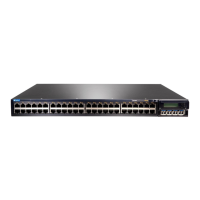
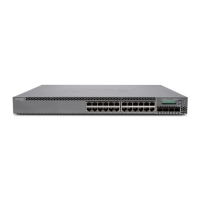
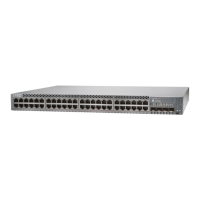
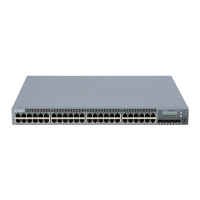
The Juniper Networks EX3200 and EX4200 Ethernet Switches are designed for network deployment, offering a range of features for connectivity, management, and maintenance. This quick start guide outlines the essential steps for installing and initially configuring these switches.
The EX3200 and EX4200 switches serve as foundational components in a network infrastructure, facilitating data transfer and connectivity. They are designed to be integrated into existing rack or cabinet setups, providing a robust platform for network operations. The switches support both AC and DC power configurations, offering flexibility in deployment environments. They are capable of operating as standalone units or as part of a Virtual Chassis, allowing for scalable network designs. The initial setup process guides users through basic configuration steps, including hostname assignment, password setting, time zone synchronization, and management interface setup (in-band or out-of-band). This ensures the switch is ready for more advanced network configurations and integration into a larger system. The switches are also designed with hot-removable and hot-insertable field-replaceable units (FRUs) for power supplies and fan trays, which enhances their operational continuity and ease of maintenance.
The EX3200 and EX4200 switches offer several features that streamline their usage and integration into a network. The installation process is detailed, starting with the physical mounting of the switch into a 19-inch rack or cabinet. This involves securing mounting brackets to the chassis and then attaching the switch to the rack rails using screws. For optimal rack stability, it is recommended to mount heavier units at the bottom and lighter units above them. The switch weighs 18 lb (8.2 kg), requiring two people for safe installation: one to lift and position the switch, and another to secure it.
Power connectivity is a critical aspect of usage. For AC-powered switches, the process involves inserting the power cord retainer clip, connecting the power cord to the AC appliance inlet, and then securing it with the adjustment nut. The power source outlet should be in the OFF position before plugging in the power cord, and then switched to ON. For DC-powered switches, the installation requires connecting power source cables to the designated terminals (A+, B+, A-, B-), with jumpers pre-installed for single power source connections. If connecting to two power sources, the jumpers must be removed. It is crucial to ensure the input circuit breaker is open during DC power cable installation to prevent electrical hazards. Once connected, the LEDs on the power supply should illuminate green, indicating steady operation.
Initial configuration is facilitated through an EZSetup mode, accessible via the LCD panel's Menu and Enter buttons. This mode allows for quick setup within a 10-minute window. During EZSetup, the switch configures its ge-0/0/0 interface as a DHCP server, assigning an IP address to the connected management PC. Users can then access the J-Web interface via a web browser to complete the basic settings. These settings include defining the hostname, setting a password, configuring the time zone, and synchronizing the date and time. Management options can be selected, including in-band management using the default VLAN or a newly created VLAN, or out-of-band management through a dedicated management port. The J-Web interface also allows for enabling Telnet, SSH, and SNMP, with options to configure SNMP community, location, and contact information. After committing the configuration, connectivity between the PC and the switch might be temporarily lost, requiring an IP address release and renewal or re-insertion of the Ethernet cable.
The EX3200 and EX4200 switches are designed with maintenance in mind, incorporating features that simplify servicing and ensure continuous operation. A key maintenance feature is the hot-removable and hot-insertable nature of the power supply and fan tray modules. This means these components can be replaced without powering off the switch or interrupting its functions, minimizing downtime and enhancing system availability.
Installing a power supply, if not already present, involves removing it from its packaging, pushing down the locking lever, sliding the power supply into its slot on the rear panel until fully seated, and then pushing the locking lever up to secure it. Care must be taken to avoid touching sensitive components during this process.
Similarly, installing a fan tray involves removing it from its bag, aligning it with the fan tray guides on the rear panel, sliding it in until fully seated, and then tightening the captive screws. A crucial caution for fan tray installation is to ensure the fans face downward. The EX4200 models specifically support power supplies and fan trays with an AIR OUT airflow direction.
Beyond physical component replacement, the switches emphasize the importance of proper registration and documentation. Power supplies and fan trays for certain EX4200 models (EX4200-24F-S, EX4200-48T-S) are not shipped by default and must be ordered separately. Users are advised to register product serial numbers on the Juniper Networks website and update their installation base data. This is critical for ensuring eligibility for hardware replacement service-level agreements, as Juniper Networks will not be accountable for products without registered serial numbers or accurate installation base data.
Safety is paramount in maintenance. The guide includes a summary of safety warnings, emphasizing that only trained and qualified personnel should install or replace switch components. All procedures should adhere to the quick start guide and EX Series documentation. Before any installation or maintenance, it is essential to read planning instructions to ensure the site meets power, environmental, and clearance requirements. Prior to connecting to a power source, installation instructions must be reviewed. When working with electrical components, an electrostatic discharge (ESD) grounding strap should be used, and components should be placed component-side up on an antistatic mat or in an antistatic bag. Jewelry should be removed when working on equipment connected to power lines to prevent burns or welding of metal objects to terminals. It is also advised not to work on the switch or connect/disconnect cables during electrical storms. The Japanese power cable warning specifically states that the provided power cable is for the product only and should not be used with other electrical devices. For technical support and further assistance, Juniper Networks provides resources through their support website.
 General
| Model | EX3200 |
|---|---|
| Rack Units | 1U |
| Layer Support | Layer 2 and Layer 3 |
| Junos OS | Yes |
| Maximum VLANs | 4093 |
| DRAM | 512 MB |
| Flash Memory | 256 MB |
| Ports | 24 or 48 |
| Uplink Ports | 4 SFP |
| Power Supply | AC or DC |
| MAC Address Table Size | 16, 000 entries |
| Dimensions (W x D x H) | 17.4 x 14.4 x 1.7 inches |
| Weight | 12.3 lb (5.6 kg) |
| Operating Temperature | 0°C to 40°C |
| Operating Humidity | 10% to 85% (non-condensing) |

 To Next Page