EasyManua.ls Logo

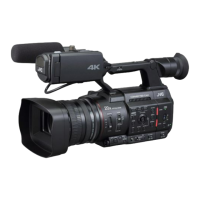
JVC Connected Cam GY-HC550U - User Manual

JVC Connected Cam GY-HC550U
252 pages
Print Icon
To Next Page IconTo Next Page
Loading...
.
4K MEMORY CARD CAMERA RECORDER
GY-HC550U/GY-HC550E/
GY-HC500U/GY-HC500E/GY-HC500SPCU
INSTRUCTIONS
.
.
Wireless LAN antenna is not included in GY-HC500U/GY-HC500E/GY-HC500SPCU.
The specifications and appearance of this product are subject to changes for further improvement
without prior notice.
Please check the latest version of the INSTRUCTIONS from the following Mobile User Guide. You can
also download the PDF from the Mobile User Guide.
Mobile User Guide
When you are outside, you can refer to the instructions from your Android phone or iPhone.
http://manual3.jvckenwood.com/pro/mobile/global/
You can view the Mobile User Guide using the browser on your Android phone or iPhone.
Thank you for purchasing this product.
Before operating this unit, please read the
instructions carefully to ensure the best possible
performance.
In this manual, each model number is described
without the last letter (U/E) which means the
shipping destination.
(U: for USA and Canada, E: for Europe)
Only “U” models (GY-HC550U/GY-HC500U/
GY-HC500SPCU) have been evaluated by UL.
Please read the following before getting started:
For Customer Use:
Model No.
Serial No.
Enter below the Serial No. which is located
on the body.
Retain this information for future reference.
GY-HC550U/GY-HC500U/GY-HC500SPCU
IM 1.01
B5A-2966-00

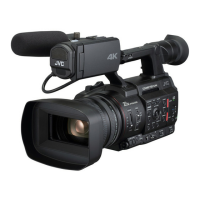
Table of Contents

Questions and Answers

  • E
    Erika CareyAug 15, 2025
    What to do if my JVC Camcorder is unable to start recording?
    • A
      Adam MataAug 15, 2025
      If your JVC Camcorder is unable to start recording, consider the following: * Check if the record trigger button/lock switch on the handle is turned on. * Ensure that the write-protect switch of the SD card is turned off. * Verify that the camera recorder is set to the Camera mode using the [MODE] selection button. * Confirm that the SD card inserted is compatible with the recording format.
  • A
    Angela PughAug 18, 2025
    How to fix JVC Camcorder when power does not turn on?
    • J
      Jeffrey AguilarAug 18, 2025
      If your JVC Camcorder power does not turn on, please check the following: * Ensure that the AC adapter is properly connected. * Verify that the battery is charged. * If you've just turned the power off, wait at least 5 seconds before turning it on again.
  • I
    ifletcherAug 21, 2025
    What to do if the clips cannot be uploaded to the FTP server from my JVC Connected Cam GY-HC550U?
    • P
      Peter BaldwinAug 21, 2025
      If the clips cannot be uploaded to the FTP server from your JVC Camcorder, adjust the [Clip Server] settings. If a file size limit is set in the FTP server, set the size limit such that it is larger than the maximum size of the recorded clip. Take necessary action as described in “[List of FTP Transfer Errors] (A P 232)”.
  • R
    Rhonda MillerAug 25, 2025
    What to do if the wireless LAN is disconnected on JVC Camcorder?
    • K
      Kenneth GrahamAug 26, 2025
      If the wireless LAN is disconnected on your JVC Camcorder, it may be due to the environment. Try changing the usage environment or connecting via wired LAN.
  • Z
    Zachary RamirezAug 28, 2025
    How to fix JVC Connected Cam GY-HC550U when SD card cannot be initialized (formatted)?
    • J
      jonathanfoxAug 28, 2025
      If the SD card cannot be initialized (formatted) on your JVC Camcorder, make sure that the write-protect switch of the SD card is turned off.
  • C
    Cindy DominguezAug 31, 2025
    Why the images and audio sound are choppy during live streaming with my JVC Connected Cam GY-HC550U Camcorder?
    • R
      Regina WrightAug 31, 2025
      If the images and audio sound during live streaming are choppy on your JVC Camcorder, it could be due to the network connection. Depending on the connection method to the network and connection environment, streaming may not be possible with the encoding bit rate specified. Please reduce the encoding bit rate.
  • C
    Cathy RobertsSep 3, 2025
    What to do if the [CH1/CH2] recording level adjustment knob does not work on my JVC Camcorder?
    • G
      griffindonaldSep 3, 2025
      If the [CH1/CH2] recording level adjustment knob does not work on your JVC Camcorder, check if the [CH1/CH2 AUTO/MANUAL] switch is set to “AUTO”. Also, check if the [FULL AUTO] switch is set to “ON”, and [A/V Set] B [Audio Set] B [FULL AUTO] set to “Auto”.
  • M
    Margaret ChanSep 7, 2025
    Why does the battery alarm appear even after loading a charged battery on my JVC Connected Cam GY-HC550U Camcorder?
    • D
      David Richard Jr.Sep 7, 2025
      If the battery alarm appears even after loading a charged battery on your JVC Camcorder, the battery may be too old.
  • N
    newmanadamSep 10, 2025
    Why is the camera image not output on the LCD monitor and viewfinder screen of my JVC Connected Cam GY-HC550U Camcorder?
    • R
      Richard WoodsSep 12, 2025
      If the camera image is not output on the LCD monitor and viewfinder screen of your JVC Camcorder, make sure the camera recorder is set to the Camera mode using the [MODE] selection button. Also, note that the LCD monitor and viewfinder screens cannot be displayed at the same time. To display the viewfinder screen, close the LCD monitor or press and hold the [DISPLAY] button.

JVC Connected Cam GY-HC550U Specifications

General IconGeneral
Camera TypeProfessional Camcorder
ND FilterClear, 1/4, 1/16, 1/64
Video OutputHDMI, SDI
Recording FormatMP4
Lens20x Optical Zoom
Video Resolution3840 x 2160 (UHD)
BitrateUp to 150 Mbps
Audio RecordingLinear PCM
Audio InputXLR, 3.5 mm
Display3.5-inch LCD
Viewfinder0.24-inch
Storage MediaSD/SDHC/SDXC
ConnectivityUSB
Wi-Fi ConnectivityYes
Effective PixelsApprox. 8.29 Megapixels

Related product manuals