Filename [DR-MV1SE_04Name.fm]
Masterpage:Left+
20 EN
Page 20 March 11, 2004 7:27 pm
INITIAL SETTINGS
On-screen Language Set
This unit offers you the choice to view on-screen messages in 10
different languages. Though Auto Set Up selects the language
automatically (墌 pg. 19), you can change the language setting
manually as required.
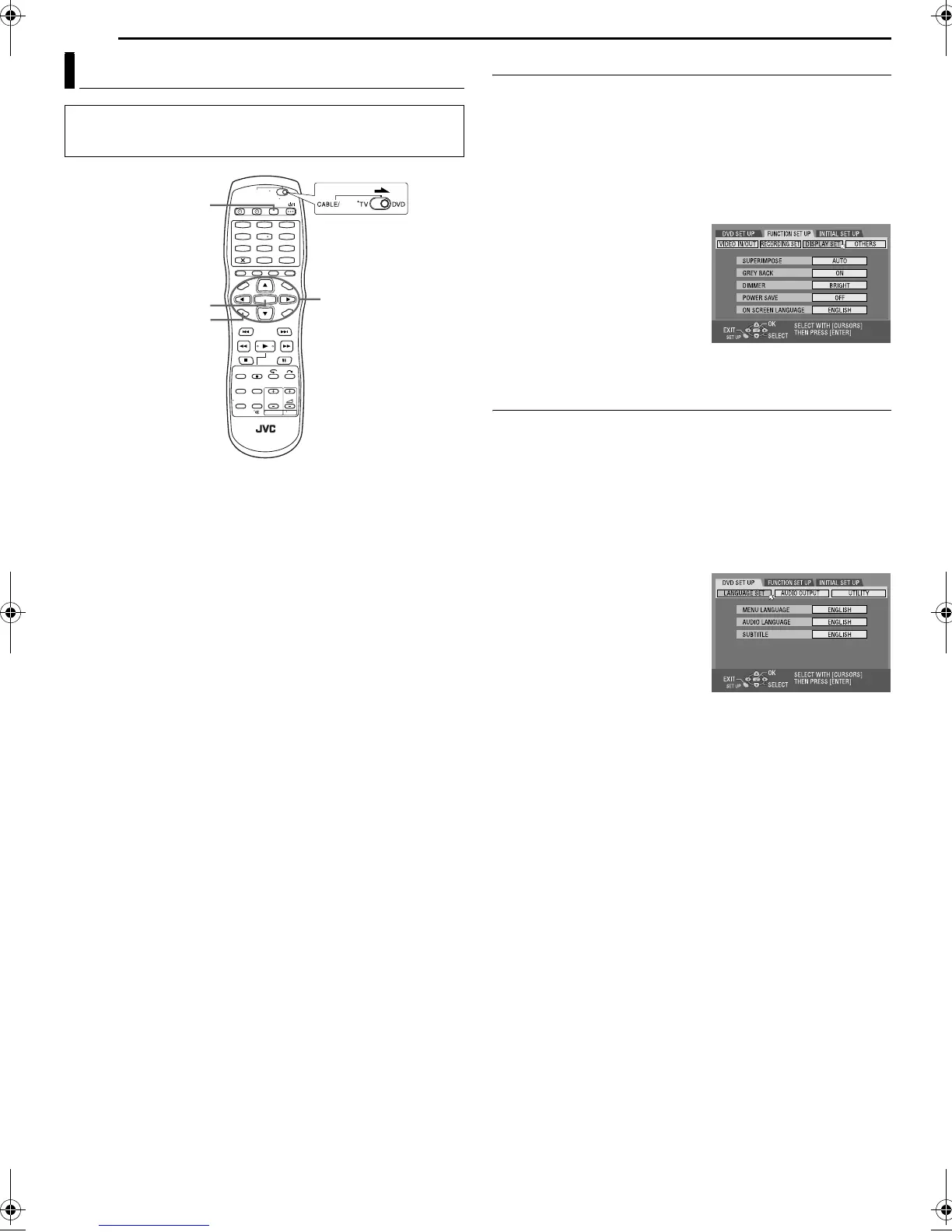
1 Press VCR/DVD repeatedly so that the DVD lamp lights up on
the unit.
2 Press SET UP to access the Main Menu screen.
3 Press we to select “FUNCTION SET UP”, then press ENTER.
4 Press we to select “DISPLAY
SET”, then press ENTER.
5 Press rt to select “ON
SCREEN LANGUAGE”, then
press ENTER.
6 Press rt to select your
desired language, then press
ENTER.
7 Press SET UP to complete the setting.
Menu/Audio/Subtitle Language Set (DVD deck only)
Some DVD discs contain the DVD menu display, audio and
subtitles in multiple languages. With these discs, you can set the
default language as you like.
● The procedure shows how to set “MENU LANGUAGE” as an
example.
1 Press VCR/DVD repeatedly so that the DVD lamp lights up on
the unit.
2 Press SET UP to access the Main Menu screen.
3 Press we to select “DVD SET UP”, then press ENTER.
4 Press we to select
“LANGUAGE SET”, then press
ENTER.
5 Press rt to select “MENU
LANGUAGE”, then press ENTER.
6 Press rt to select your
desired language, then press
ENTER.
● See “Language Code List”
(
墌 pg. 96).
7 Press SET UP to complete the setting.
NOTE:
When the selected language is not available on the disc, the disc’s
default menu language is played back.
Language
● Turn on the unit.
● Turn on the TV and select the AV mode.
● Slide the TV/CABLE/SAT/DVD switch to DVD.
1
4
7
2
5
8
0
3
6
9
rtw e
ENTER
VCR/DVD
SET UP
SAT
DR-MV1SE_00.book Page 20 Thursday, March 11, 2004 7:28 PM


 To Next Page