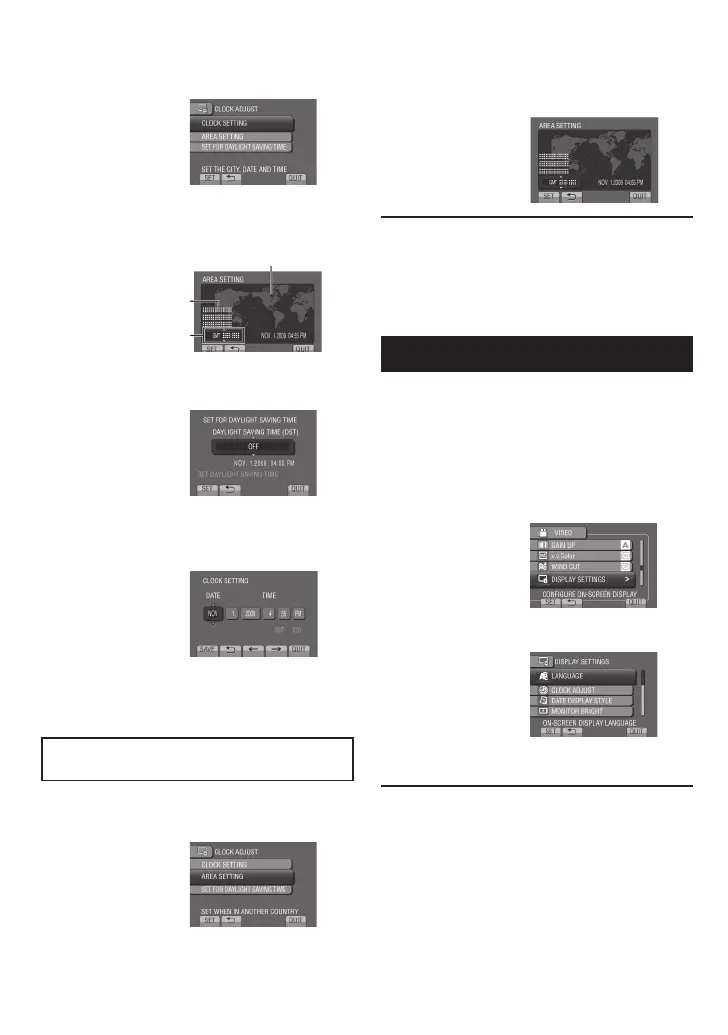
5 Select [CLOCK SETTING].
6 Select the city closest to the area
where you use the camcorder.
7 Select [ON] if daylight saving time is
effective.
8 Set the date and time.
Change the setting by using the touch
sensor and select [
&
] to set.
9 Select [SAVE].
To reset the setting, select [QUIT].
Setting the clock to local time when
traveling
After performing steps 1-4 (Z p. 15)
5 Select [AREA SETTING].
6 Select the city closest to the area you
are traveling.
To return to the previous screen
Select @.
To quit the screen
Select [QUIT].
Language Setting
The language on the display can be changed.
1 Open the LCD monitor to turn on the
camcorder.
2 Touch MENU.
3 Select [DISPLAY SETTINGS].
4 Select [LANGUAGE].
5 Select the desired language.
To return to the previous screen
Select @.
To quit the screen
Select [QUIT].
Necessary Settings before Use (Continued)
Principal city of the
selected area
Time difference to GMT
Selected area is highlighted



 To Next Page