ENGLISH
9
Data Size: B6L (182 mm x 128 mm)
Book Size: B6L (182 mm x 128 mm)
CD/USB/ANDROID
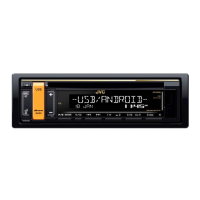
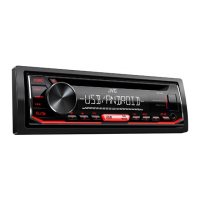
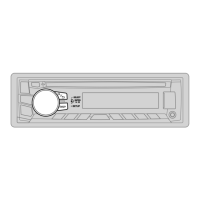
For key layout on the faceplate, see page3 or page4.
To directly select USB/ANDROID source, press
.
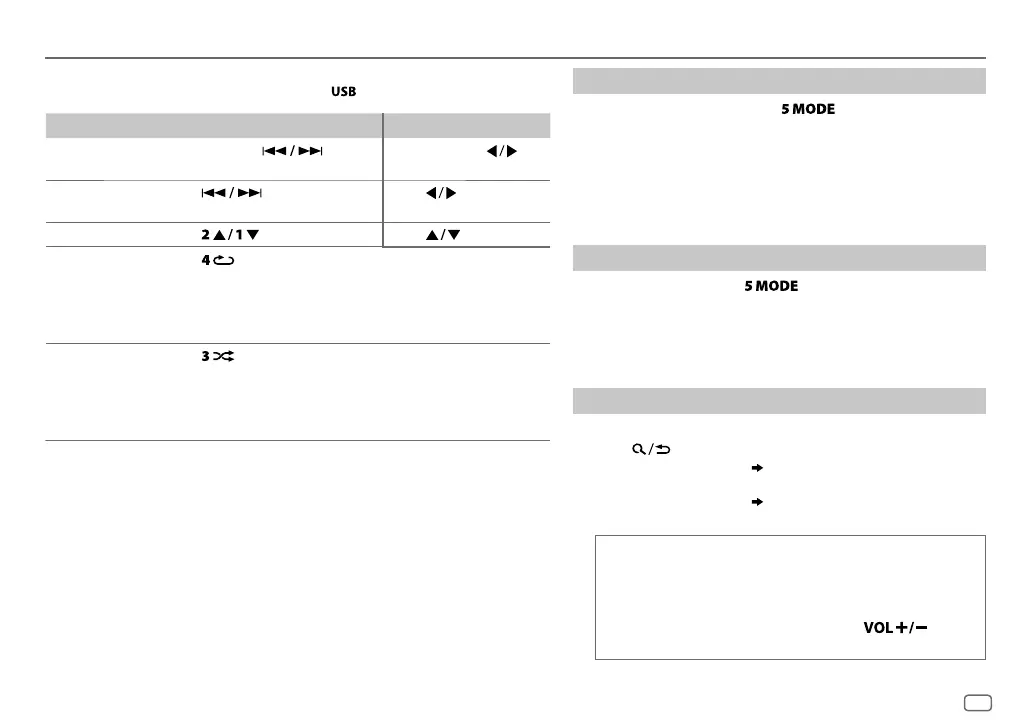
To On the faceplate On the remote control
Reverse/
Fast-forward
*
3
Press and hold .
Press and hold
.
Select a track/
file
Press
.
Press
.
Select a folder
*
4
Press . Press .
Repeat play
*
3
Press repeatedly.
TRACK REPEAT
/
ALL REPEAT
: Audio CD
TRACK REPEAT
/
FOLDER REPEAT
/
ALL REPEAT
: MP3/WMA/WAV/
FLAC file
ONE REPEAT
/
ALL REPEAT
/
REPEAT OFF
: ANDROID
Random play
*
3
Press repeatedly.
ALL RANDOM
/
RANDOM OFF
: Audio CD
FOLDER RANDOM
/
ALL RANDOM
/
RANDOM OFF
: MP3/WMA/WAV/
FLAC file
SONG RANDOM
/
ALL RANDOM
/
RANDOM OFF
: ANDROID
*
3
For ANDROID: Applicable only when
[AUTO MODE]
is selected.
*
4
For CD: Only for MP3/WMA files. This does not work for ANDROID.
Select control mode
While in ANDROID source, press repeatedly.
AUTO MODE
: Control Android device from this unit via JVC MUSIC
PLAY application installed in the Android device.
AUDIO MODE
: Control Android device using the Android device
itself via other media player applications installed
in the Android device. However, you can still play/
pause or file skip from this unit.
Select music drive
While in USB source, press repeatedly.
Stored songs in the following drive will be played back.
• Selected internal or external memory of a smartphone (Mass
Storage Class).
• Selected drive of a multiple drives device.
Select a file from a folder/list
For ANDROID, applicable only when
[AUTO MODE]
is selected.
1 Press .
2 Perform ‘select an item ( 3 or 4)’ operation to select
a folder/list.
3 Perform ‘select an item ( 3 or 4)’ operation to select
a file.
Quick search
If you have many files, you can search through them quickly.
Perform the following operation to browse through the list
quickly.
KD-R498
/
KD-R496
/
KD-R491
: Press and hold
KD-R492
: Turn the volume knob quickly
JS_JVC_KD_R498_M_EN_2.indd 9JS_JVC_KD_R498_M_EN_2.indd 9 7/10/2017 3:20:08 PM7/10/2017 3:20:08 PM


 To Next Page