To Next Page


A
Anthony AlvarezAug 30, 2025
What to do if “NO DISC” appears on JVC KD-R526?
- Aabigail67Aug 30, 2025
If your JVC Car Receiver displays “NO DISC”, insert a playable disc into the loading slot.

What to do if “NO DISC” appears on JVC KD-R526?
If your JVC Car Receiver displays “NO DISC”, insert a playable disc into the loading slot.
Why does “READING” keep flashing on JVC Car Receiver?
If “READING” keeps flashing on the display of your JVC Car Receiver, a longer readout time is required. Do not use too many hierarchical levels and folders. You can also try turning the power off and on again, or reattaching the USB device.
Why sound is sometimes interrupted while listening to an external component connected to the auxiliary input jack of JVC KD-R526?
If the sound is sometimes interrupted while listening to an external component connected to the auxiliary input jack on your JVC Car Receiver, ensure that the recommended stereo mini plug is used for connection.
Why the sound is distorted on JVC Car Receiver?
If the sound is distorted on your JVC Car Receiver, deactivate the equalizer either on the unit or on the iPod/iPhone.
What to do if “NOT SUPPORT” appears on JVC KD-R526?
If “NOT SUPPORT” appears and the track skips on your JVC Car Receiver, check whether the track is a playable file format.
Why CD-R/CD-RW cannot be played back and track cannot be skipped on JVC KD-R526?
If CD-R/CD-RW discs cannot be played back, and tracks cannot be skipped on your JVC Car Receiver, insert a finalized CD-R/CD-RW. Finalize it with the component you used for recording.
Why “CANNOT PLAY” flashes / “NO USB” appears / unit cannot detect USB device on JVC Car Receiver?
If “CANNOT PLAY” flashes, “NO USB” appears, or the unit cannot detect the USB device on your JVC Car Receiver, check whether the connected USB device is compatible with this unit and try reattaching the USB device.
Why is sound interrupted when using auxiliary input on JVC Car Receiver?
If the sound is sometimes interrupted while listening to an external component connected to the auxiliary input jack on your JVC Car Receiver, ensure that you are using the recommended stereo mini plug for connection.
How to fix distorted sound on JVC Car Receiver?
If the sound from your JVC Car Receiver is distorted, deactivate the equalizer either on the unit itself or on the connected iPod/iPhone.
Why is sound interrupted while playing a track on JVC KD-R526?
If the sound is sometimes interrupted while playing a track on your JVC Car Receiver, it may be due to improperly copied tracks. Copy the tracks again into the USB device and try again.
Information on Class 1 Laser Product safety and handling.
Advisories for safe operation while driving, including volume adjustments.
Precautions for DualDisc and digital sources to prevent speaker damage.
Instructions for removing and installing the detachable control panel.
Procedures for resetting the unit and forcibly ejecting a disc.
Guidelines for cleaning the unit and its connectors.
Steps to disable the automatic display demonstration.
Instructions for setting the unit's internal clock time.
Guide for using the remote controller, including battery replacement.
Information on playable discs and proper handling procedures.
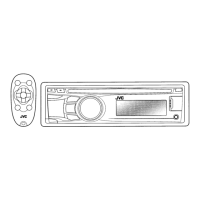
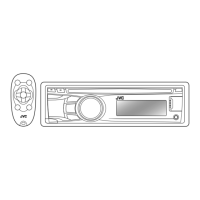
Overview of key buttons and their functions on the main unit and remote.
Tips for enhancing FM signal quality and stereo effect.
Manual and automatic methods for storing favorite radio stations.
How to recall stored radio stations using the unit or remote.
Procedures for pausing, stopping, and ejecting discs.
Navigation methods for MP3/WMA discs, including fast search.
Options for repeat, shuffle, and random playback of disc tracks.
Details on connecting portable audio players via F-AUX and R-AUX.
Guide for connecting a Bluetooth device via the rear auxiliary input.
Instructions for playing music files from USB mass storage devices.
Important warnings and limitations when using USB devices.
Steps for connecting and playing music from an iPod or iPhone.
Navigating music libraries and selecting desired tracks or content.
Available playback modes for music content from iPod/iPhone.
Choosing predefined equalizer settings for different music genres.
Saving personalized equalizer and tone adjustments as a custom mode.
General guide for navigating and operating the unit's menu system.
Customizing button and display illumination colors for day and night.
Adjusting display brightness, scrolling information, and dimmer functions.
Configuring audio parameters like subwoofer, HPF, loudness, and volume adjustment.
Adjusting tuner behavior and selecting input sources like iPod or Bluetooth.
Solutions for common problems like no sound, unit not working, or radio interference.
Remedies for disc errors, playback interruptions, and incorrect character display.
Solutions for USB device detection, playback errors, and iPod/iPhone issues.
Details on supported file formats, bit rates, and limitations for MP3/WMA.
Steps for registering and connecting Bluetooth devices to the unit.
How to handle calls and play audio via Bluetooth connection.
Detailed technical data for audio amplifier, tuner, and CD player sections.
Specifications for USB standard, general operating parameters, and compliance.
Critical safety warnings and power/speaker connection precautions during installation.
Step-by-step guide for mounting the unit into the vehicle's dashboard.
Diagrams and instructions for connecting the unit's power, speakers, and accessories.
Guide for connecting Bluetooth adapters and portable audio players.
 General
| Display Type | LCD |
|---|---|
| CD Player | Yes |
| MP3 Playback | Yes |
| WMA Playback | Yes |
| Remote Control | Yes |
| Steering Wheel Control Compatible | Yes |
| Channels | 4 |
| RMS Power | 22W x 4 (RMS) |
| USB Input | Yes |
| Aux Input | Yes |
| Preset EQ | Yes |
| Power Output | MOS-FET 50W x 4 |