
 To Next Page
J
James TaylorSep 9, 2025
What does “CHK DEVICE” mean on my JVC Car Receiver?
- TTerry DavisSep 9, 2025
If “CHK DEVICE” appears on your JVC Car Receiver, check the Pandora application on your device.

What does “CHK DEVICE” mean on my JVC Car Receiver?
If “CHK DEVICE” appears on your JVC Car Receiver, check the Pandora application on your device.
What does “ADD ERROR” mean on my JVC KD-SR72 Car Receiver?
If “ADD ERROR” appears on your JVC Car Receiver when creating a new station, check the Pandora application on your device.
What does “NOT CONNCTD” mean on my JVC KD-SR72 Car Receiver?
If “NOT CONNCTD” appears on your JVC Car Receiver, it means that linking to the application is impossible.
How to fix no sound on my JVC Car Receiver?
If you cannot hear any sound from your JVC Car Receiver, first, adjust the volume to the optimum level. If that doesn't work, check the cords and connections to ensure they are properly connected.
What does “CONNECT ERR” mean on JVC Car Receiver?
If “CONNECT ERR” appears on your JVC Car Receiver, it indicates that the communication is unstable.
What does “IN DISC” mean on JVC KD-SR72?
If “IN DISC” appears on your JVC Car Receiver, ensure that nothing is blocking the loading slot when you eject the disc.
What does “MISWIRING CHECK” mean on my JVC KD-SR72 Car Receiver?
If “MISWIRING CHECK” appears on your JVC Car Receiver, turn the power off, then check to be sure the terminals WIRING THEN PWR ON of the speaker wires are insulated properly. Turn the power on again.
Why can't I playback at [AUTO MODE] on my JVC Car Receiver?
If you cannot playback at [AUTO MODE] on your JVC Car Receiver, ensure that the JVC MUSIC PLAY APP is installed on the Android device. Try reconnecting the Android device and selecting the appropriate control mode. If the problem persists, the connected Android device may not support [AUTO MODE].
How to stop “READING” from flashing on my JVC Car Receiver?
If “READING” keeps flashing on your JVC Car Receiver, avoid using too many hierarchical levels and folders. Additionally, try reloading the disc or reattaching the USB device.
Why is my iPod/iPhone not working with my JVC KD-SR72 Car Receiver?
If your iPod/iPhone does not turn on or work with the JVC Car Receiver, check the connection between the unit and the iPod/iPhone. If the issue persists, detach and reset the iPod/iPhone using a hard reset.
Covers warnings, cautions, general safety, and remote control handling for safe operation.
Explains how operations are explained, language used, and references.
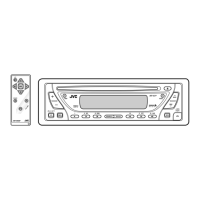
Overview of the faceplate and remote control layout and functions.
Guide to resetting the unit and performing basic operations like power and volume.
Steps to cancel demonstration mode, set the clock, and configure basic settings.
How to search for and select radio stations.
Storing and selecting favorite radio stations.
Setting the unit to turn on the radio at a specific time.
SSM, IF BAND, MONO, AREA, PTY SEARCH for enhanced radio reception.
Connecting portable audio players and Bluetooth devices for audio playback.
Connecting USB, iPod/iPhone, and Android devices.
Managing playback features like repeat, shuffle, and track selection.
Selecting control modes and navigating media files and folders.
Adjusting playback speed for audiobooks on iPod/iPhone.
Installing the Pandora app and starting music playback.
Creating, saving, searching, and bookmarking Pandora stations.
Installing the iHeart Link app and starting music playback.
Searching for stations and skipping cities alphabetically.
Selecting and customizing sound equalizer presets.
Adjusting sound levels using EASY EQ and PRO EQ for personalized audio.
Adjusting Bass Boost, Loudness, Subwoofer output, and digital track expansion.
Configuring speaker output and telephone muting.
Setting speaker output based on connection type (lineout or speaker leads).
Adjusting display dimmer and brightness for day and night.
Controlling information scrolling and color customization for display zones.
Cleaning the unit, connector, and proper handling of discs.
Details on playable files, USB devices, iPod/iPhone, and Android compatibility.
Information on Pandora and iHeartRadio services and their limitations.
How to cycle through display information for various sources.
Solutions for common problems like no sound, wiring errors, and poor radio reception.
Troubleshooting for CD, USB, iPod, and Android playback problems.
Solutions for Pandora and iHeartRadio connection and error messages.
Solutions for specific iHeartRadio errors and general troubleshooting advice.
Technical details for the radio tuner and CD player components.
Technical details for USB, auxiliary inputs, and audio output capabilities.
Overall unit specifications including voltage, current, dimensions, and weight.
Steps for installing the unit in-dash or without a mounting sleeve.
How to remove the unit and the basic installation procedure overview.
Detailed guide for connecting the unit's wiring harness to the vehicle's electrical system.
List of components included for installation.
Laser product safety, hazardous radiation exposure, and general cautions.
FCC warnings and notes regarding radio frequency energy and interference.
Guidelines for disposing of electrical equipment and batteries responsibly.
 General
| Max Power Output | 50W x 4 |
|---|---|
| RMS Power | 22W x 4 |
| MP3 Playback | Yes |
| WMA Playback | Yes |
| Display Type | LCD |
| Pre-Output Voltage | 2.5V |
| Frequency Response | 20Hz - 20kHz |
| Channels | 4 |
| Rotary Encoder Volume | Yes |
| Detachable Face Security | Yes |
| Wireless Remote Control | Yes |
| Tuner Type | AM/FM |
| USB Port | Yes |
| MP3 Bitrate | 32kbps - 320kbps |
| WMA Bitrate | 32-192kbps |
| AM Frequency Range | 530kHz - 1700kHz |
| AUX Input | Yes |
| Preset EQ | Yes |