8 EN
TW
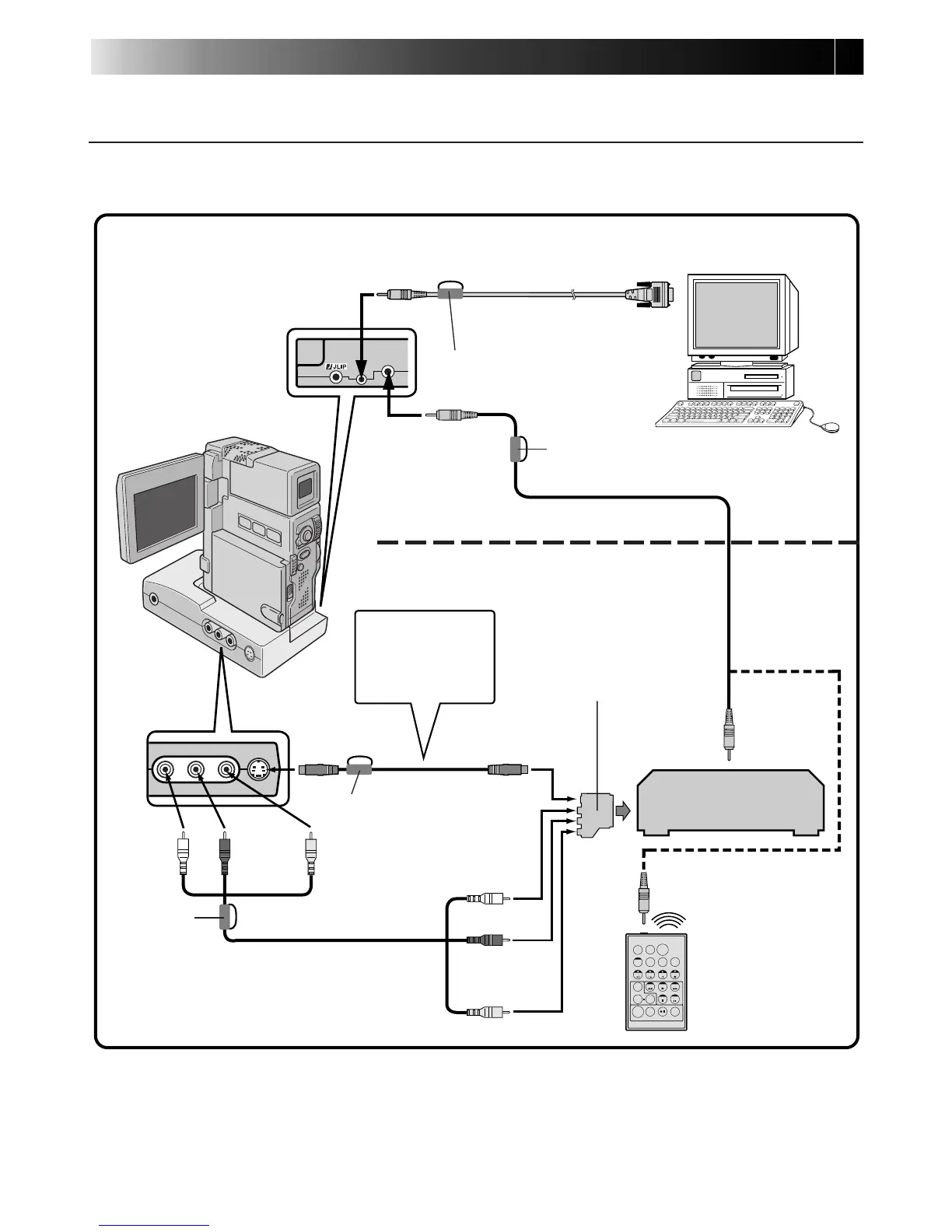
When JLIP Video Producer is used:
WHEN CONNECTED TO A VCR NOT EQUIPPED WITH A
JLIP JACK
When using a VCR not equipped with a JLIP jack, set your VCR brand using the remote control
unit provided with the video camera, then perform editing using the remote control.
When JLIP Video Capture is used:
To PC jack
To S OUT
jack
S-VIDEO cable
(provided)
AUDIO/VIDEO cable
(provided)
Connect here if the
recording deck doesn’t
have a remote pause jack.
Editing cable (provided)
Core filter
To EDIT jack
PC connection cable
(provided)
PC
To COM port
(RS-232C)
Connect this if
the video unit
has an S-Video
input jack.
Video Camera
VCR
(Recording deck)
Remote control unit
(provided)
To S-VIDEO
input jack
White to
AUDIO L
Red to
AUDIO R
Yellow to
VIDEO
If your VCR has a SCART
connector, use the cable
adapter (PAL only).
Core filter
To remote
pause jack
Yellow to VIDEO
Red to
AUDIO R
White to
AUDIO L
CONNECTIONS (cont.)
Core filter
Core filter



 To Next Page