EasyManua.ls Logo

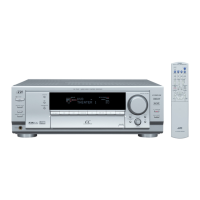
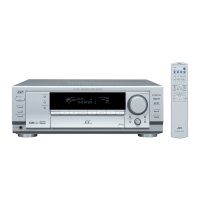
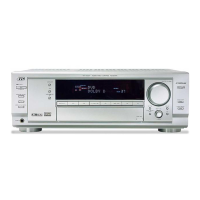
JVC RX-7032VSL - User Manual

JVC RX-7032VSL
114 pages
Print Icon
To Next Page IconTo Next Page
Loading...
For Customer Use:
Enter below the Model No. and Serial
No. which are located either on the rear,
bottom or side of the cabinet. Retain this
information for future reference.
Model No.
Serial No.
LVT1007-001A[J]
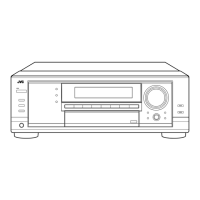
RX-8030VBK
RX-7030VBK/RX-7032VSL
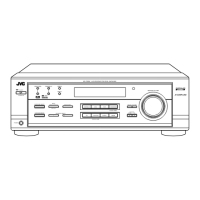
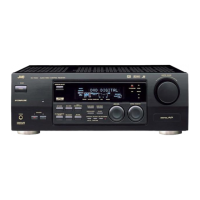
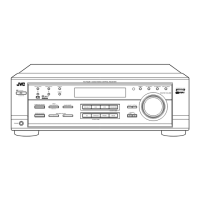
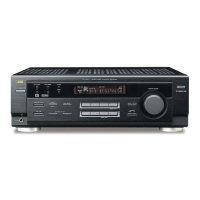
AUDIO/VIDEO CONTROL RECEIVER
INSTRUCTIONS
231
564
89
7/P
0
+10
MENU
ENTER
CONTROL
A/V CONTROL RECEIVER
10/0
(For RX-8030VBK)
(For RX-8030VBK)
COVER_8030&7030[J]f.pm6 03.2.13, 4:39 PM1

Table of Contents

Other manuals for JVC RX-7032VSL

Questions and Answers

  • K
    Kimberly AguilarSep 23, 2025
    How to fix JVC Processor display that won't light up?
    • L
      Lindsey MeyersSep 23, 2025
      If the display on your JVC Processor does not light up, it is possible that the power cord is not plugged in. Ensure that the power cord is securely plugged into an AC outlet.
  • L
    Laura GuzmanAug 25, 2025
    Why does the remote control not work with my JVC Receiver?
    • E
      Emily HallAug 25, 2025
      If the remote control for your JVC Receiver isn't working, there might be an obstruction blocking the signal between the remote sensor on the receiver and the remote control. Remove any obstructions. Also, check the batteries in the remote and replace them if they are weak.
  • W
    wayne02Aug 25, 2025
    What to do if the remote control does not work as you intend on JVC RX-7032VSL?
    • A
      Adam CampbellAug 26, 2025
      If the remote control for your JVC Receiver isn't working as you intend, an incorrect remote control operation mode may be selected. Select the correct remote control operation mode.
  • D
    Darren LeeAug 26, 2025
    What to do if my JVC Stereo Receiver shows OVERLOAD?
    • T
      teresajonesAug 27, 2025
      If your JVC Stereo Receiver displays 'OVERLOAD', switch the power off and then on again. To prevent this in the future, reduce the volume level by at least 10 steps. If the volume was already low (between 0 and 9), set it to 0.
  • A
    Andrew JohnsonAug 27, 2025
    What to do if "OVERLOAD" starts flashing on my JVC Receiver?
    • T
      Tina RamirezAug 27, 2025
      If the JVC Receiver displays "OVERLOAD" and starts flashing, it means the speakers are overloaded. This can be due to high volume or a short circuit in the speaker terminals. To resolve this: 1. Press STANDBY/ON on the front panel to turn off the receiver. 2. Stop the playback source. 3. Turn the receiver on again and adjust the volume. If the issue persists after checking the speaker wiring, unplug the AC power cord, then plug it back in. If the wiring is not short-circuited, contact your dealer.
  • J
    Jacqueline BakerSep 14, 2025
    What to do if JVC Processor turns off and standby lamp lights up?
    • D
      Donald CarrollSep 14, 2025
      If the STANDBY lamp lights up after turning on the power of your JVC Processor, and the receiver turns off again (into standby mode), the receiver may be overloaded due to high voltage. Turn off the receiver using the STANDBY/ON button on the front panel. After unplugging the AC power cord, consult your dealer.
  • T
    Thomas Weaver PhDSep 12, 2025
    How to eliminate noise during FM/AM reception on JVC Processor?
    • S
      simmonsdevinSep 12, 2025
      If you are experiencing noise during FM/AM (MW) reception on your JVC Processor, ensure that the antennas are properly connected. Also, try moving the antenna farther away from automobile traffic, as ignition noise from cars can interfere with the signal.
  • R
    reginaldnielsenSep 13, 2025
    Why is sound coming from only one speaker on my JVC Processor?
    • A
      Amy PerkinsSep 13, 2025
      If you are only getting sound from one speaker when using your JVC Processor, the speaker signal cables may not be connected properly. Check the speaker wiring and reconnect if necessary.
  • K
    Kenneth MccallSep 4, 2025
    Why are there no sound effects on my JVC RX-7032VSL?
    • R
      Robert TorresSep 4, 2025
      If you're not getting any sound effects like Surround mode, DSP mode, or Digital Equalization on your JVC Receiver, check if Analog Direct is turned on and turn it off. Also, if DVD MULTI is selected as the source, select a source other than DVD MULTI.
  • S
    Shane CaseySep 2, 2025
    Why is there continuous hiss or buzzing during FM reception on my JVC RX-7032VSL Receiver?
    • T
      Tyler HendersonSep 2, 2025
      If you are experiencing a continuous hiss or buzzing during FM reception on your JVC Receiver, the incoming signal might be too weak. Try connecting an outdoor FM antenna or contact your dealer. Also, the station might be too far away; try selecting a new station. Finally, ensure you are using the correct antenna; check with your dealer to be sure.

Summary

Introduction

Precautions

Safety and operational guidelines concerning power sources, ventilation, and handling.

Parts Identification

Remote Control

Identifies and labels all buttons and features of the remote control.

Front Panel

Identifies and labels all buttons, displays, and jacks on the front panel.

Rear Panel

Identifies and labels all input and output terminals on the rear panel.

Getting Started

Before Installation

Guidelines for receiver placement, ventilation, and handling before initial setup.

Connecting the FM and AM Antennas

Setup instructions for connecting FM and AM antennas for radio reception.

Connecting the Speakers

Basic connecting procedure

Step-by-step guide for connecting speaker cables to the receiver terminals.

Placing speakers

Connecting the subwoofer speaker

Connecting Audio;Video Components

Analog Connections

Instructions for connecting analog audio and video sources.

Video component connections

Digital Connections

Digital input terminals

Connecting digital audio components via coaxial or optical terminals.

Digital output terminal

Connecting to digital recording devices with an optical output.

Connecting the Power Cord

Instructions for connecting the unit to an AC power outlet.

Basic Operations

Daily Operational Procedure

Outlines the common daily steps for operating the receiver.

Turning On the Power

Instructions on how to power the unit on, off, and into standby mode.

Selecting the Source to Play

Guide to choosing and selecting audio/video input sources.

Adjusting the Volume

Selecting the Front Speakers

Activating and Adjusting the Subwoofer Sound

Selecting the Analog or Digital Input Mode

Setting the Dynamic Range

Turning Analog Direct On and Off

Receiving Radio Broadcasts

Tuning in to Stations Manually

Guide to manually tuning into radio stations.

Using Preset Tuning

Instructions for storing and recalling preset radio stations.

To tune in a preset station

Basic Settings

Setting the Speakers Configuration

Guides for configuring speaker setup and room acoustics.

Setting the Speakers

Subwoofer setting-SUB WOOFER

Configuration option to register subwoofer presence.

Speaker size-FRONT SPEAKER, CNTR SPEAKER, SURR SPEAKER, SBACK SPEAKER

Setting the size for each connected speaker component.

Surround back speakers quantity-SBACK OUT

Setting the number of connected surround back speakers.

Setting the Speaker Distance

Setting the Bass Sounds

Subwoofer output-S WFR OUTPUT

Adjusting the type of signal transmitted through the subwoofer.

Setting the Digital Input Terminals

Memorizing the Volume Level for Each Source

Setting the Component Video Input

Adjusting Sound

Adjusting the Speaker Output Levels

Adjusting the Equalization Patterns

Adjusting the Sound Parameters for the Surround and DSP Modes

Using the Surround Modes

Activating the Surround Modes

Step-by-step guide to selecting and activating surround modes.

Using the DSP Modes

Activating the DSP Modes

How to select and activate desired DSP modes.

Using the DVD MULTI Playback Mode

Activating the DVD MULTI Playback Mode

Instructions for enabling DVD MULTI playback mode.

COMPU LINK Remote Control System

AV COMPU LINK Remote Control System

Remote Control of the TV, DVD player, and VCR Using This Remote Control

Operating JVC’s Audio;Video Components

VCR

Operating Other Manufacturers’ Video Equipment

To change the transmittable signals for operating another manufacturer’s DVD player

To change the transmittable signals for operating another manufacturer’s VCR

Troubleshooting

JVC RX-7032VSL Specifications

General IconGeneral
BrandJVC
ModelRX-7032VSL
CategoryReceiver
LanguageEnglish

Related product manuals