EasyManua.ls Logo

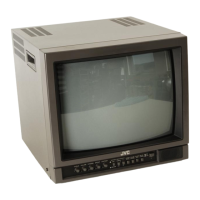
JVC TM-H1750CG - User Manual

JVC TM-H1750CG
25 pages
Print Icon
To Next Page IconTo Next Page
Loading...
BEDIENUNGSANLEITUNG : FARB-VIDEO-MONITOR
MANUEL D’INSTRUCTIONS : MONITEUR VIDÉO COULEUR
MANUALE DI ISTRUZIONI : MONITOR VIDEO A COLORI
INSTRUCCIONES : MONITOR DE VIDEO A COLOR
 !"#$%&'(&)
INSTRUCTIONS
TM-H1950CG
TM-H1750CG
COLOR VIDEO MONITOR
ESPAÑOL
ITALIANO
FRANÇAIS
DEUTSCH
ENGLISH

For Customer Use:
Enter below the Serial No. which is located on the rear of the cabinet.
Retain this information for future reference.
Pour l’usage du client:
Enter ci-dessous le numéro de série qui est situé sur l’arrière du coffret.
Conserver cette information pour une référence ultérieure.
Model No. :
Numéro de modèle :
Serial No. :
Numéro de série :
POWER
CHROMA
MENU
ASPECT
INPUT SELECT
UNDER
SCAN
COLOR
OFF
BLUE
CHECK
PHASE
TM-H1950CG
BRIGHT
CONTRAST
VOLUME/SELECT
AB
SLOT
CD
LCT1025-002B-H
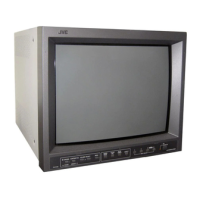
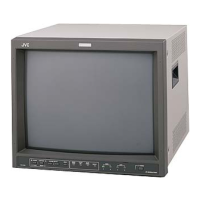
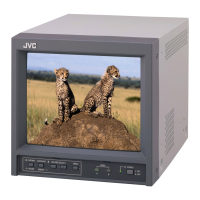
(TM-H1950CG shown)
(Gezeigtes Modell ist TM-H1950CG)
(TM-H1950CG montré)
(Modello TM-H1950CG)
(Muestra de TM-H1950CG)
(
qjJeNVRM`d
)
LCT1025-002B-H(CH) 02.6.18, 4:30 PM1


Other manuals for JVC TM-H1750CG

Questions and Answers

  • J
    jordankeithAug 20, 2025
    What to do if my JVC TM-H1750CG has no picture but the power is on?
    • V
      victorrobertsonAug 20, 2025
      If your JVC Monitor has no picture but the power is on, verify that the video signal is being output from the connected component and that the component is set correctly. Ensure you've selected the correct video signal input using the Input select button. Finally, check that the video cable is securely connected.
  • T
    tflynnAug 22, 2025
    How do I fix color issues on my JVC TM-H1750CG Monitor?
    • B
      Bobby KingAug 22, 2025
      If your JVC Monitor displays no colors, wrong colors, or a dark picture, set the COLOR SYSTEM in the screen to AUTO. If this doesn't solve the problem, reset each picture control (CONTRAST, BRIGHT, CHROMA, or PHASE) to the standard setting. You can also use the COLOR OFF and BLUE CHECK buttons to adjust.
  • M
    meredith25Aug 25, 2025
    Why is the picture shaking on my JVC Monitor?
    • G
      gprestonAug 25, 2025
      If the picture on your JVC Monitor is shaking, it might be too close to a device generating a strong magnetic field. Try moving the monitor away from the device until the picture stabilizes.
  • M
    Mary TaylorAug 26, 2025
    What causes a distorted picture on my JVC Monitor?
    • T
      Tammy StuartAug 26, 2025
      If the picture on your JVC Monitor appears unnatural, irregularly colored, or distorted, it may be due to interference from a speaker, magnet, or another device generating a strong magnetic field. Move the interfering device away from the monitor, then turn the monitor off, wait at least 30 minutes, and turn it back on.
  • J
    Joel CherryAug 28, 2025
    How do I fix dark stripes on my JVC TM-H1750CG Monitor screen?
    • D
      davidfrederickAug 28, 2025
      If dark stripes appear at the top and bottom of the screen of your JVC Monitor and the picture is vertically squeezed, the aspect ratio might be set to 16:9. Switch the aspect ratio to 4:3 using the ASPECT button on the front panel.
  • R
    rebeccaparsonsAug 29, 2025
    Why is the picture size too small on my JVC TM-H1750CG?
    • N
      nsmithAug 30, 2025
      If the overall picture size on your JVC Monitor is too small, check if the UNDER SCAN button is lit. If it is, press the UNDER SCAN button to turn it off.
  • M
    Michael GilbertSep 1, 2025
    How to fix wrong colors on JVC TM-H1750CG Monitor?
    • B
      billy97Sep 1, 2025
      If your JVC Monitor displays no colors, wrong colors, or a dark picture, ensure that the color system is properly selected. Set the COLOR SYSTEM in the screen to AUTO. Also, check if the picture control settings (CONTRAST, BRIGHT, CHROMA, or PHASE) have been altered and set each picture control to the standard setting. Press the COLOR OFF button and BLUE CHECK button to adjust.
  • A
    Anthony JonesSep 3, 2025
    What causes an unnatural picture on JVC TM-H1750CG?
    • C
      Chris RichardsonSep 3, 2025
      An unnatural, irregularly colored, or distorted picture on your JVC Monitor can be caused by the monitor being close to a speaker, magnet, or another device emitting a strong magnetic field. Move the device away from the monitor, turn the monitor’s power off, wait at least 30 minutes, and then turn the power on again.
  • K
    kimberlypriceSep 4, 2025
    How to fix dark stripes on my JVC TM-H1750CG?
    • M
      Monica LawsonSep 4, 2025
      If dark stripes appear at the top and bottom of the screen and the picture looks vertically squeezed on your JVC Monitor, it might be due to the aspect ratio setting. Check if the aspect ratio is set to 16:9. If so, switch the aspect ratio to 4:3 using the ASPECT button on the front panel.
  • C
    Colleen FieldsSep 7, 2025
    How to troubleshoot no power on my JVC TM-H1750CG Monitor?
    • T
      Thomas ThomasSep 7, 2025
      If your JVC Monitor isn't getting power, first ensure the power plug is firmly inserted into the outlet. Also, check that the main power switch is turned ON.

Summary

Safety Precautions

Warnings

Warnings for preventing fire or shock hazards, and apparatus safety.

Precautions

Precautions for safe operation, including power and environmental conditions.

FCC Information (U.S.A. Only)

FCC compliance information for digital devices and radio frequency energy.

Power Connection

Screen Burn

Screen Burn Prevention

Information on preventing screen burn-in and cathode ray tube care.

Controls and Features

Front View Panel Controls

Description of front panel controls and indicators.

Rear View Panel Connectors

Description of rear panel connectors and terminals.

Optional Input Card Features

Component;RGB Input Card

Details of the optional Component/RGB input card and its terminals.

SDI Input Card

Details of the optional SDI input card and its terminals.

Preparation and Setup

Installing an Input Card

Step-by-step guide for installing an optional input card.

Attaching the Power Cord Holder

Instructions for attaching the power cord holder for secure connection.

Basic Operations and Picture Adjustment

Basic Operation Guide

Steps for turning the monitor on and selecting input sources.

Picture Adjustment Controls

Guide to adjusting picture settings like contrast, brightness, chroma, and phase.

Video Signal Controls

Under Scan

Reduces display area to check picture frame.

Color Off

Displays a black and white picture for luminance signal checks.

Blue Check Function

Checks and adjusts chroma, gain, and phase using blue signal.

Menu Functions and Settings

Menu Screen Mode Settings

How to navigate and set items within the main menu.

Set-Up Menu Mode Settings

How to navigate and set items within the set-up menu.

Initializing Settings

Set-Up Menu Reset Mode

How to reset menu and picture items to factory default values.

Connection Examples

Video A Input Connection

Example connection for Video A input using the VIDEO signal.

Video B Input Connection (Video)

Example connection for Video B input using the VIDEO signal.

Video B Input Connection (Y;C)

Example connection for Video B input using Y/C (S-video) signal.

External Control Usage

About External Control

Explanation of external control terminals and their functions.

Troubleshooting Common Issues

Technical Specifications

Product Dimensions

TM-H1950 CG Dimensions

Front and side view dimensions for the TM-H1950CG model.

TM-H1750 CG Dimensions

Front and side view dimensions for the TM-H1750CG model.

Y;C Terminal Specification

SDI Input Card Connection Examples

Connection examples for the SDI input card and its terminals.

JVC TM-H1750CG Specifications

General IconGeneral
BrandJVC
ModelTM-H1750CG
CategoryMonitor
LanguageEnglish

Related product manuals