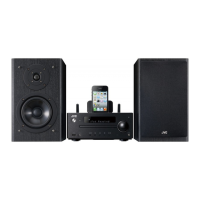
Navigating the AirPlay/DLNA
Devices
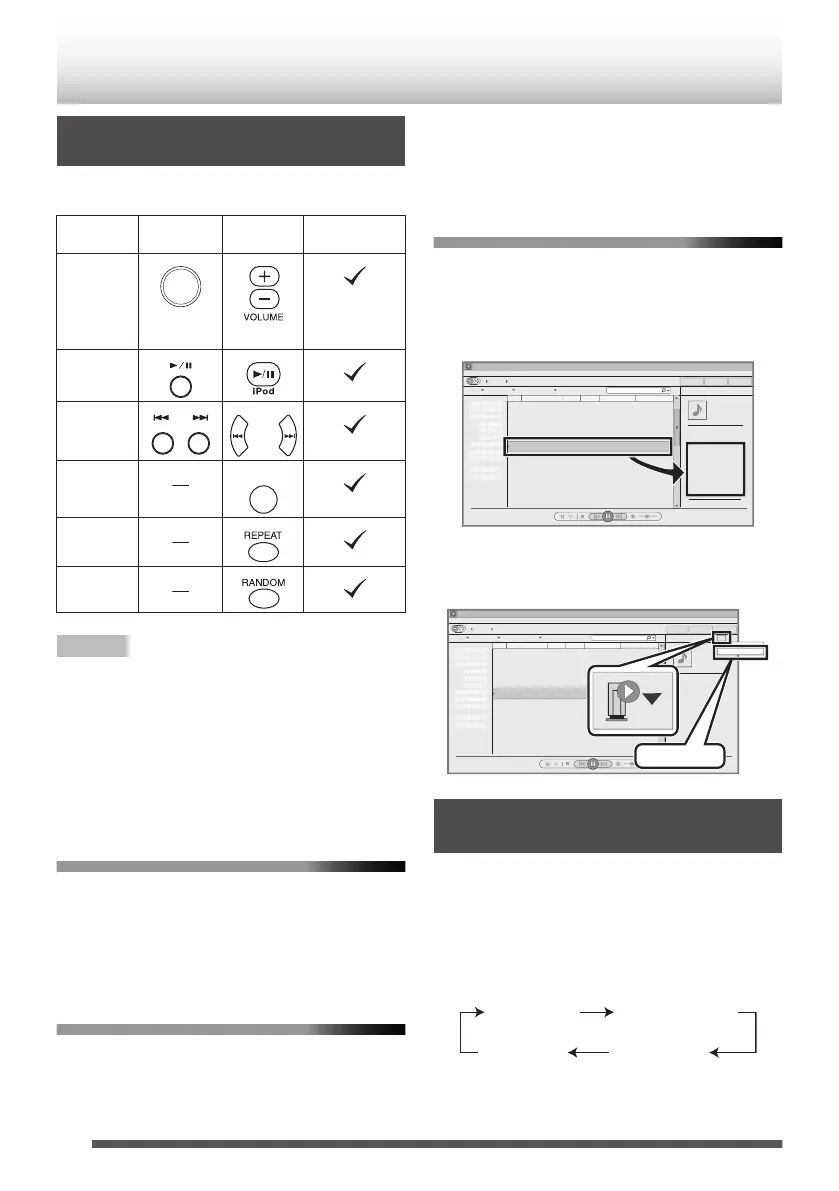
Various function can be controlled from the remote
control or your AirPlay / DLNA device.
Function Main unit
Remote
control
AirPlay device
Volume up/
down
.
(Volume
Control)
.
.
(Controlled)
Play/pause
.
.
.
Next/
previous
track
.
.
.
Mute
.
.
.
Repeat
.
.
.
Shuffle
.
.
.
Note
0
Display content can be changed by pressing the
[iPod DISPLAY / TV OUT] button.
0
For DLNA compatible devices, the function control
may vary depending on DLNA application used.
0
Output from headphone is inactive when
NETWORK is selected as a source, and “HP
INVALID” is displayed.
0
To enable this unit to control iTunes software, the
setting below is required.
Setting iTunes on Mac PC
1
On the menu bar, click “iTunes” and select
“Preferences”.
2
Under “Devices” tab, check the ‘
O
Allow
iTunes audio control from remote speakers’
box.
Setting iTunes on Windows PC
1
On the menu bar, click “Edit” and select
“Settings”.
2
Under “Devices” tab, check the ‘OAllow
iTunes audio control from remote speakers’
box.
Playing by via Windows Media Player 12
1
Start Windows Media Player 12.
2
Select the files for playback. Drag the files to
the right side of the menu screen, and drop
them.
.
WindowsMediaPlayer
再生
書き込み
同期
6Songforyou3:20
3
Click the “Remote” icon, and select the
speaker (UX-N5 xxxxxx).
Audio is output from the speaker.
.
WindowsMediaPlayer
再生
書き込み
同期
6Songforyou3:20
UX-N5xxxxxx
UX-N5xxxxxx
Checking the IP Address/Mac ID/
SSID
1
Press the [Wi-Fi settings] button on the
remote control.
2
Press [K/J] button on the remote control
repeatedly.
The display will toggle as below:
.
SSID
(when using router)
Wi-Fi Setup
IP address Mac ID
18


 To Next Page
 Loading...