WWW.KAARTA.COM 101
Watch for Green/Active GNSS Status
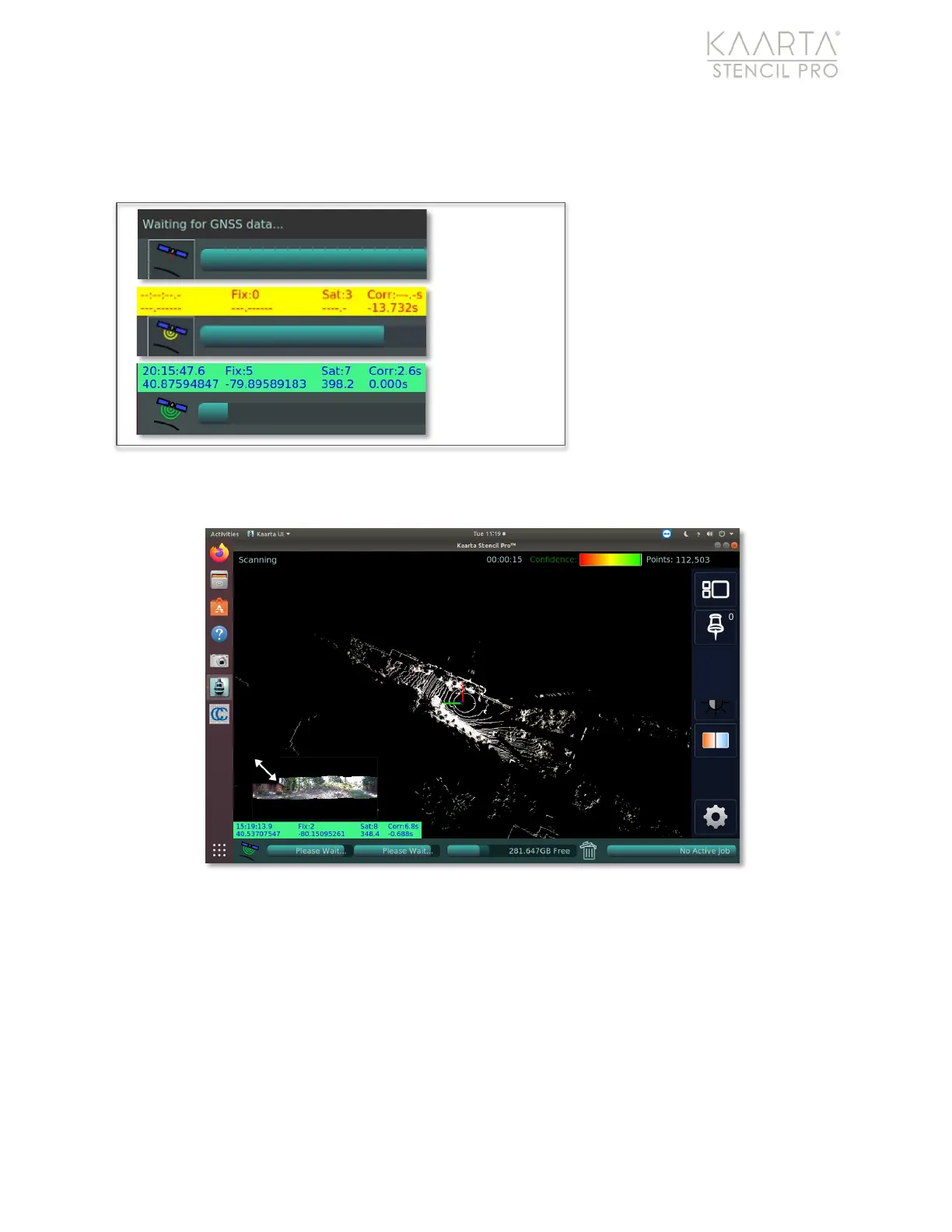
When beginning a scan, wait for the GNSS status window (in the lower left corner of the
Stencil Pro UI) to turn green
to indicate the system is
actively receiving GNSS signal
prior to moving (Figure 73). If
the status window remains
either yellow (no fix quality)
or grey (waiting for GNSS
data), you may have
commenced scanning before
an initial satellite connection
was established or may be in
a GNSS-denied area. End the
current scan and begin a new one in a more satellite-friendly location, if possible. Wait for
signal connection prior to moving.
Figure 73: GNSS Active Signal during scanning.
Another source of poor fix quality could be a bad connection with between the Trimble
device and Stencil Pro. Establish that the GNSS is communicating with Stencil Pro, by
following the Verify GNSS Is Communicating troubleshooting steps on page 112.
Additionally, make sure all connections between the scanner and control pack are snug.
Monitor Status While Scanning
Stay abreast of fix quality, dropouts, and signal interference by monitoring the status
window during scanning. This is especially true if you expect to enter a GNSS-denied area.
Connect
Received, Fix
Quality = 0
Quality is > 0


 To Next Page