WWW.KAARTA.COM 53
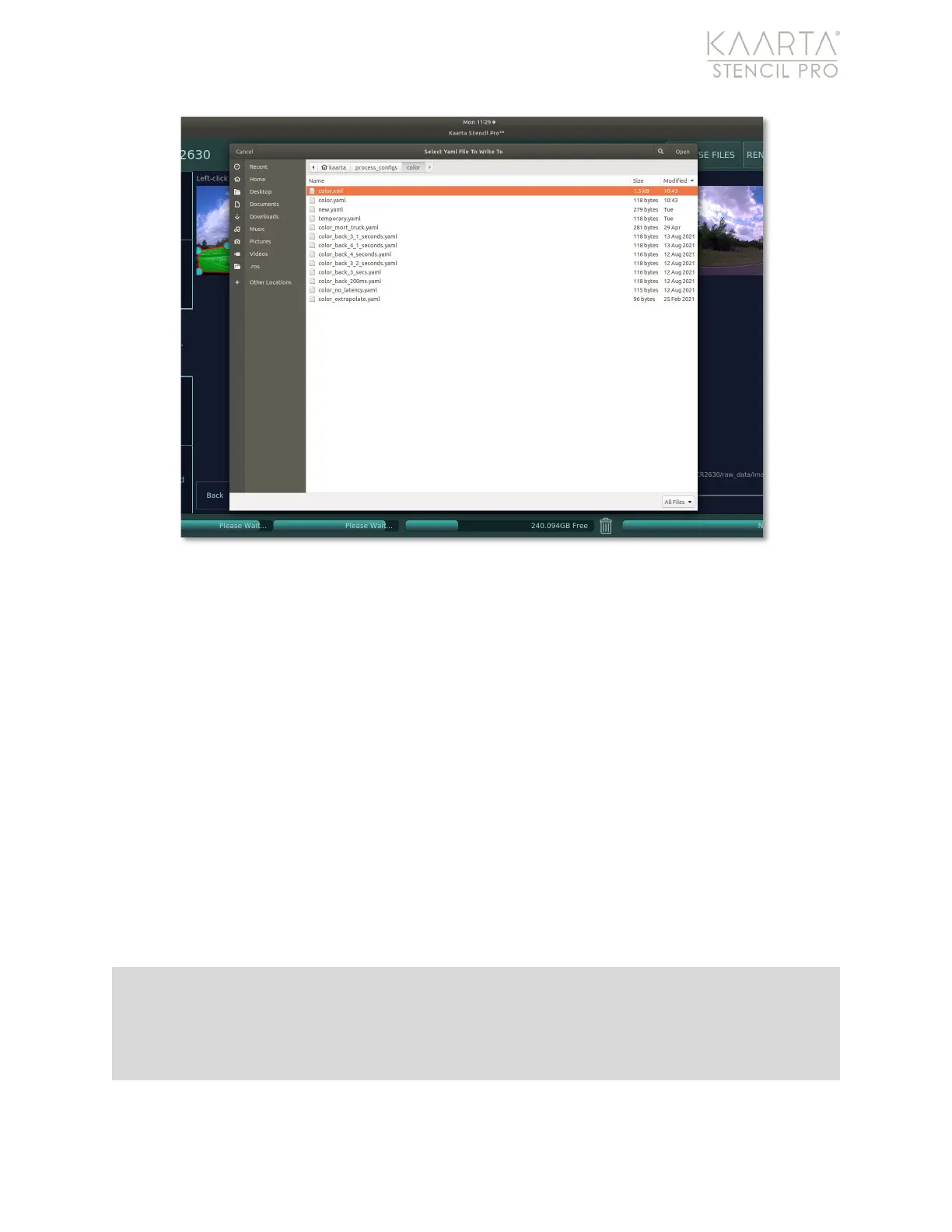
Figure 36: Save exclusion zone to a yaml file.
Processing
You perform bag replay and post-processing functions on Stencil Pro from the
Processing tab of Scan Details. See the next chapter for detailed information about
performing playback and specific post-processing tasks like aligning, prefiltering, and
filtering your captured scenes.
Stencil Pro’s processing capabilities are discussed at length in the following chapter,
beginning on page 57.
Kaarta Cloud
From Stencil Pro, you can upload your scan directly to Kaarta’s powerful cloud platform–
Kaarta Cloud®– to process, store, and share 3D spaces. From the Kaarta Cloud tab of the
Scan Details screen, you can quickly and intuitively add the current scan to an existing job,
create a new job, or compress and copy your data (Figure 37).
Note: Scans are organized in Kaarta Cloud by Job, not by scan. A Job is defined as the
container for your scan (or multiple scans), and includes any associated or linked assets,
notes, processed files, etc. Best practice is to utilize Job organization as a tool to help keep
files orderly and identifiable (and not too large and cumbersome).


 To Next Page