WWW.KAARTA.COM 84
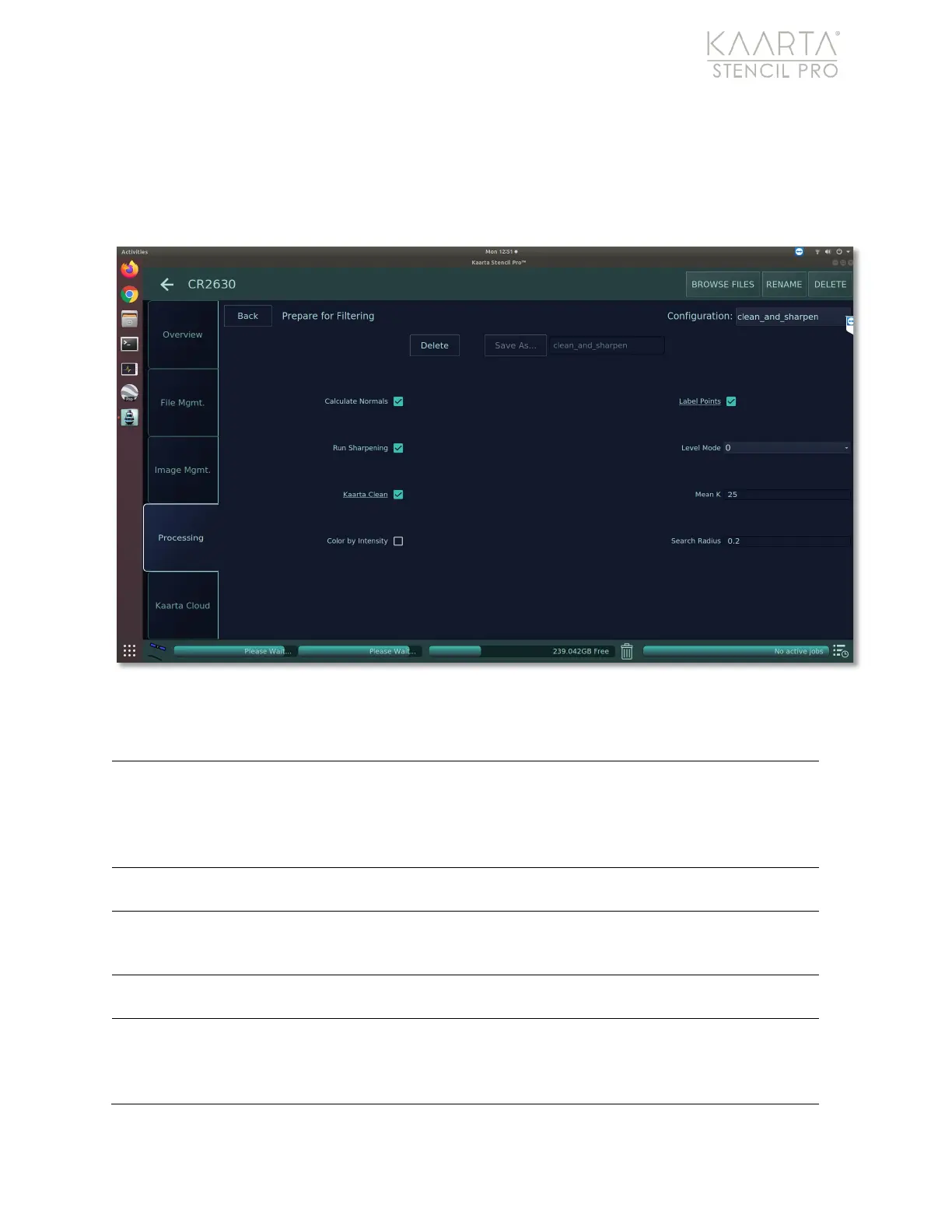
If you make changes to any default settings, you will be prompted to either save the
changes as a new preset or use the temporary setting to discard the values after usage.
See Temporary Setting on page 67 and Create a New Preset on page 67 for more details.
Figure 58: Pre-filter settings.
PRE- FILTER SETTINGS
Check box to calculate and classify the normals. Computing the
normals for a point cloud will estimate the local surface represented
by a point and its neighbors. Normals can be removed in the Filter
process by enabling Kaarta Filter 1. See
Filter on page 85 for more
Check box to run sharpening on dataset. Sharpening compresses flat
surfaces and reduces the repeatability blur of the lidar.
Check box to run Kaarta Clean to identify bad data. These spurious
points can be removed in the Filter process by enabling Kaarta Filter
2. See Filter on page 85 for more details.
Check box to enhance the RGB color dynamics with the associated
'intensities' scalar field.
Check box to identify questionable points, such as poorly colored
ones, in the dataset. These undesirables can be removed in the Filter
process by enabling Kaarta Filter 3. See Filter on page 85
for more


 To Next Page