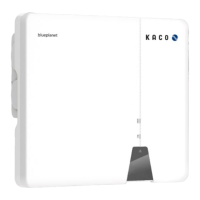
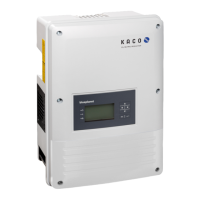
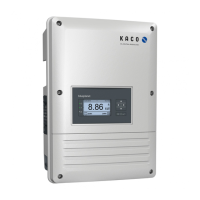
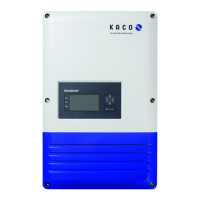
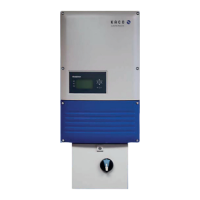
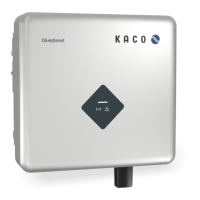
Page 3 KACO blueplanet 3.0 NX1 M2 KACO blueplanet 3.7 NX1 M2 KACO blueplanet 4.0 NX1 M2 KACO blueplanet 5.0 NX1 M2
NOTE
Frequency band
Before the Network configuration, please prepare a WLAN router supports 2.4G frequency band. Wi-Fi stick
only supports 2.4G frequency band.
Installation position
Please keep the Wi-Fi stick within 10 meters of the router.
SSID and password of router availability
Wi-Fi stick only supports 32 characters SSID and password.
1.3 Change the router
If the router is still working and you want the Wi-Fi stick to connect to another router:
Connect to another router.
1 Connect the smart phone to the router through Wi-Fi and open the tool app, click the “LOCAL MODE” button.
2 Enter the “Monitor Device Details” page, and click the “WLAN” item which shows the router connected now.
3 Select the new router in list and enter the password, click the “Confirm Settings” button in the “Router” page.
» Proceed with inverter parameters settings.
If the router is broken or lost, and the Wi-Fi stick can’t connect to it, the blue LED light doesn’t work, you can find the SSID
of Wi-Fi stick’s hotspot named the Wi-Fi stick’s serial number in your WLAN list. You can connect to the Wi-Fi stick hotspot
with the registration code on the label as password.
Fig. 10: Change network


 To Next Page
 Loading...