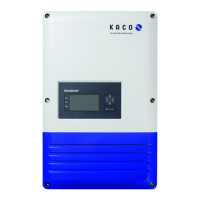
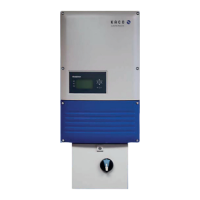
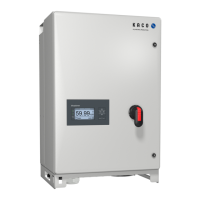
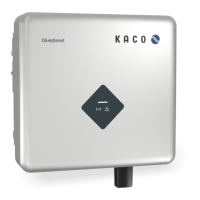
KACO blueplanet 3.0 NX1 M2 KACO blueplanet 3.7 NX1 M2 KACO blueplanet 4.0 NX1 M2 KACO blueplanet 5.0 NX1 M2 Page 6
2.1.2 Connect Wi-Fi stick through the router
If had configurated the WLAN network to the Wi-Fi stick and the blue LED light of the Wi-Fi stick works, you need to
connect your smart phone to the router.
Connect Wi-Fi stick through the router.
1 Open the phone Wi-Fi settings page, and manually connect to the router.
2 Come back to the app and click on “LOCAL MODE” to choose the Wi-Fi stick.
» Proceed with inverter parameter setting.
Fig. 13: Connect to Wi-Fi stick
NOTE
Can’t find the smart Wi-Fi dongle in your WLAN list?
Sometimes you can’t find the smart Wi-Fi dongle in your WLAN list:
› Sometimes you can’t find the smart Wi-Fi dongle in your WLAN list. You need to check the network of
your phone is the same as that of Wi-Fi stick, and click the “Scan device” button again, wait for the
scan results to be shown in the list with Wi-Fi stick’ serial number and ip address. If you haven’t found
the smart Wi-Fi stick in list after multiple attempts, you can close the router to connect to Wi-Fi stick
directly through the Wi-Fi stick's hotspot.
2.1.3 Implement zero power export function
If you want to implement zero power export function dynamically, you should install the smart meter. Wi-Fi stick only
compatible with Eastron smart meter(SDM230 for NX1, SDM630 for NX3). And the system diagram as follow:
Fig. 14: Installing a smart meter


 To Next Page
 Loading...