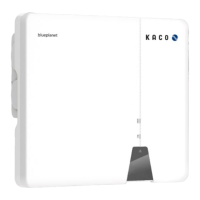
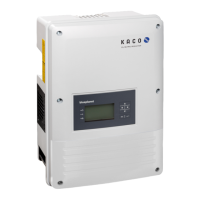
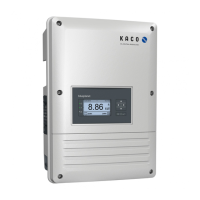
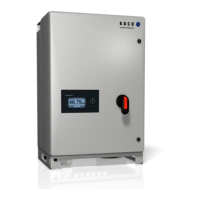
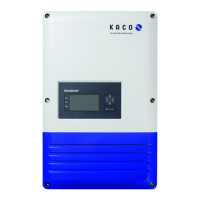
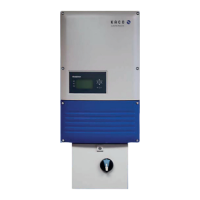
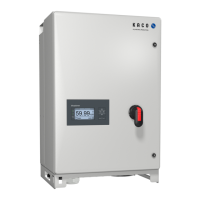
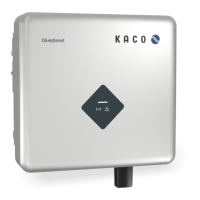
Page 5 KACO blueplanet 3.0 NX1 M2 KACO blueplanet 3.7 NX1 M2 KACO blueplanet 4.0 NX1 M2 KACO blueplanet 5.0 NX1 M2
2 Inverter Parameters Settings
2.1 Connect to Wi-Fi stick
2.1.1 Connect Wi-Fi stick directly through the Wi-Fi stick’s hotspot
If haven’t configurated the WLAN network to the Wi-Fi stick yet, you can find the Wi-Fi stick’ SSID in WLAN list of your
smart phone. If had configurated the WLAN network to the Wi-Fi stick, but the blue LED light of the Wi-Fi stick doesn’t
work, you also can find the Wi-Fi stick’s SSID in WLAN list of your smart phone. The password of the Wi-Fi stick’s hotspot is
the registration code on the Wi-Fi stick.
Connect Wi-Fi stick directly through the Wi-Fi stick’s hotspot.
1 Open the phone Wi-Fi settings page.
2 Find the Wi-Fi stick's hotspot named the serial number
3 Connect to the hotspot with registration id on the Wi-Fi stick as password.
4 Come back to the app and click on “LOCAL MODE” to choose the Wi-Fi stick.
» Proceed with inverter parameter settings.
.
Fig. 12: Connect to Wi-Fi stick
NOTE
Can’t find the smart Wi-Fi dongle in your WLAN list?
Sometimes you can’t find the smart Wi-Fi dongle in your WLAN list:
› Close the Mobile Data of phone and come back to app to click on “Scan device” to get the Wi-Fi stick.


 To Next Page
 Loading...