© 2019 KCodes Corporation. All rights reserved. 6 Series User’s Manual V1.0
If you would like to break the association between the Windows printer and the physical printer, just click
on the association and click the “Delete” button in the “Auto-Connected Printer List”.
4.7. Network Scanner
For NetUSB scanning, we recommend you use Network Scanner as the following steps.
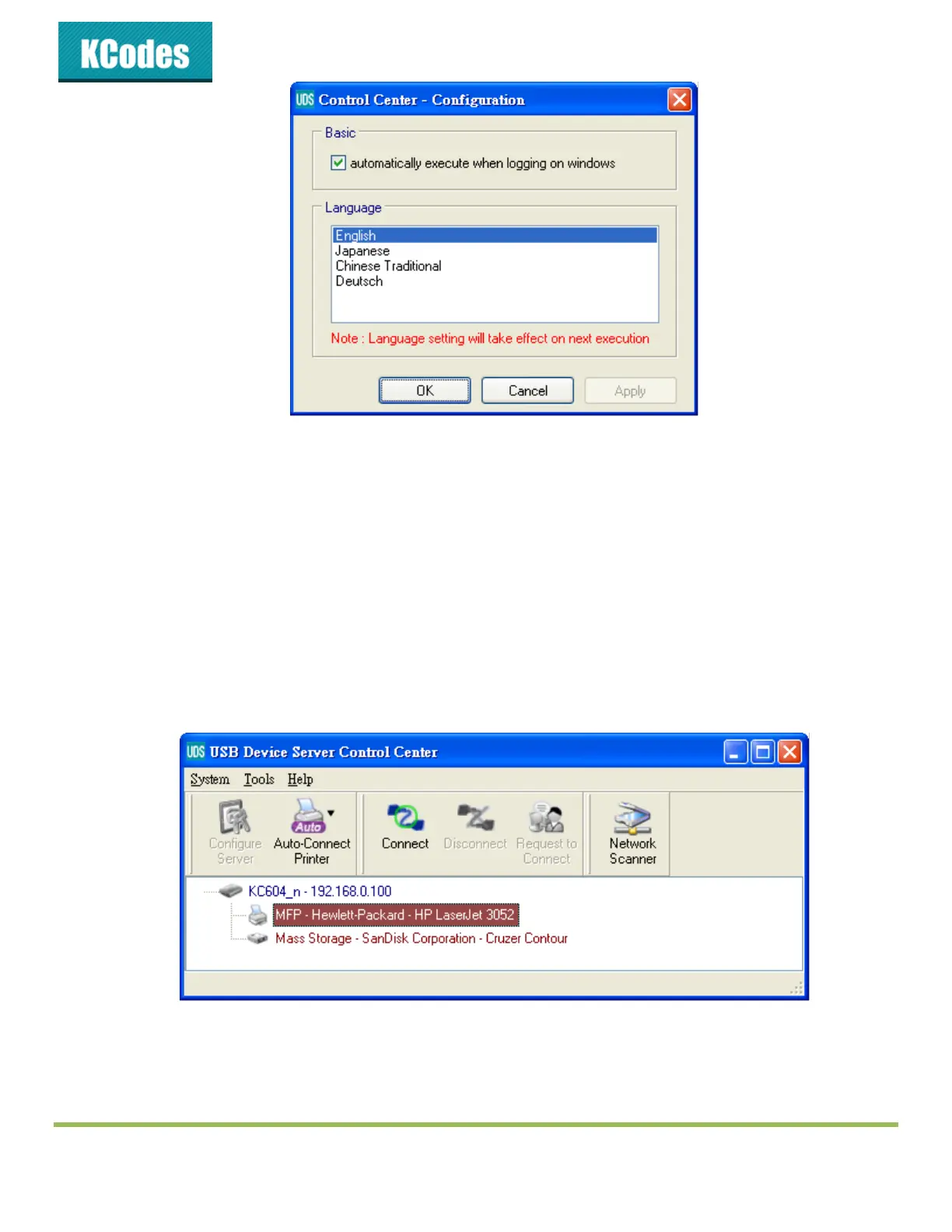
1. In the Control Center, click the USB device server that has the desired MFP (or scanner) attached.
2. Click the desired MFP (or scanner).
3. Click the “Network Scanner” button. Then you can see that the Control Center will automatically
do a “connect” operation. The following window will appear.



 To Next Page