To Next Page
S
Sean ChurchSep 23, 2025
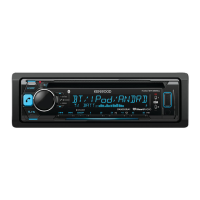
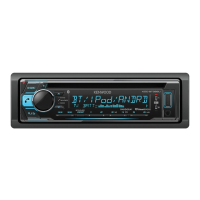
Why are correct characters not displayed on my Kenwood KDC-BT32U (e.g. album name)?
- Ttimothy36Sep 23, 2025
This unit can only display letters (upper case), numbers, and a limited number of symbols.

Why are correct characters not displayed on my Kenwood KDC-BT32U (e.g. album name)?
This unit can only display letters (upper case), numbers, and a limited number of symbols.
Why is noise generated on my Kenwood Car Receiver?
If your Kenwood Car Receiver is generating noise, try skipping to another track or changing the disc.
Why is the disc sound sometimes interrupted on my Kenwood Car Receiver?
If the disc sound on your Kenwood Car Receiver is frequently interrupted, avoid playback on rough roads, try a different disc, and check the cords and connections.
Why is my Kenwood Car Receiver not working at all?
If your Kenwood Car Receiver is completely unresponsive, try resetting the unit.
What does “NO DISC” mean on my Kenwood Car Receiver?
If your Kenwood Car Receiver displays “NO DISC”, insert a playable disc into the loading slot.
What does “NA FILE” mean on my Kenwood KDC-BT32U Car Receiver?
If your Kenwood Car Receiver displays “NA FILE”, it means the unit is attempting to play an audio file format that it does not support.
What does “NO DEVICE” mean on my Kenwood Car Receiver?
If your Kenwood Car Receiver displays “NO DEVICE”, connect a USB device and switch the source back to USB.
Why does my Kenwood KDC-BT32U Car Receiver display “READ ERROR”?
If your Kenwood Car Receiver shows “READ ERROR”, try copying the files and folders to the USB device again. If the error persists, initialize the USB device or try using a different USB device.
Why can't tracks play back as intended on my Kenwood KDC-BT32U Car Receiver?
If tracks on your Kenwood Car Receiver aren't playing in the order you expect, it's because the playback order is determined when the files are recorded.
What does “iPod ERROR” mean on my Kenwood KDC-BT32U?
If your Kenwood Car Receiver displays “iPod ERROR”, try reconnecting the iPod, ensure the iPod's software is up to date, or reset the iPod.
Procedures for cleaning the unit and its connectors.
Steps for attaching/detaching the faceplate and resetting the unit.
Control the unit's display demonstration mode.
Set the clock and configure initial unit parameters.
Adjust radio reception and settings.
Instructions for playing and removing media.
Control playback with repeat, random, and search functions.
Advanced search and control for iPod devices.
Guidelines for handling discs and identifying incompatible types.
Information on supported audio formats, devices, and software.
Steps for pairing and registering Bluetooth devices.
Selecting and deleting paired Bluetooth devices.
Methods for initiating phone calls via Bluetooth.
Handling incoming and ongoing calls.
Switching between multiple connected cell-phones.
Managing phone book data and disconnection messages.
Controlling audio playback via Bluetooth.
Steps to select and test Bluetooth device connectivity.
Configure various settings for Bluetooth connectivity.
Adjust audio output levels and equalization.
Configure advanced system and audio preferences.
Information on the remote sensor and battery replacement.
Control hands-free functions using the remote.
Remotely tune radio stations and search music files.
Steps for installing the unit in the vehicle.
Tips for optimal Bluetooth signal reception.
Procedures for mounting and detaching the unit.
Common issues and solutions for Bluetooth connectivity.
Technical details for FM, MW, and LW tuners.
Technical details for CD and USB playback.
Technical details for Bluetooth, audio output, and inputs.
Overall operating voltage, size, and weight.
Explanation of the Class 1 Laser Product label.
Statements of compliance with relevant EU directives.
 General
| MP3 playback | Yes |
|---|---|
| FM band range | 87.5 - 108 MHz |
| LW band range | 153 - 279 kHz |
| Supported radio bands | AM, FM, LW, MW |
| Preset stations quantity | 24 |
| Display type | Fluorescent |
| Bluetooth version | 2.1+EDR |
| Bluetooth profiles | A2DP, AVRCP, OPP, PBAP |
| Line outputs (RCA) | 1 |
| Output power | 200 W |
| Product color | Black, Red |
| Disc types supported | CD-R, CD-RW |
| Key illumination color | Red |
 Weight and Dimensions
| Weight | 1300 g |
|---|---|
| Dimensions (WxDxH) | 182 x 160 x 53 mm |