Depending on the network configuration, the Subnet Mask and Gateway settings
are in relation to network communication between the NETCOM2 Rev. B and the
server with the Keyscan communication application or service.
7. From Program via IP Address or Serial Port, select the embedded programming IP
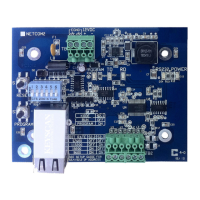
address that the NETCOM2B’s S2.4 & S2.5 DIP switches were set on.
If Network Connection via ARP Request is selected, enter the NETCOM2 Rev. B’s
MAC address printed on the RJ45 terminal in the MAC Address boxes.
8. Click on the down arrow below and to the right of Communication Baud Rate and
select the bit rate that corresponds to the NETCOM2 Rev. Bs S2.2 & S2.3 DIP
switches.
9. Leave Ethernet Connection Type on Automatic Negotiation unless given a specific
setting by the IT administrator.
If the NETCOM device experiences network communication difficulties, you may
have to alter the Ethernet Connection Type from automatic negotiation. (The
Ethernet Connection Type is the network speed & duplex setting). Set the
NETCOM so it matches the network equipment setting. If the network equipment
was on an automatic setting, then reconfigure both the network equipment,
which may include routers or switches, and the NETCOM to a matching fixed
speed and duplex setting. As an example, NETCOM = 100 Mbit/Half Duplex –
Network equipment = 100Mbit/Half Duplex.
10. The Discovery Port 77FE setting is disabled by default. Keyscan recommends that you
leave it on the default setting. This function is principally for troubleshooting
communication difficulties.
If you de-select the Disable Discovery Port 77FE function (the box does not have
a check mark) the Discover NETCOM Devices function will list the device by its
MAC address and IP address if it is located on the network.
11. Click on the Program NETCOM button. Wait while the utility programs the device.
12. From the Program Device via Network Connection prompt – Your NETCOM2 device
has been configured, click on the OK button.
13. Click on the Exit button of the Program NETCOM2B, NETCOM2 & NETCOM2P Boards
screen.
14. From the Keyscan NETCOM Utility screen, verify network communication with the
NETCOM2 Rev. B by selecting the Start Ping button.
Continued on the next page…


 To Next Page