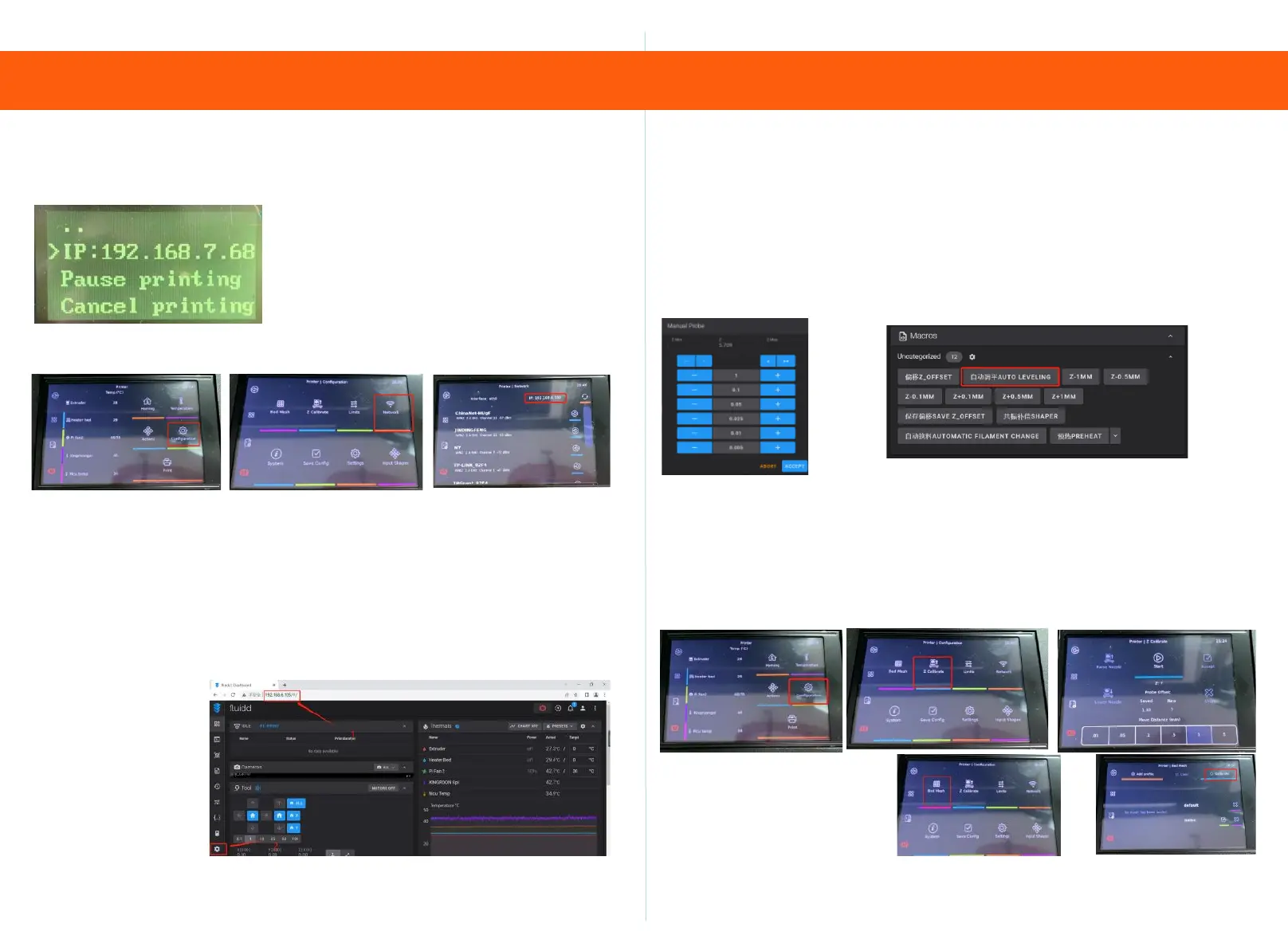
4. configure network 5. Leveling
98
Step 3
Open a computer browser on the same router and input the IP
address to enter the Fluidd operation interface. The Fluidd operation
interface can be modified in the language settings interface. Currently,
the webpage supports English/ Čeština /简体中文/繁體中文
/Deutsch/Español/Français/Italiano/
Magyar/Nederlands/Portugues/Русский язык/Українська
Мова/한국어/ /日本語。
显示屏支持English。
Step 2
12864 display screen: Press the OK button on the knob, move the
arrow cursor to IP, and once the network is successfully connected,
the complete IP address can be displayed.
Step 4
Web page: Macros option, click on offset z_ The offset button will
move the printer to the center position of the hot bed, place a
piece of A4 paper above the hot bed, adjust it up and down using
the Manual Probe, adjust the distance between the nozzle and
0.1mm (there is some resistance when pulling the A4 paper), and
click ACCESS to save after the adjustment is completed.Click on
automatic leveling for 36 point leveling.
3.5 Touch screen: Click on Settings, WIFI, and successfully
connect to the network to display the complete IP address.
3.5 Touch screen: Click on Configuration, Z calibrate, Start, wait
for the extrusion head to move to the middle of the hot bed, select
the distance to move, and then click on Lower Nozzle to move the
nozzle distance. Adjust the distance between the nozzle and
0.1mm (there is some resistance when pulling A4 paper). After
the adjustment is completed, click on ACCESS to save.
Click on Bed Mesh,
Callrate to perform a
36 point leveling, wait
for the leveling to
complete, and then
click Save.



 To Next Page