EasyManua.ls Logo

Kodak DC5000 - User Manual

Kodak DC5000
106 pages
Print Icon
To Next Page IconTo Next Page
Loading...
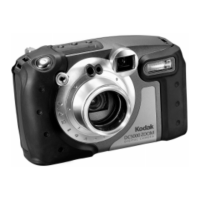
KODAK DC5000 Zoom Digital Camera
User’s Guide
Visit Kodak on the World Wide Web at www.kodak.com

Table of Contents

Questions and Answers

  • D
    davidpachecoAug 21, 2025
    Why my Kodak Digital Camera does not turn on?
    • N
      Nicholas TaylorAug 21, 2025
      If your Kodak Digital Camera doesn't turn on, it might be due to improperly installed, low, or dead batteries. First, remove and reinstall the batteries. If that doesn't work, replace or recharge the batteries, or try using an AC adapter.
  • T
    thompsonmatthewSep 4, 2025
    Why shutter button does not work on Kodak DC5000?
    • M
      Matthew BaxterSep 4, 2025
      If the shutter button on your Kodak Digital Camera isn't working, ensure the camera is turned on. Also, check that the Mode dial is set to Capture. If the Ready light is blinking, the camera is processing a picture; wait until it stops. Finally, if the Status Display reads 'Full', the memory card is full; transfer pictures to your computer, delete pictures from the card, or insert a card with available memory.
  • D
    Dwayne LarsonSep 2, 2025
    How to fix black and white photo on Kodak DC5000 Digital Camera?
    • L
      lgainesSep 2, 2025
      If your picture is black and white, sepia toned, or has too much contrast with your Kodak Digital Camera, the Effects setting is likely set incorrectly. Change the Effects setting to No Effects.
  • R
    ramirezanthonySep 1, 2025
    How to fix tinted photos on Kodak DC5000?
    • J
      Joshua FloresSep 1, 2025
      If your picture is tinted green, blue, or red-orange with your Kodak Digital Camera, the White Balance setting is likely incorrect. Change the White Balance setting to Auto.
  • M
    Michael SchroederAug 30, 2025
    How to fix overexposed photo on Kodak DC5000?
    • G
      Gordon StanleyAug 31, 2025
      If your picture is too light with your Kodak Digital Camera, try changing to Auto flash if the flash is not needed. If the subject is too close when using the flash, move back to at least 1.6 ft (0.5 m). Ensure that your hands or other objects are not covering the light sensor. Also, check the Exposure Compensation setting and decrease it if necessary.
  • D
    Daniel ReedAug 29, 2025
    How to fix dark photos on Kodak DC5000 Digital Camera?
    • S
      Summer PatelAug 29, 2025
      If your picture is too dark with your Kodak Digital Camera, ensure the flash is on or functioning correctly. If the subject is too far away, move closer (within 9.8 ft (3.0 m)). If the subject is in front of a bright light, change your position. Also, check the Exposure Compensation and Metering settings; increase the Exposure Compensation and change the Metering setting to Multi-Pattern if necessary.
  • J
    jlangAug 27, 2025
    How to fix blurry photo on Kodak DC5000?
    • N
      Noah TaylorAug 28, 2025
      If your pictures are not clear with your Kodak Digital Camera, several factors could be the cause. - The lens might be dirty, so try cleaning it. - You might be too close to the subject; maintain a distance of at least .82 ft (.25m) in wide angle or 1.6 ft (.5m) in telephoto. - Either the subject or the camera might have moved during the shot, so hold the camera steady. - The subject might be too far for the flash, so move closer (less than 13 ft (4.0 m) away). - The Sharpness setting may be off; set it to Standard.
  • M
    Molly HenryAug 26, 2025
    What to do if Kodak DC5000 Digital Camera doesn't work and ready light is off?
    • J
      Julian RamosAug 27, 2025
      If the ready light doesn't turn on and your Kodak Digital Camera isn't working, the batteries may be low or dead. Try replacing or recharging the batteries, or use an AC adapter. Also, make sure the camera is turned on.
  • E
    Eric DuncanAug 25, 2025
    Why my computer cannot connect to Kodak DC5000?
    • H
      hannahbaileyAug 25, 2025
      If your computer cannot communicate with the Kodak Digital Camera, first ensure the camera is turned on and that the Mode dial is set to Connect. If you're using a laptop, check the Power Management settings, as these can sometimes turn off ports. Also, there might be a conflict with another serial device. Finally, make sure the serial or USB cable is properly connected to both the camera and the computer port, and that the COM port settings in software are correct.
  • A
    Alyssa StevensAug 23, 2025
    Why Kodak DC5000 does not recognize memory card?
    • P
      Philip Bradford DDSAug 23, 2025
      If your Kodak Digital Camera doesn't recognize the memory card, there are a few potential reasons. It could be that the memory card isn't CompactFlash certified, in which case you should purchase a certified card. Alternatively, the card may be corrupt or formatted for use in other digital cameras; try reformatting the card. Finally, ensure the card is correctly inserted into the camera.

Summary

Getting Started with Your Camera

Preparing to Take Pictures

Initial steps before capturing images, including power and memory card setup.

Loading Camera Batteries

Instructions for inserting AA batteries to power the digital camera.

Turning the Camera On and Off

Procedure for powering the camera on and off using the dedicated switch.

Checking Camera Batteries Status

How to interpret the battery status symbol on the camera's display.

Using an AC Adapter for Power

Guidance on connecting and using an AC adapter for camera power.

Inserting a Camera Memory Card

Step-by-step guide for inserting the KODAK Picture Card into the camera.

Removing a Camera Memory Card

Instructions on safely ejecting and removing the memory card.

Setting the Camera Clock

Procedure to set the date and time for accurate photo timestamping.

Adjusting the LCD Screen Brightness

How to modify the brightness of the camera's color LCD screen.

Attaching the Neck Strap

Instructions for securely attaching the camera's neck strap.

Taking Pictures with Your Camera

Previewing a Picture Before Taking It

Using the LCD to preview the scene for framing and composition.

Pressing the Shutter Button

How to use the shutter button to focus and capture an image.

Zooming in on Your Subject

Using the zoom control to adjust the field of view for framing.

Zooming in Even Closer

Utilizing digital zoom to magnify subjects for closer shots.

Viewing the Picture Just Taken

Reviewing the most recently captured image on the camera's LCD.

Setting a Quickview for Each Picture

Configuring the camera to display a brief review of each photo taken.

Setting the Camera Flash

Options for controlling the flash mode (Auto, Fill, Red-Eye, Off).

Photographing Distant Subjects

Using the Infinity Focus feature for scenic and landscape shots.

Photographing Close-Ups

Utilizing the Close-Up feature for detailed shots of nearby objects.

Putting Yourself in the Picture

Using the Self-Timer feature to include the photographer in the shot.

Adding the Date to Your Pictures

Enabling the Date Stamp feature to imprint capture date/time on images.

Deleting the Picture Just Taken

Quickly deleting the most recent photo from the memory card.

Customizing Your Pictures

Adjusting the Camera Exposure

Controlling light levels for proper image exposure (Exposure Compensation).

Adding a Border to Your Picture

Applying decorative borders or logos to images during capture.

Capturing in Black-and-White, Sepia Tone, or Document

Applying visual effects like B&W, sepia, or high-contrast for documents.

Adjusting the Picture Quality

Selecting image quality settings (Best, Better, Good) for different uses.

Adjusting the Picture Resolution

Choosing resolution settings (High, Standard) for printing or online use.

Selecting a White Balance for Indoor Pictures

Correcting color casts caused by different indoor lighting conditions.

Choosing a Metering System

Selecting how the camera measures light for exposure (Multi-Pattern, Center-Weighted).

Selecting the ISO Setting

Adjusting light sensitivity for low-light shooting without flash.

Sharpening and Softening a Picture

Modifying image sharpness for easier editing or specific visual effects.

Locking in an Exposure Setting

Maintaining a consistent exposure setting across multiple shots.

Reviewing Your Pictures

Viewing Your Pictures

Browsing through captured images on the camera's LCD.

Magnifying Your Pictures

Zooming in on specific areas of a picture to inspect details.

Selecting Pictures for Printing

Choosing specific photos and quantities for printing via KODAK systems.

Cancelling Pictures for Printing

Modifying or cancelling print orders for selected or all pictures.

Protecting Your Pictures

Safeguarding photos from accidental deletion from the memory card.

Deleting One or All of Your Pictures

Removing unwanted photos from the memory card to free up space.

Running a Slide Show on Your Television

Displaying captured pictures as a slideshow on a TV or monitor.

Viewing Information About a Picture

Accessing details like quality, resolution, and capture date for an image.

Personalizing Your Camera

Setting a Camera Response Beep

Configuring auditory feedback for camera actions and warnings.

Saving Camera Power

Activating the power-save feature to extend battery life.

Viewing Camera Information

Accessing data such as firmware version and images captured.

Selecting a Language for the Camera

Choosing the display language for the camera's menus and text.

Formatting Your Camera Memory Card

Erasing all data on the memory card to prepare it for camera use.

Adjusting the Video Out Signal

Setting compatibility for NTSC or PAL television signals for video output.

Setting a Border Default

Setting a preferred border or logo to be applied to all pictures automatically.

Setting a Flash Default

Configuring the default flash mode to be active each time the camera is turned on.

Setting a White Balance Default

Setting a default white balance mode for consistent color reproduction.

Setting an Exposure Compensation Default

Setting a default exposure compensation value for consistent lighting.

Setting an Effect Default

Setting a default image effect (e.g., B&W, Sepia) for all photos taken.

Setting an Auto ISO Default

Configuring the default Auto ISO setting for optimal shutter speed.

Installing Your Software

Windows-Based System Requirements

Minimum hardware and software specifications for Windows computers.

Macintosh System Requirements

Minimum hardware and software specifications for Macintosh computers.

KODAK Software for Windows-Based Computers

Overview of KODAK software applications for Windows users.

KODAK Software for Macintosh Computers

Overview of KODAK software applications for Macintosh users.

Navigating to Your Pictures

Understanding the camera file structure for accessing photos.

Installing the Software

Step-by-step instructions for installing the KODAK camera software.

Connecting Your Camera

Using a Serial Cable Connection

Methods for connecting the camera to a computer using a serial cable.

Connecting to a Windows-Based Computer

Detailed steps for connecting the camera via serial cable to a PC.

Connecting to a Macintosh Computer

Detailed steps for connecting the camera via serial cable to a Mac.

Using a USB Cable Connection

Connecting the camera to a computer using a USB cable for faster transfer.

Starting KODAK Software for Windows-Based Computers

Launching KODAK applications on a Windows computer after connection.

Starting KODAK Software for Macintosh Computers

Launching KODAK applications on a Macintosh computer after connection.

Tips and Troubleshooting

Connecting with Your Camera

Troubleshooting connection issues between the camera and computer.

Communicating with the Computer

Resolving issues with the camera's communication with the computer.

Adjusting Your Monitor for Better Viewing

Tips on adjusting monitor settings for optimal display of camera images.

Getting Better Results from Your Printer

Advice on improving the quality of printed digital photos.

Troubleshooting Computer Monitor Issues

Solutions for problems related to monitor display of images.

Troubleshooting Camera Memory Card Issues

Resolving problems when the camera does not recognize the memory card.

Troubleshooting Camera Communications

Solutions for issues preventing communication between camera and computer.

Troubleshooting Camera Hardware Issues

Resolving common hardware problems and error messages with the camera.

Warranty and Regulatory Information

Warranty Time Period

Details on the duration of the manufacturer's warranty for the camera.

Warranty Repair Coverage

Information on what is covered under the camera's warranty.

Warranty Limitations

Conditions and exclusions that may affect warranty service.

Application Support

Where to find support for specific software applications.

How to Obtain Service

Procedures and resources for obtaining camera service and support.

Regulatory Information

Compliance details regarding FCC and Canadian radio interference regulations.

FCC Compliance and Advisory

Information on the device's compliance with FCC Rules and interference guidelines.

Canadian DOC Statement

Statement regarding the digital apparatus's compliance with Class B limits.

Where to Get Help

Software Help

Resources for obtaining assistance with the bundled KODAK software.

Online Services

Contacting Kodak support through online services like AOL and CompuServe.

Faxed Information

Accessing automated support and information via fax.

Customer Support

Direct contact information and hours for Kodak customer support representatives.

Appendix

Original Camera Default Settings

List of the camera's factory default settings out of the box.

Camera Specifications

Detailed technical specifications and features of the KODAK DC5000 camera.

General Maintenance and Safety

Guidelines for cleaning, maintaining, and safely operating the camera.

Using Your Batteries

Recommendations and precautions for using AA batteries with the camera.

Kodak DC5000 Specifications

General IconGeneral
BrandKodak
ModelDC5000
CategoryDigital Camera
LanguageEnglish

Related product manuals