EasyManua.ls Logo

Kodak S3060 - User Manual

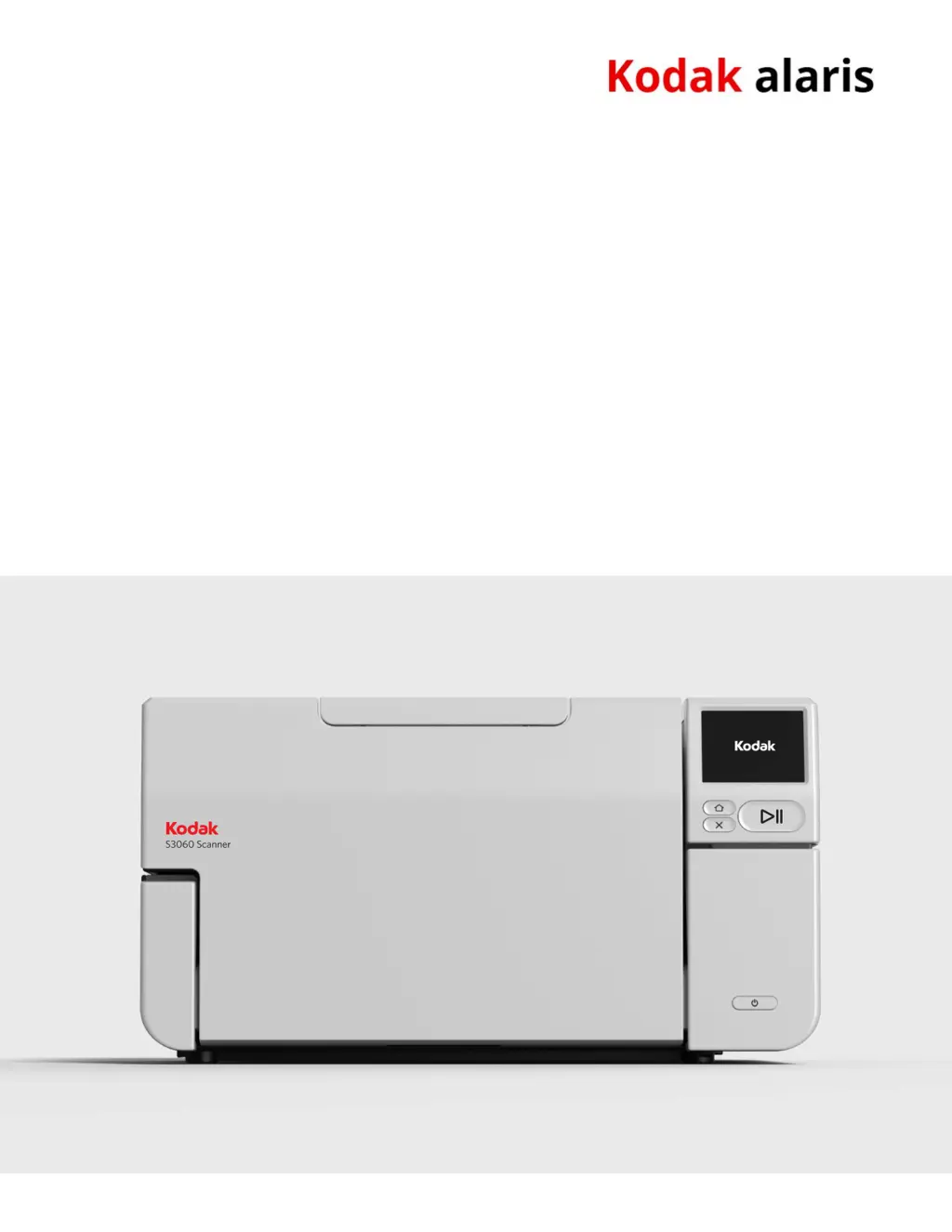
Kodak S3060
82 pages
Print Icon
To Next Page IconTo Next Page
Loading...
A-61981
KODAK S2085f Scanner
KODAK S3060 Scanner
KODAK S3060f Scanner
User's Guide
KODAK S3100 Scanner
KODAK S3100f Scanner
KODAK S3120 Scanner
KODAK S3120
Max
Scanner
KODAK S3140 Max Scanner
Kodak S2000f/S3000 Series Scanners

Table of Contents

Questions and Answers

  • P
    peterlaneSep 8, 2025
    How to remove roller marks from Kodak Scanner output?
    • M
      Mrs. Janet NormanSep 8, 2025
      If roller marks or streaks appear on documents after scanning with your Kodak scanner, clean the feed module, transport rollers, separation roller and tires.
  • C
    Courtney BurnsSep 12, 2025
    Why does my Kodak S3060 say 'Document Jam' when there isn't one?
    • L
      Logan PageSep 12, 2025
      If the “Document Jam” message appears on your Kodak scanner screen, but the paper is not actually jammed, verify that the Document Management: Maximum Length option on the Device-General tab (TWAIN Datasource) or the Longest Document option on the Scanner tab (ISIS Driver) is set to longer than the longest document being scanned. Also, the driver settings (Resolution, Compression, Bit depth) may result in the image being larger than the scanner memory. Adjust settings as needed.
  • M
    Marcus MoonSep 12, 2025
    What to do if Kodak S3060 says cover opened?
    • C
      Christopher RamosSep 12, 2025
      If your Kodak scanner indicates that the cover is opened, ensure that you close the scanner cover completely.
  • K
    Kimberly ChambersSep 14, 2025
    Why does my Kodak Scanner indicate false paper jams?
    • K
      Kelsey McdanielSep 14, 2025
      If your Kodak scanner is experiencing false paper jams or multifeeds, ensure the transport area is clean. Also, decrease the sensitivity setting for the multifeed and Intelligent Document Protection in the scanning application.
  • M
    Michael LucasSep 16, 2025
    What happens when a misfeed occurs on my Kodak S3060?
    • L
      Linda MitchellSep 17, 2025
      If a misfeed occurs during scanning with your Kodak scanner and Interactive Multifeed Recovery is enabled, scanning will pause and a screen will be displayed. Look at the images on your PC. If the image is acceptable, touch the start/resume button to accept the image(s) and continue scanning. If the image is not acceptable, touch the stop button to reject the image and suspend scanning, or touch the button to reject the image(s) and continue scanning.

Summary

Safety Precautions and Warnings

User Precautions and Guidelines

Details essential safety guidelines for operating the scanner, including placement, handling, and electrical safety.

Warning Labels and Acoustic Emission

Provides information on warning labels and the scanner's acoustic emission levels for safe operation.

Battery Information and Safety

Information regarding the scanner's internal battery, including caution for replacement and disposal.

Product Overview and Components

Guide Introduction and Documentation

Introduces the user guide, explains illustrations, and lists supporting documentation for the scanner.

Scanner Accessories and Contents

Lists available accessories for the scanner and describes the contents typically found in the box.

Identifying Scanner Components

Identifies and describes the external and internal parts of the Kodak S2000f/S3000 Series Scanners.

Installation and Initial Setup

Scanner Unboxing and Preparation

Step-by-step instructions for unboxing the scanner and preparing it for initial setup.

Scanner Setup and Configuration

Guides through initial scanner setup, including power connection and language selection.

Software, Driver, and Firmware Installation

Instructions for configuring network settings, installing drivers, and managing firmware updates.

Scanner Readiness and First Scan

Information on available scanning software, preparing the scanner, and performing the first scan.

Scanner Adjustments and Handling

Input and Output Tray Adjustments

Details on adjusting the input and output trays for different document sizes and stacking.

Special Document Handling Options

Instructions for using exit deflectors, flatbed scanning, and the rear document exit.

Scanner Touch Screen Interface

Status Indicators and Navigation

Explains the scanner's status area indicators and basic touch screen navigation buttons.

Settings and Configuration Menus

Details on accessing and using settings menus for information, maintenance, network, diagnostics, and setup.

Operational Controls and Adjustments

Covers power management, language selection, elevator, feed, speed, sharing, admin access, and reset functions.

Document Printing

Printer Accessory Usage and Setup

Information on using the KODAK Printer Accessory, including specifications and installation.

Printer Maintenance and Troubleshooting

Guides on installing ink cartridges, changing print positions, and solving common printer issues.

Scanner Maintenance

Maintenance Overview and Tools

Describes required maintenance procedures, frequency, and lists necessary cleaning tools and materials.

Routine Cleaning Procedures

Detailed steps for cleaning the scanner cover, rollers, feed tires, background strips, CIS imager, and flatbed glass.

Transport Cleaning and Final Steps

Instructions for cleaning the transport path using a cleaning sheet and final image quality checks.

Replacement Procedures and Supplies

Replacing Key Scanner Components

Guides for replacing feed modules, separation rollers, tires, pre-separation pads, and flatbed backgrounds.

Obtaining Replacement Parts and Supplies

Information on how to order consumables, accessories, and cleaning supplies for the scanner.

Troubleshooting and Service

Self-Help and Problem Solving

Resources for self-help, including online troubleshooting pages and common problem solutions.

Software Updates and Contacting Support

Guidance on upgrading software/firmware and steps for contacting Kodak Alaris service.

Regulatory Information

Environmental and Compliance Details

Information on environmental requirements, disposal, EU compliance, and perchlorate material.

Product Disclosure and EMC Statements

Details hazardous substance disclosure, EPUP, Taiwan information, and EMC statements for the device.

Warranty and Support Information

Limited Warranty Terms and Exclusions

Outlines the limited warranty coverage, exclusions, and disclaimers for KODAK Scanners.

Obtaining Warranty Service and Support

Details procedures for obtaining warranty service, including AUR, depot service, and contacting support.

Kodak S3060 Specifications

General IconGeneral
Optical Resolution600 dpi
Duplex ScanningYes
Scan Speed (Color, 300 dpi)60 ppm / 120 ipm
Color Depth24-bit
Max Document Size8.5" x 14"
Scanning SpeedUp to 60 ppm / 120 ipm
ConnectivityUSB 3.2 Gen 1
Output File FormatsJPEG, PDF, TIFF, BMP, RTF
Supported Operating SystemsWindows 7

Related product manuals