Chapter 2
Operation
6. Scene
Mixer settings can be stored as a “scene”, and
scenes can be recalled automatically as playback
progresses, or recalled whenever desired as gen-
eral-purpose mixer setups. Up to 20 scenes can be
stored in each song.
■ Storing a scene
For each channel, the volume level specified by the
[CHANNEL] fader, the stereo location set by the
[PAN] knob or [BALANCE] knob, the high EQ
“HEQ” and low EQ “LEQ” settings, the effect send
level “Snd” and the AUX send level “Aux” can be
stored in a scene.
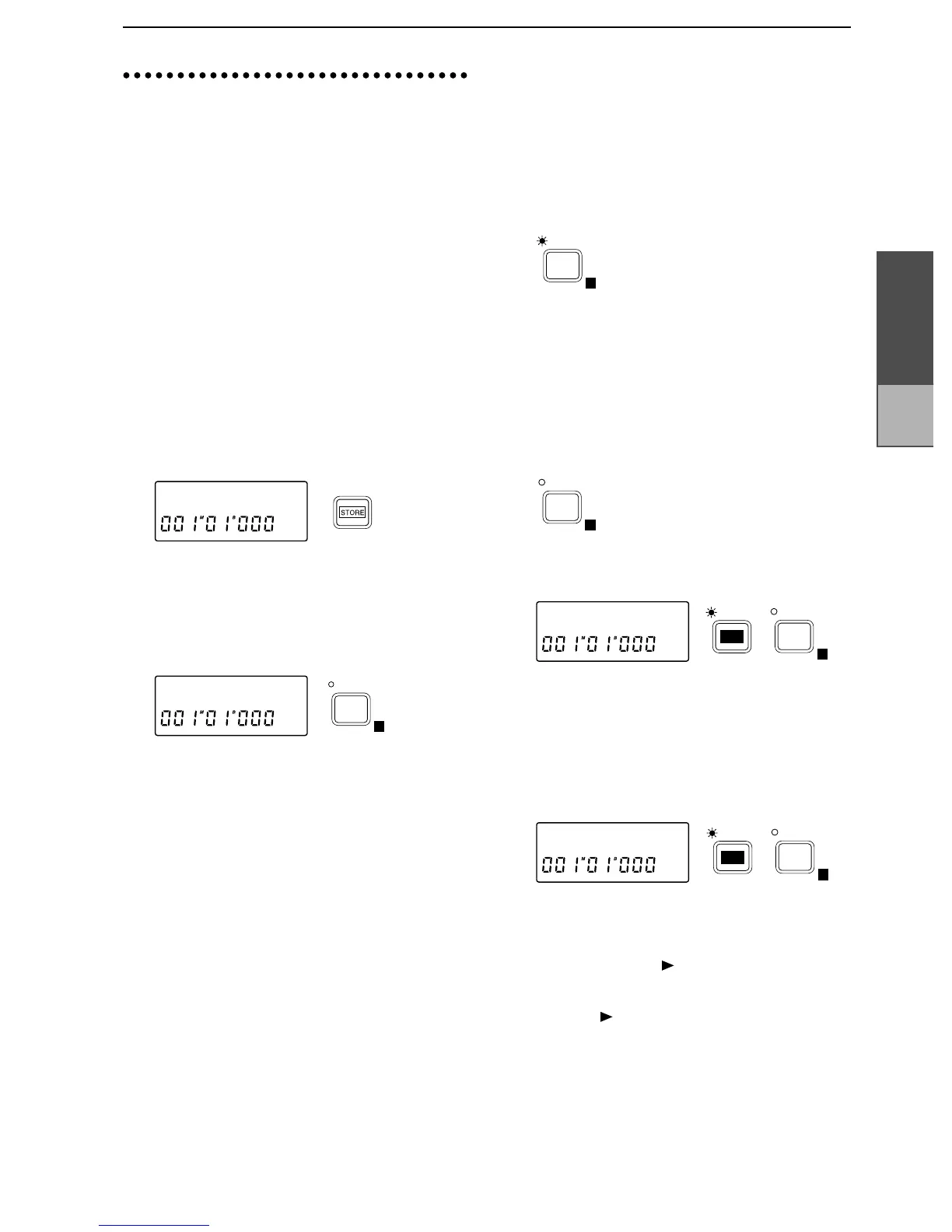
1 Move the current time to the location where you
wish to store the scene.
2 Adjust the mixer settings at that time location.
3 Press the [STORE] key to access the “Store” dis-
play.
4 Press the [SCENE] key to access the “Store
→S✽✽”
display (✽✽ is the scene number into which the set-
tings will be stored), and the mixer settings will be
stored as a scene.
Scene numbers will be assigned automatically,
beginning from the lowest vacant number.
Storing a scene during playback or recording
During playback or recording, you can perform the
above steps 3 and following to store a scene.
In this case, the time location and mixer settings at
the moment you press the [SCENE] key will be
stored as the scene.
■ Switching scenes during a song
Scenes that have been stored can switch automati-
cally as playback progresses.
1 Refer to “■ Storing a scene”, and register a scene at
the desired times in the song.
2 Press the [SCENE] key to select Scene Read ON
(indicator lit). This setting will alternate on/off
each time the key is pressed.
3 Move to the location from which you wish to play-
back, and press the [PLAY] key to begin playback.
(Refer to “1. Playback”, p.22)
When the stored time arrives, the scene will change
automatically.
■ Recalling a scene
1 If the [SCENE] indicator is lit, press the [SCENE]
key to turn Scene Read OFF (indicator off).
2 After pressing the [EDIT] key, press the [SCENE]
key to access the “S✽✽:Fader” display (✽✽ is the
scene number).
3 Rotate the [VALUE] dial to select the scene num-
ber. The selected scene will be recalled.
■ Deleting a scene
1 Press the [EDIT] key, and then press the [SCENE]
key several times to access the “Del
→S✽✽” display
(✽✽ is the scene number).
2 Rotate the [VALUE] dial to select the scene number
(S01–S20) that you wish to delete. If you select All,
all scenes will be deleted.
3 Press and hold the [ ] key for approximately one
second to delete the scene. When the data has been
deleted, the display will indicate “Completed”.
Press the [ ] key to restore the display.
Store˘
Store˘S01
SCENE
READ
E
SCENE
READ
E
SCENE
READ
E
S01:Fader
EDIT
SCENE
READ
E
Del˘S01 ?
EDIT
SCENE
READ
E
Track edit-
ing


 To Next Page