EasyManua.ls Logo

Kurzweil KP-100 - User Manual

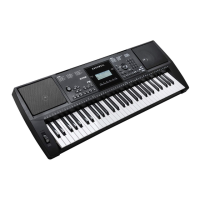
Kurzweil KP-100
48 pages
Print Icon
To Next Page IconTo Next Page
Loading...
MANUAL

Table of Contents

Questions and Answers

  • C
    Clayton GuzmanJul 27, 2025
    What to do if there is no sound from my Kurzweil KP-100?
    • J
      James ShepherdJul 27, 2025
      If you're not getting any sound from your Kurzweil Synthesizer, there are a few things to check: * Ensure the master volume is at an audible level. * Verify that headphones aren't plugged into the PHONES/OUTPUT jack. * Check the R1/R2/L voice volume (Mixer) settings to make sure they aren't too low. * Confirm that all voice volumes are appropriately set.
  • W
    wrichmondJul 31, 2025
    Why does my Kurzweil KP-100 Synthesizer make noise when I use my mobile phone?
    • J
      Justin BellAug 1, 2025
      When using a mobile phone close to the Kurzweil Synthesizer, interference can occur, causing noise. To resolve this, either turn off your mobile phone or increase the distance between the phone and the instrument.
  • D
    Darrell TylerAug 5, 2025
    How to fix wrong pitch on Kurzweil Synthesizer notes?
    • M
      Marissa WardAug 5, 2025
      If certain notes on your Kurzweil Synthesizer sound at the wrong pitch, ensure that the tuning value is set to 0. If that doesn't work, you can restore the instrument to its default settings by pressing and holding the [+/YES] and [-/NO] buttons simultaneously while turning the power on.
  • D
    Dr. Anna HallAug 11, 2025
    What to do if auto accompaniment does not play back on Kurzweil KP-100 Synthesizer?
    • K
      Kevin PerryAug 11, 2025
      If the auto accompaniment on your Kurzweil Synthesizer doesn't play back even when Sync is in standby and a key is pressed, you might be trying to start the accompaniment by playing a key in the right-hand range of the keyboard. To start the accompaniment with Sync Start, make sure to play a key in the left-hand range of the keyboard.
  • A
    Anthony AndersenAug 16, 2025
    Why is the harmony function not working on my Kurzweil Synthesizer?
    • B
      brandon75Aug 16, 2025
      If the Harmony function on your Kurzweil Synthesizer isn't working, first ensure that the Harmony function is turned on. Also, the Harmony function cannot be activated when a drum kit is selected for the voice R1.
  • D
    dcrawfordAug 20, 2025
    Why does my Kurzweil KP-100 Synthesizer make a pop sound when turned on or off?
    • M
      Marie AndersonAug 21, 2025
      The pop sound from the speakers of your Kurzweil Synthesizer when turning the power on or off is normal and not a cause for alarm.

Summary

Information for Your Safety

FCC Regulation Warning

Warning about FCC regulations for digital devices and potential interference.

General Precautions

Safety guidelines for power, connections, location, cleaning, and handling.

Panel & Display Description

Front Panel Overview

Description of the front panel layout and controls of the instrument.

Rear Panel Connections

Description of the rear panel connectors and ports of the instrument.

LCD Display Guide

Explanation of the LCD display layout and indicators.

Instrument Setup

Power Supply Options

Instructions for powering the instrument using batteries or AC adapter.

Music Stand Attachment

Instructions for attaching the included music stand to the instrument.

Instrument Connections

Computer Connectivity

Instructions for connecting the instrument to a computer via USB for MIDI.

Audio Connectivity

Connecting headphones, audio equipment, and external sound sources.

Microphone Input

Connecting a microphone for vocal accompaniment.

Pedal and Footswitch

Connecting sustain pedals and optional footswitches for control.

Power and Volume Control

Turning Power On;Off

Steps for turning the instrument's power on and off.

Adjusting Master Volume

How to adjust the overall volume using the volume knob.

Playing Demo Songs

Playing Voices

Selecting and Playing Voices

Steps to select and play different instrument sounds (voices).

Playing Styles

Selecting and Playing Styles

Steps to select and play different accompaniment styles (rhythms).

Playing Songs

Selecting and Playing Songs

How to select and play built-in songs for practice or listening.

Recording Your Performance

Preparing for Recording

Steps to select a user song and prepare for recording a performance.

Playing Voices

Dual Voice Layering

How to layer two different voices for a richer sound.

Split Keyboard Function

How to split the keyboard to play different voices with each hand.

Auto Accompaniment

Play Auto Accompaniment (Rhythm Only)

How to start the accompaniment with just the rhythm track.

Play Auto Accompaniment (All Tracks)

How to start the accompaniment with full tracks (rhythm, bass, chords).

Accompaniment Sections Overview

Describes Intro, Main, Fill-in, and Ending sections of accompaniment.

Auto Accompaniment

Playing Different Accompaniment Sections

How to switch between Intro, Main, Fill, and Ending sections during playback.

Fade Feature

Explanation of Fade In/Out for smooth volume changes during accompaniment.

Auto Accompaniment

Accompaniment Volume Control

How to adjust the volume balance between accompaniment and voice.

Chord Fingering Explained

Explanation of how chords are played and different fingering types.

Auto Accompaniment

Multi-finger Chord Input

Explanation of the multi-finger chord input method.

Tempo Adjustment

How to change the tempo of the accompaniment styles.

Function Menu

Tuning Adjustment

Adjusts the overall pitch of the instrument in 2-cent increments.

Split Point Setting

Sets the point where the keyboard is divided into left/right sections.

Function Menu

Beat Type Selection

Sets the beat type for rhythms and accompaniments.

Pedal Type Configuration

Configures the function of the sustain pedal.

EQ Type Selection

Selects equalization presets for sound shaping.

Function Menu

Reverb Effect Settings

Selects and adjusts reverb types and levels.

Chorus Effect Settings

Selects and adjusts chorus types and levels.

Function Menu

MIDI IN;OUT Configuration

Configures MIDI transmission and reception channels.

Auto Power Off Setting

Sets the automatic power-off timer for energy saving.

Mixer Function

Mixer Track Volume Adjustment

Adjusts individual track volumes for accompaniment.

Effect Related Settings

Octave Pitch Control

Adjusts the pitch of the keyboard up or down by octaves.

Touch Sensitivity Settings

Sets the touch sensitivity for expressive playing.

Metronome Practice Tool

Turns the metronome on/off for practice timing.

Sustain Function

Activates the sustain function to hold notes after key release.

Effect Related Settings

DSP Sound Effects

Applies digital signal processing effects for ambiance and depth.

Transpose Pitch Shift

Shifts the overall pitch of the instrument without changing fingerings.

Harmony Effect

Adds automatic harmony to notes played in the right hand.

Register Memory

Registering Panel Settings

How to save current panel settings to memory banks.

Recalling Saved Settings

How to recall previously saved panel settings from memory.

Selecting Registration Banks

How to navigate and select different memory banks.

One Touch Setting

Using One Touch Setting

Instantly recalls settings for a selected style with a single button press.

Recording Your Performance

Prepare for Recording

Steps to select a user song and prepare for recording a performance.

Recording Your Performance

Start Recording

Instructions on how to begin recording a performance.

Stop Recording

How to manually or automatically stop the recording process.

Playback and Delete Recordings

How to play back and delete recorded user songs.

Playing Demo Songs

Piano Mode

Song Mode

Listen to Songs

How to play and cycle through the instrument's preset songs.

Song Playback Controls

Details on playback controls like REW, FF, Pause, and Repeat.

Lesson Mode for Practice

How to enter and use the lesson mode for practicing songs.

Song Mode

Lesson 1: Practice Timing

Practice mode focusing on playing notes at the correct time.

Lesson 2: Practice Note Accuracy

Practice mode focusing on playing the correct notes.

Lesson 3: Performance Scoring

Practice mode that scores timing and note accuracy.

Chord Dictionary

Chord Learning Mode

Mode to learn chord names and how to play them.

Chord Testing Mode

Mode to test knowledge of playing chords.

Exiting Chord Dictionary

How to turn off the chord dictionary feature.

Pedal Function

Multi-function Pedal Guide

Details on the functions of the multi-function pedal.

MIDI Functions

Understanding MIDI

Explanation of MIDI and its capabilities for musical instruments.

MIDI Application with Computers

How to use the instrument's MIDI functions with computers.

Troubleshooting Common Issues

Instrument Specifications

Voice List Reference

Voice List Reference

Voice List Reference

Voice List Reference

Voice List Reference

Voice List Reference

Style List Reference

Style List Reference

Song List Reference

Song List Reference

Demo List

MIDI Implementation Chart

Kurzweil KP-100 Specifications

General IconGeneral
Number of Keys61
Adjustable Touch SensitivityYes
Presets633
General MIDIYes
Splits/LayersYes
TransposeYes
EffectsReverb, Chorus, EQ
SequencerNo
Audio InputsNo
DisplayLCD
Polyphony128
Headphone1/4"
MIDIIn, Out
Pedal1 (sustain)
Weight5 kg
Built-in SpeakersYes
Key ActionSynth-action

Related product manuals