30 44
EN
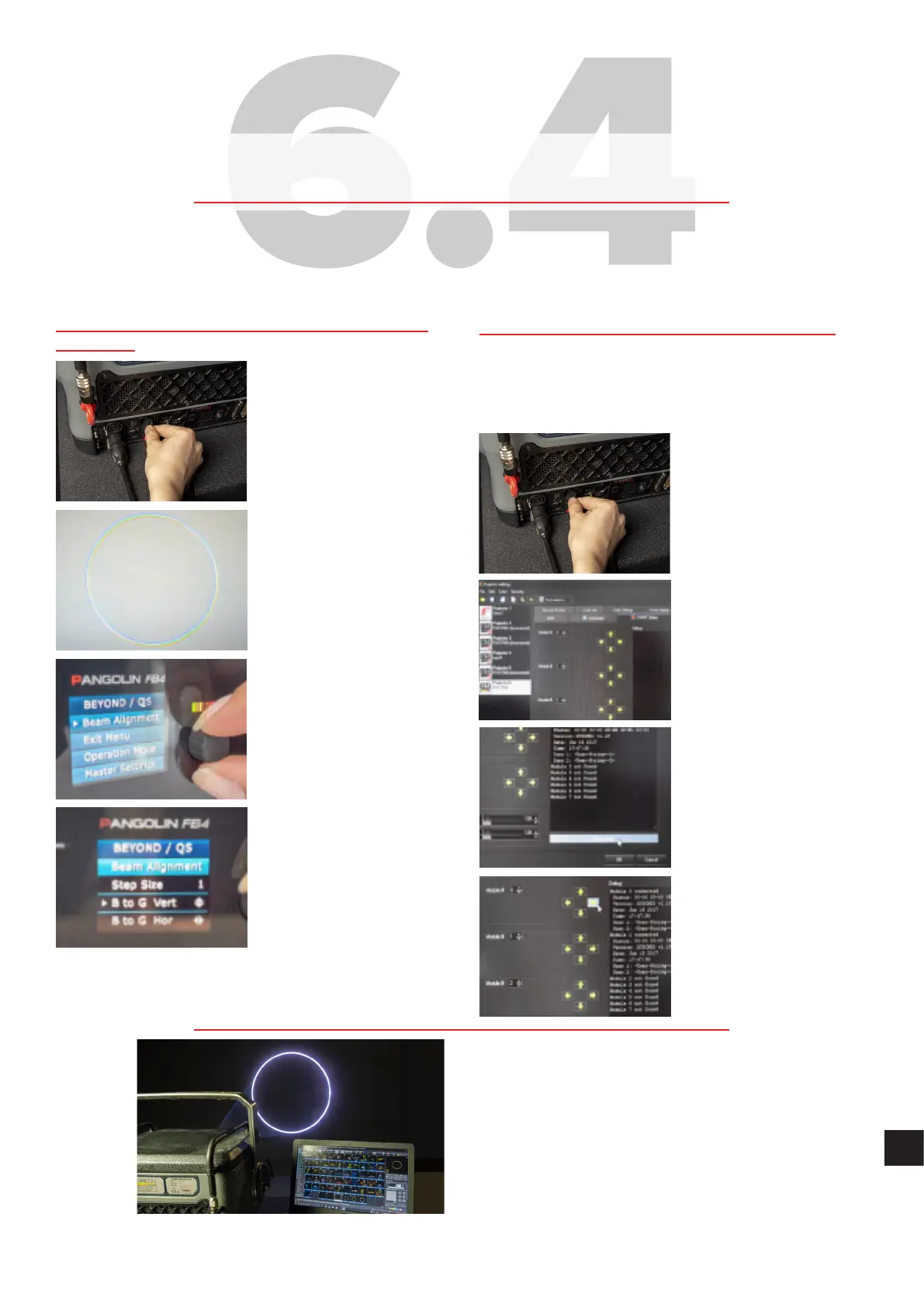
1. Adjusting colours directly from BeamBrush
interface
A: Power up the system
asstandard.
B: Create a full-size white
circle (static tunnel eect).
C: Find Beam Alignment
option inthe menu and enter
it by pressing the rotary
knob.
D: Here you can set the STEP
SIZE (amount of movement
in a single step), and
VERTICAL / HORIZONTAL
movement for every colour
inyour projector
(R=RED, G=GREEN, B=BLUE,
Y=YELLOW).
2. Adjusting colours from Beyond software
Beyond automatically identifies Motorised
Dichroic Filters when the laser projector
isconnected (and powered up) tothe PCvia
Ethernet.
A: Power up the system
as standard and create
afull-size white circle (static
tunnel eect).
B: Goto:
PROJECTOR SETTINGS
-> KVANT DICHRO tab.
There you will find all the
information and control
options for the dichroic
filters.
C: Tostart the beam
alignment, press the READ
STATUS button.
D: Start with the first dichroic
filter (laser module1) and/
orany other asnecessary.
Use the arrows associated
with each module tomove
the beam tothe desired
position.
When the alignment procedure issuccessful,
you will see all the colours nicely overlaying
each other, resulting inaneven, bright and
sharp white circle.



 To Next Page