EasyManua.ls Logo

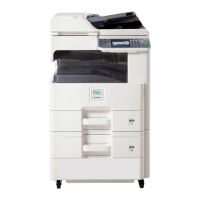
Kyocera ECOSYS FS-6530MFP - User Manual

Kyocera ECOSYS FS-6530MFP
32 pages
Print Icon
To Next Page IconTo Next Page
Loading...
FS-6525MFP
FS-6530MFP
QUICK INSTALLATION GUIDE
FIRST STEPS
All manuals and user guides at all-guides.com
all-guides.com

Other manuals for Kyocera ECOSYS FS-6530MFP

Questions and Answers

  • C
    Courtney CharlesAug 19, 2025
    What to do if my Kyocera Printer cannot send a fax?
    • R
      Robert RamirezAug 20, 2025
      If the Kyocera Printer displays 'Cannot send fax', ensure the modular cord is correctly connected. Also, verify that the 'Permitted FAX No.' or 'Permitted ID No.' are registered accurately. If a communication error occurred, check error codes in the TX/RX Result Report and Activity Report. If the error code starts with "U" or "E", perform the corresponding procedure. If the destination FAX line is busy or the destination FAX machine does not respond, send again. For errors not listed above, contact your Service Representative.
  • L
    littlerobinAug 21, 2025
    What to do if my Kyocera ECOSYS FS-6530MFP cannot send a document?
    • L
      Leslie ScottAug 22, 2025
      If your Kyocera Printer displays 'Cannot send document', ensure the modular cord is correctly connected. If a send error is displayed, remedy the cause of the error and send again. If TX (transmission) restriction is activated, cancel the TX restriction.
  • A
    Anthony KennedyAug 23, 2025
    What to do if my Kyocera ECOSYS FS-6530MFP cannot receive a document?
    • M
      Michael SchultzAug 23, 2025
      If your Kyocera Printer displays 'Cannot receive document', ensure the modular cord is correctly connected. If a communication error is displayed, remedy the cause of the error and ask the sender to retry. If RX (reception) restriction is activated, cancel the RX restriction.
  • M
    Michael BaileyAug 26, 2025
    What to do if Kyocera ECOSYS FS-6530MFP FAX connection could not be made?
    • N
      nschneiderAug 26, 2025
      If your Kyocera Printer displays 'FAX connection could not be made', first ensure the fax machine is turned on. Then, check for any errors occurring on the machine and clear them before attempting transmission again. Finally, verify that the IP address of the machine is correctly set in the Network FAX driver properties by checking the port setting in the Network FAX driver properties.
  • B
    Brandi HaysAug 27, 2025
    What to do if Kyocera ECOSYS FS-6530MFP asks to add paper in cassette?
    • J
      James FordAug 28, 2025
      If your Kyocera Printer displays 'Add the following paper in cassette', it may be because the indicated cassette is out of paper. Add paper to the cassette. If the reception paper type is specified, the necessary paper type is also displayed. To use another paper source, press [Paper Selection]. To print using the selected paper, press [Continue]. It could also be that the type of printing paper is specified, but the cassette for the specified paper type is not available. Select another paper source and press [Continue]. Finally, check if the cassette is securely loaded. Remove the cassette and reload it completely.
  • R
    Raymond ReedAug 29, 2025
    What to do if Kyocera Printer displays 'Job Accounting restriction exceeded'?
    • R
      Richard RodriguezAug 30, 2025
      If your Kyocera Printer shows 'Job Accounting restriction exceeded', it means the number of papers used has exceeded the limit preset by Job Accounting. No further operation is possible. Press [End] to cancel the job. To proceed, try the job again after resetting the limit for paper use.
  • L
    lindsay19Aug 31, 2025
    What to do if Kyocera Printer displays 'Box limit exceeded'?
    • K
      Karen LewisAug 31, 2025
      If your Kyocera Printer displays 'Box limit exceeded', the Sub Address Box capacity is used up with document data. Press [End] to cancel the job. Try to perform the job again after printing or deleting the data in the Sub Address Box. Alternatively, the polling box may be full. Press [End] to cancel the job. Delete documents from the polling box and then repeat the operation.
  • K
    Kristine JamesSep 2, 2025
    What to do if my Kyocera Printer displays 'Machine failure'?
    • J
      Joseph RodriguezSep 3, 2025
      If your Kyocera Printer displays 'Machine failure', turn the main power switch off and on, or unplug the power cord and plug it in again. If the message still appears, note the error code. Turn the main power switch off and unplug the power cord. Call your service representative.
  • J
    James ClementsSep 4, 2025
    What to do if Kyocera ECOSYS FS-6530MFP Printer cannot perform memory reception?
    • E
      etaylorSep 4, 2025
      If your Kyocera Printer displays 'Cannot perform memory reception', it is likely due to insufficient free space in the memory. To resolve this, either receive after the memory has free space, or create free space in the memory.
  • K
    Kathleen CantrellSep 6, 2025
    Why does my Kyocera Printer say only one destination is available for FAX Polling RX?
    • C
      Charles RuizSep 7, 2025
      If your Kyocera Printer displays 'Only one destination is available for FAX Polling RX. Enter the destination again', it is because only one contact can be specified at a time for polling reception. Specify the contact again.

Kyocera ECOSYS FS-6530MFP Specifications

General IconGeneral
Printer TypeMultifunction Printer
FunctionsPrint, Copy, Scan, Fax
Print TechnologyLaser
Print Speed (Black)30 ppm
Print Resolution1200 x 1200 dpi
Standard Paper Capacity250 sheets
ConnectivityUSB 2.0, Ethernet
Operating System CompatibilityWindows, Mac, Linux
Dimensions (W x D x H)23.2 x 22.6 x 24.4 inches
Weight90.4 lbs
Duplex PrintYes
Duplex UnitStandard
Paper Input Capacity250 sheets
Scan Resolution600 x 600 dpi
ADF Capacity50 sheets
Copier Speed30 cpm
Copy Resolution600 x 600 dpi
FaxYes
InterfaceUSB 2.0, Ethernet
Memory512 MB
Processor600 MHz
Maximum Paper SizeA4
Fax Transmission Speed33.6 kbps
Supported Paper SizesA4, A5, B5, Letter, Legal
Scanner TypeFlatbed, ADF

Related product manuals