EasyManua.ls Logo

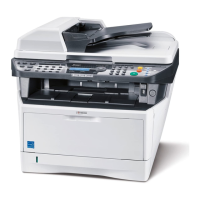
Kyocera ECOSYS FS-1135MFP - User Manual

Kyocera ECOSYS FS-1135MFP
180 pages
Print Icon
To Next Page IconTo Next Page
Loading...
FS-1130MFP
FS-1135MFP

Table of Contents

Questions and Answers

  • T
    Taylor SanchezSep 12, 2025
    How to fix 'Cannot feed paper set cassette 1' on Kyocera ECOSYS FS-1135MFP Printer?
    • T
      Tyler HendersonSep 12, 2025
      If your Kyocera Printer displays 'Cannot feed paper set cassette 1', and you have optional feeders installed, ensure that all paper feeders and the printer cassette above the selected one are properly closed.
  • D
    Danielle BryantAug 25, 2025
    What to do if my Kyocera Printer cannot print?
    • T
      Tammy WilliamsAug 25, 2025
      If your Kyocera Printer isn't printing, first ensure that the power cord is plugged into an AC outlet and the power switch is turned on. Check that the printer cable is securely connected and that the machine was powered on after connecting the cable. If the print job is paused, press the Resume key. Finally, if an error message is displayed, follow the corresponding procedure.
  • A
    Ashley WhiteAug 25, 2025
    How to clean Kyocera ECOSYS FS-1135MFP Printer dirty printouts?
    • T
      Thomas BrownAug 26, 2025
      If your Kyocera Printer produces dirty printouts, the platen or document processor might be dirty. Clean the platen or the document processor to resolve this issue.
  • H
    Heather AndersonSep 23, 2025
    Why Kyocera All in One Printer displays 'Cannot use polling reception.'?
    • J
      Jennifer WoodSep 23, 2025
      If you cannot use polling reception, check with the recipient to ensure polling transmission is being used correctly on the sending machine.
  • S
    Scott TranSep 12, 2025
    What to do if my Kyocera All in One Printer displays 'Machine failure. Call service.'?
    • J
      Jamie HoffmanSep 12, 2025
      First, try turning the power switch off and then on again. If that doesn't work, unplug the power cord, wait a few seconds, and then plug it back in. If the error message persists, make a note of the error code before turning the power switch off, unplugging the power cord and contacting your service representative.
  • A
    Aaron OsbornSep 16, 2025
    Why does my Kyocera All in One Printer say 'Cannot perform broadcast transmission.'?
    • B
      Brian DaySep 16, 2025
      This message indicates that there is not enough free space available in the memory. You need to free up space in the memory, or send the broadcast after the memory has free space.
  • H
    hthompsonSep 5, 2025
    How to fix Kyocera Printer cannot feed originals?
    • C
      Christine WaltersSep 5, 2025
      If your Kyocera Printer cannot feed originals, when placing originals in the document processor, align the original width guides securely before placing the originals.
  • L
    lilynnSep 5, 2025
    How to fix improperly printed documents on Kyocera ECOSYS FS-1135MFP Printer?
    • R
      rickyhessSep 5, 2025
      If documents are printed improperly by your Kyocera Printer, check that the printing system driver and application software settings are set properly on your PC.
  • L
    Logan GrayAug 30, 2025
    What to do if my Kyocera All in One Printer displays 'Cannot receive document.'?
    • T
      Tami HollandAug 30, 2025
      Check that the modular cord is correctly connected. If a communication error is displayed, resolve the error and ask the sender to resend the document. Also, make sure that RX (reception) restriction is not activated; if it is, cancel the RX restriction.
  • J
    James PenningtonAug 30, 2025
    What to do if my Kyocera All in One Printer displays 'Job Accounting restriction exceeded.'?
    • T
      Tonya PerezAug 30, 2025
      This message appears when the number of pages used has exceeded the limit set in Job Accounting. Press the OK key to cancel the current job. To proceed, reset the limit for paper use in the Job Accounting settings and try the job again.

Kyocera ECOSYS FS-1135MFP Specifications

General IconGeneral
Print TechnologyLaser
Print Resolution1200 x 1200 dpi
Duplex PrintingYes
Standard Memory256 MB
ConnectivityUSB 2.0, Ethernet
Scanner TypeFlatbed, ADF
Scan Resolution600 x 600 dpi
Copier Resolution600 x 600 dpi
Fax CapabilityYes
Fax Transmission Speed33.6 kbps
Maximum Paper SizeA4
Operating System CompatibilityWindows, Mac OS, Linux
Dimensions494 x 430 x 448 mm
Print Speed35 ppm
Standard Input Capacity250 sheets
Copy SpeedUp to 35 cpm
Maximum Input Capacity800 sheets (with optional paper feeders)

Related product manuals