EasyManua.ls Logo

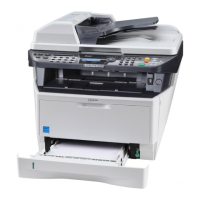
Kyocera ECOSYS FS-1035MFP/DP - User Manual

Kyocera ECOSYS FS-1035MFP/DP
442 pages
Print Icon
To Next Page IconTo Next Page
Loading...
FS-1030MFP/FS-1130MFP
FS-1035MFP/FS-1135MFP

Table of Contents

Other manuals for Kyocera ECOSYS FS-1035MFP/DP

Questions and Answers

  • H
    Holly HowardAug 25, 2025
    What to do if my Kyocera ECOSYS FS-1035MFP/DP cannot print?
    • M
      Mallory ScottAug 25, 2025
      If your Kyocera Printer isn't printing, first ensure that the power cord is plugged into an AC outlet and the power switch is turned on. Check that the printer cable is securely connected and that the machine was powered on after connecting the cable. If the print job is paused, press the Resume key. Finally, if an error message is displayed, follow the corresponding procedure.
  • K
    Kenneth McclainAug 25, 2025
    How to clean Kyocera ECOSYS FS-1035MFP/DP Printer dirty printouts?
    • K
      Kayla WilsonAug 26, 2025
      If your Kyocera Printer produces dirty printouts, the platen or document processor might be dirty. Clean the platen or the document processor to resolve this issue.
  • D
    Debbie GarrettAug 27, 2025
    What to do if Kyocera Printer ejects blank sheets?
    • A
      Angel RichardsonAug 27, 2025
      If your Kyocera Printer is ejecting blank sheets, make sure the originals are loaded correctly. When using the platen, place originals face-down and aligned with the slit glass. When using the document processor, place originals face-up.
  • F
    Francisco JohnsonAug 27, 2025
    What to do if my Kyocera ECOSYS FS-1035MFP/DP Printer says paper jammed?
    • S
      Steve RayAug 27, 2025
      If a paper jam occurs in your Kyocera printer, the machine will stop, and the location of the jam will be indicated on the Message Display. Leave the machine on and follow the instruction to remove the jammed paper.
  • L
    Lisa MorganSep 15, 2025
    Why does my Kyocera ECOSYS FS-1035MFP/DP say 'Cannot duplex print on this paper'?
    • J
      Jaclyn MedinaSep 15, 2025
      If your Kyocera Printer displays 'Cannot duplex print on this paper', you may have selected a paper size or media type that is not supported for duplex printing. Select an available paper type, or press the OK key to print without using Duplex.
  • V
    Virginia ChavezSep 13, 2025
    What does 'Non-genuine Toner' mean on Kyocera Printer?
    • R
      Rebecca StevensSep 13, 2025
      If your Kyocera Printer displays the message 'Non-genuine Toner', it means a non-genuine toner container is installed. The manufacturer is not responsible for damage caused by non-genuine toner. It is recommended to only use genuine toner containers. If you wish to continue using the installed toner, press the OK and Stop keys simultaneously for 3 seconds or more.
  • S
    Scott HarrisSep 14, 2025
    How to fix Kyocera Printer account error?
    • J
      jody58Sep 14, 2025
      To resolve an account error on your Kyocera Printer, set the accounting settings using PRESCRIBE again.
  • C
    Christina LewisSep 6, 2025
    How to remove moire pattern from Kyocera ECOSYS FS-1035MFP/DP copies?
    • S
      ssmithSep 6, 2025
      If copies from your Kyocera Printer have a moire pattern, and the original is a printed photograph, set the image quality to [Photo].
  • K
    Kristopher SmithSep 3, 2025
    Why are Kyocera Printer printouts wrinkled?
    • J
      Jennifer GoodSep 3, 2025
      If the printouts from your Kyocera Printer are wrinkled or curled, the paper might be damp. Replace the paper with new paper.
  • G
    Gary GibsonSep 5, 2025
    What to do if pressing Start key on Kyocera Printer does not produce copies?
    • R
      Ronald RamirezSep 5, 2025
      If pressing the Start key on your Kyocera Printer does not produce copies, check the Message Display for any messages and respond accordingly. Also, check if the machine is in Sleep mode; if so, press any key on the operation panel to recover the machine. It will be ready to copy within 15 seconds.

Summary

Preparation Before Use

Connecting Cables

Instructions for connecting cables to the machine and power outlet.

Power On;Off

Steps to turn the machine on and off safely.

Basic Operation

Copying

Step-by-step guide for performing basic copying operations.

Default Setting (System Menu)

Troubleshooting

Solving Malfunctions

General guidelines and corrective actions for common machine problems.

Clearing Paper Jams

Instructions for clearing paper jams in various locations of the machine.

Responding to Error Messages

How to respond to alphanumeric error messages displayed on the control panel.

Management

Kyocera ECOSYS FS-1035MFP/DP Specifications

General IconGeneral
Print TechnologyLaser
FunctionsPrint, Copy, Scan, Fax
Print Resolution1200 x 1200 dpi
Paper Output Capacity150 sheets
Scanner Resolution600 x 600 dpi
Copy Resolution600 x 600 dpi
Fax Speed33.6 kbps
ConnectivityUSB 2.0, Ethernet
Operating System CompatibilityWindows, macOS, Linux
Memory512 MB
TypeMonochrome
Print Speed35 ppm
Paper Capacity250 sheets
Duplex PrintingYes
Scanner TypeFlatbed and ADF
Copy Speed35 cpm
Scan Speed (Black & White)Up to 35 ipm (A4, 300 dpi)

Related product manuals