EasyManua.ls Logo

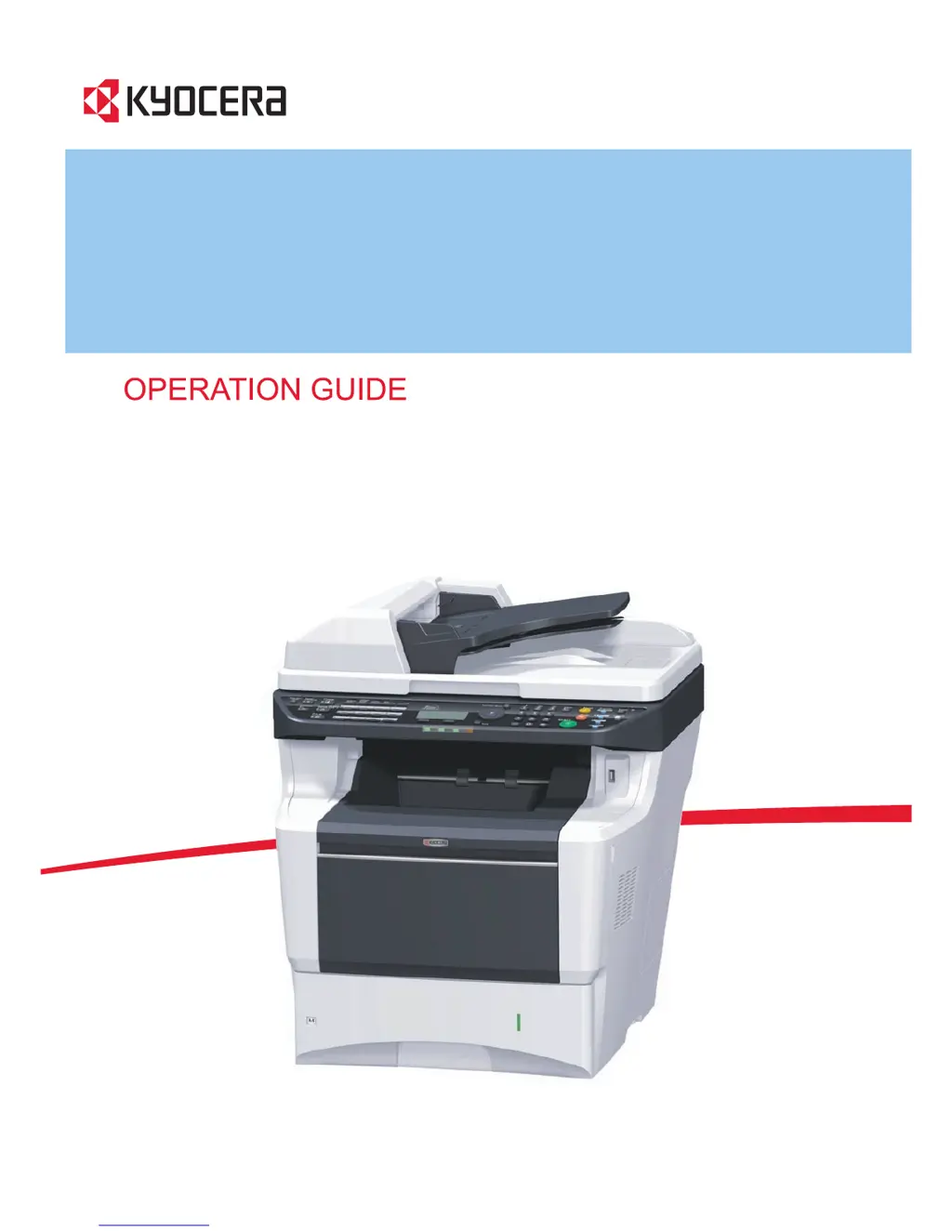
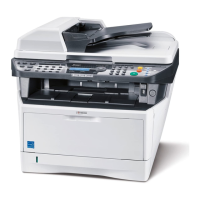
Kyocera ECOSYS FS-3140MFP - User Manual

Kyocera ECOSYS FS-3140MFP
454 pages
Print Icon
To Next Page IconTo Next Page
Loading...
FS-3040MFP+/FS-3140MFP+

Table of Contents

Other manuals for Kyocera ECOSYS FS-3140MFP

Questions and Answers

  • A
    Angela MartinSep 8, 2025
    How to fix faint images on Kyocera Printer?
    • E
      Eric DennisSep 9, 2025
      If part of the image from your Kyocera printer is periodically faint or shows white lines, the developer unit may not be attached correctly; attach it correctly. Also, try opening and then closing the rear cover. You may also need to refresh drum.
  • D
    David SmithAug 25, 2025
    Why my Kyocera ECOSYS FS-3140MFP Printer cannot print?
    • J
      Joshua MarshallAug 25, 2025
      If your Kyocera printer isn't printing, here are a few things to check: * Ensure the power cord is plugged into an AC outlet. * Turn on the main power switch. * Make sure the printer cable is securely connected. * Power on the printer after connecting the cable. * If the print job is paused, press the Resume key. * If an error message is displayed, follow the instructions provided.
  • K
    Kenneth DuncanAug 25, 2025
    Why is my Kyocera Printer ejecting blank sheets?
    • K
      Karen WatkinsAug 26, 2025
      If your Kyocera printer is ejecting blank sheets, it might be because the originals are not loaded correctly. When using the platen, place originals face-down and align them with the slit glass. When using the document processor, place them face-up.
  • M
    Megan AlexanderSep 22, 2025
    Why my Kyocera ECOSYS FS-3140MFP cannot perform encrypted communication?
    • E
      ericsullivanSep 22, 2025
      If your Kyocera printer cannot perform encrypted communication, double-check the registrations at both the sender and recipient ends to ensure they are correct.
  • M
    Marcus WilliamsSep 9, 2025
    How to troubleshoot SMB sending issues on Kyocera ECOSYS FS-3140MFP Printer?
    • A
      Anna CisnerosSep 9, 2025
      To resolve issues with sending via SMB on your Kyocera printer: ensure the network cable is securely connected; configure the TCP/IP settings properly; check sharing settings and access privileges under the folder properties; and set the SMB protocol setting to [On].
  • J
    Joshua NixonSep 14, 2025
    What does 'Job Accounting restriction exceeded' mean on Kyocera ECOSYS FS-3140MFP Printer?
    • R
      Rachel HallSep 14, 2025
      If your Kyocera printer displays "Job Accounting restriction exceeded. Cannot print.", the job is canceled. Press the OK key.
  • J
    jhickmanSep 3, 2025
    How to fix fuzzy printouts on Kyocera ECOSYS FS-3140MFP?
    • T
      thompsonrobertSep 3, 2025
      If your Kyocera printer is producing fuzzy printouts, it could be due to high humidity. Try using the printer in a location with suitable humidity. You may also need to refresh the drum.
  • D
    Danny CarterSep 4, 2025
    Why Kyocera ECOSYS FS-3140MFP cannot feed originals?
    • J
      Jeremy KingSep 4, 2025
      If your Kyocera printer cannot feed originals, ensure they are placed correctly. When using the document processor, align the original width guides securely before placing the originals. Also, the paper feed roller or the separation pad might be dirty; wipe them with a moistened cloth.
  • K
    Kendra WilkinsSep 23, 2025
    Why Kyocera ECOSYS FS-3140MFP cannot use sub address bulletin board communication?
    • U
      umaxwellSep 23, 2025
      If your Kyocera printer cannot use sub address bulletin board communication, it may be because the other party's fax machine does not have the same sub address bulletin board communication function. Check with the recipient to confirm.
  • W
    walkerjodyAug 29, 2025
    What to do if my Kyocera ECOSYS FS-3140MFP cannot receive a document?
    • D
      Dr. Lisa BakerAug 29, 2025
      If your Kyocera printer is unable to receive a document, first check that the modular cord is correctly connected. If a communication error is displayed, resolve the error and ask the sender to retry. Also, ensure that RX (reception) restriction is not activated; if it is, cancel it.

Summary

Part Names

Operation Panel

Identifies the control interface and its keys.

Machine Components

Details the physical parts of the machine.

Preparation before Use

Check Bundled Items

Verifies all included accessories and documentation are present.

Connection and Network Setup

Guides on connecting the machine to a PC or network.

Power On;Off and Sleep Modes

Explains turning the machine on/off and its power-saving sleep modes.

Load Paper and Originals

Provides instructions for loading paper into trays and originals.

Basic Operation

Login;Logout Procedures

Details how to log in and out of the machine's user accounts.

Copying Functionality

Explains the basic steps for making copies.

Printing from Applications

Guides on printing documents from computer applications.

Sending Documents

Covers sending scanned images via email, folder, or fax.

Environment and Safety

Service Environmental Conditions

Specifies optimal temperature, humidity, and location guidelines for machine operation.

Cautions for Consumables Handling

Provides safety warnings and instructions for handling toner and waste toner.

Other Precautions

Machine Storage and Power Management

Advice on storing the machine and using the power switch for extended periods.

Laser Safety (USA)

Safety of laser beam

Discusses the machine's certification as a Class 1 laser product.

The CDRH Act

Explains the US regulatory act for laser products.

Optical Unit Safety

Warns about direct exposure to the laser beam when checking the optical unit.

Power Disconnection and Compliance (USA)

Power Disconnection Safety

Emphasizes the power plug as the sole isolation device.

FCC Compliance and Warnings

Details FCC rules and potential interference.

Warranty Information (USA)

Multifunctional Product Limited Warranty

Outlines the warranty terms, coverage, and exclusions.

Laser Safety and Legal Restrictions

Laser Safety (Europe)

Addresses laser radiation hazards and safety classifications in Europe.

Legal Restrictions on Copying;Scanning

Informs about legal limitations on copying copyrighted materials.

Energy Saving and Environmental Features

Energy Saving Control Function

Explains Low Power and Sleep modes for power saving.

Automatic 2-Sided Copy Function

Details the feature for creating two-sided copies.

Paper Recycling and Energy Star

Covers machine's support for recycled paper and Energy Star compliance.

About this Operation Guide

Structure and Content Overview

Describes the content and structure of the operation guide.

Conventions in This Guide

Typographical Conventions Explained

Explains the typographical conventions used throughout the manual.

Copying Functions

Original Size

Specifies the size of originals for scanning.

Paper Selection

Selects the paper source for copying.

Original Orientation

Sets the orientation for scanned originals.

EcoPrint

Enables toner saving mode for printing.

Sending Functions

Original Size for Sending

Specifies the size of originals for scanning before sending.

Sending Size Selection

Selects the size of the image to be sent.

File Format Options

Selects the file format for scanned images.

Scan Resolution Settings

Adjusts the fineness of scanning resolution.

Document Box

Print Documents from USB Memory

Prints files stored on USB memory without a computer.

Save Documents to USB Memory (Scan to USB)

Stores scanned images in PDF, TIFF, JPEG, or XPS format onto USB memory.

Remove USB Memory Safely

Details the procedure for safely removing USB memory.

Print from Job Box

Prints documents stored in the machine's job box.

Status and Job Management

Checking Job Status

Checks the status of jobs being processed or waiting.

Checking Job History

Reviews the history of completed print, send, and store jobs.

Canceling Jobs

Details how to cancel print or send jobs.

Device Status Checks

Checks the status of connected devices like scanner, printer, and FAX.

Default Setting (System Menu)

Common Settings Configuration

Adjusts general machine settings like language and sound.

Copy Settings Configuration

Sets defaults for copying functions like photo processing.

Printer Settings Configuration

Configures printer defaults such as emulation and duplexing.

Network Setup Options

Configures TCP/IP, Bonjour, and other network settings.

Maintenance Procedures

Cleaning the Machine

Guides on cleaning internal components and external surfaces.

Toner Container Replacement

Details the steps for replacing the toner container.

Replacing the Waste Toner Box

Explains how to replace the waste toner box.

Replacing Maintenance Kit (MK-370)

Outlines the procedure for replacing the maintenance kit.

Troubleshooting Common Issues

Solving Malfunctions

Provides a table of common symptoms, checkpoints, and corrective actions.

Responding to Error Messages

Explains how to interpret and resolve alphanumeric error messages.

Clearing Paper Jams

Guides on identifying and removing paper jams from various locations.

Management Functions

User Login Administration

Manages user access levels and authentication methods.

Job Accounting Setup

Configures job accounting for tracking copy/print usage by account.

Checking the Counter

Displays counts for printed and scanned pages.

Appendix

Optional Equipment

Describes optional hardware like paper feeders and memory modules.

Character Entry Method

Explains how to enter characters using the machine's interface.

Paper Specifications

Details supported paper types, sizes, weights, and conditions.

Glossary

Provides definitions for technical terms used in the manual.

Kyocera ECOSYS FS-3140MFP Specifications

General IconGeneral
Print TechnologyLaser
Print Resolution1200 x 1200 dpi
Duplex PrintingYes
ConnectivityUSB 2.0, Ethernet
FunctionsPrint, Copy, Scan, Fax
Copy Resolution600 x 600 dpi
Scan Resolution600 x 600 dpi
Fax Transmission Speed33.6 kbps
Maximum Paper SizeA4
Operating System CompatibilityWindows, Mac OS, Linux
Monthly Duty Cycle200, 000 pages
Memory512 MB
Weight22 kg

Related product manuals