EasyManua.ls Logo

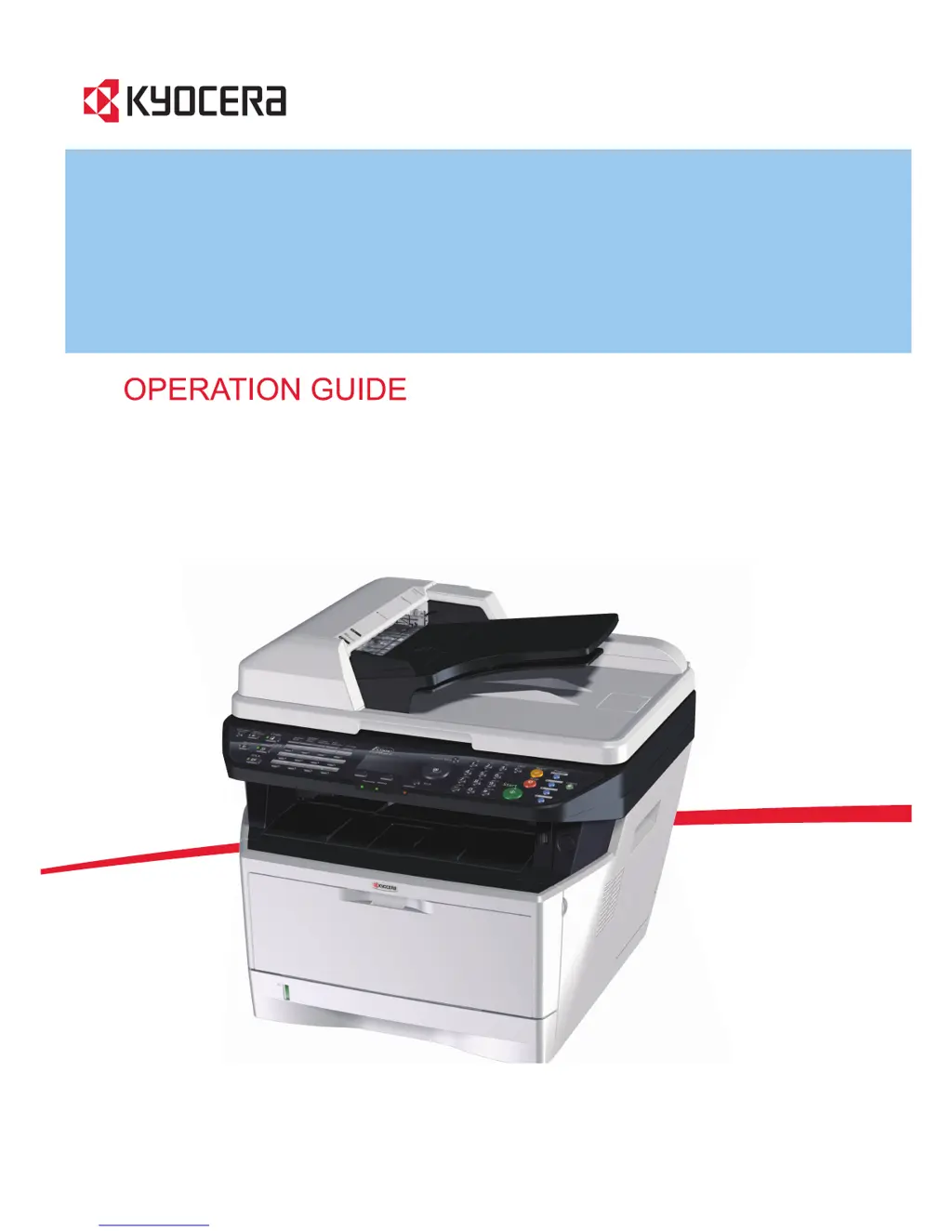
Kyocera FS-1030MFP - User Manual

Kyocera FS-1030MFP
442 pages
Print Icon
To Next Page IconTo Next Page
Loading...
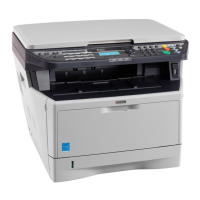
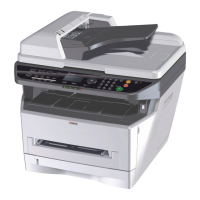
FS-1030MFP/FS-1130MFP
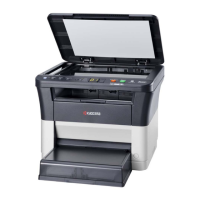
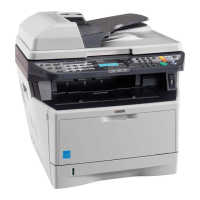
FS-1035MFP/FS-1135MFP

Table of Contents

Other manuals for Kyocera FS-1030MFP

Questions and Answers

  • G
    Gregory SantanaAug 25, 2025
    What to do if my Kyocera Printer cannot print?
    • A
      Ashley ManningAug 25, 2025
      If your Kyocera Printer isn't printing, first ensure that the power cord is plugged into an AC outlet and the power switch is turned on. Check that the printer cable is securely connected and that the machine was powered on after connecting the cable. If the print job is paused, press the Resume key. Finally, if an error message is displayed, follow the corresponding procedure.
  • L
    lukejensenAug 25, 2025
    How to clean Kyocera Printer dirty printouts?
    • J
      James BrownAug 26, 2025
      If your Kyocera Printer produces dirty printouts, the platen or document processor might be dirty. Clean the platen or the document processor to resolve this issue.
  • M
    Michael CherryAug 26, 2025
    What to do if Kyocera Printer ejects blank sheets?
    • J
      Jennifer KaiserAug 27, 2025
      If your Kyocera Printer is ejecting blank sheets, make sure the originals are loaded correctly. When using the platen, place originals face-down and aligned with the slit glass. When using the document processor, place originals face-up.
  • D
    Deborah SextonAug 27, 2025
    What to do if my Kyocera Printer says paper jammed?
    • A
      andreawatsonAug 27, 2025
      If a paper jam occurs in your Kyocera printer, the machine will stop, and the location of the jam will be indicated on the Message Display. Leave the machine on and follow the instruction to remove the jammed paper.
  • A
    ajohnsonSep 15, 2025
    Why does my Kyocera Printer say 'Cannot duplex print on this paper'?
    • J
      John GarciaSep 15, 2025
      If your Kyocera Printer displays 'Cannot duplex print on this paper', you may have selected a paper size or media type that is not supported for duplex printing. Select an available paper type, or press the OK key to print without using Duplex.
  • W
    wjonesSep 13, 2025
    What does 'Non-genuine Toner' mean on Kyocera Printer?
    • M
      Micheal AllenSep 13, 2025
      If your Kyocera Printer displays the message 'Non-genuine Toner', it means a non-genuine toner container is installed. The manufacturer is not responsible for damage caused by non-genuine toner. It is recommended to only use genuine toner containers. If you wish to continue using the installed toner, press the OK and Stop keys simultaneously for 3 seconds or more.
  • C
    carterjoshuaSep 14, 2025
    How to fix Kyocera Printer account error?
    • M
      Michael LeeSep 14, 2025
      To resolve an account error on your Kyocera Printer, set the accounting settings using PRESCRIBE again.
  • W
    wendybaileySep 6, 2025
    How to remove moire pattern from Kyocera Printer copies?
    • A
      Angela SuarezSep 6, 2025
      If copies from your Kyocera Printer have a moire pattern, and the original is a printed photograph, set the image quality to [Photo].
  • J
    Jennifer PalmerSep 3, 2025
    Why are Kyocera Printer printouts wrinkled?
    • J
      jensenjeremySep 3, 2025
      If the printouts from your Kyocera Printer are wrinkled or curled, the paper might be damp. Replace the paper with new paper.
  • J
    Jackie StoutSep 4, 2025
    What to do if pressing Start key on Kyocera Printer does not produce copies?
    • M
      Molly MahoneySep 5, 2025
      If pressing the Start key on your Kyocera Printer does not produce copies, check the Message Display for any messages and respond accordingly. Also, check if the machine is in Sleep mode; if so, press any key on the operation panel to recover the machine. It will be ready to copy within 15 seconds.

Summary

Safety Conventions in This Guide

Symbols Used in This Guide

Explains safety symbols indicating warnings, prohibited actions, and required actions.

Quick Guide

Handling Precautions

Environment

Specifies optimal environmental conditions for machine performance and image quality.

Laser Safety Information

Maintenance

Outlines safety instructions for service personnel during machine maintenance.

Laser Safety (Europe)

Legal Restriction on Copying;Scanning

Details legal prohibitions and penalties related to copying and scanning copyrighted materials.

1 Part Names

Operation Panel Overview

Details the function of each key and display area on the machine's operation panel.

Machine Components

Illustrates and labels major external and internal components of the machine.

2 Preparation before Use

Connecting Cables

Provides step-by-step instructions for connecting the machine to a PC or network device via USB or LAN.

Network Setup (LAN Cable Connection)

Details the configuration of network parameters for LAN connectivity, including TCP/IP settings.

Installing Software

Explains how to install printer drivers and related software from the provided DVD onto Windows and Macintosh systems.

3 Basic Operation

Login;Logout

Describes the process for logging into and out of the machine when user login administration is enabled.

Copying

Explains the procedure for performing basic copying operations, including paper selection and copy quantity.

Sending

Outlines the process for sending scanned images via E-mail, to a PC folder (SMB/FTP), or using TWAIN/WIA.

4 Copying Functions

Original Size

Guides users on how to specify the size of originals for scanning to ensure accurate copying.

Paper Selection

Explains how to select the appropriate paper source (cassette, MP tray) for copying operations.

Duplex Copying

Describes how to perform two-sided copying from one-sided or two-sided originals.

5 Sending Functions

Original Size

Allows users to specify the original size for scanning, which serves as the basis for sending.

File Format

Explains how to select the file format (PDF, TIFF, XPS, JPEG) for sending scanned images.

Scan Resolution

Details how to adjust scanning resolution to balance image quality, file size, and transmission time.

6 Document Box

Printing Documents Stored in USB Memory

Guides users on printing files directly from a USB memory device connected to the machine.

Saving Documents to USB Memory (Scan to USB)

Details the procedure for scanning originals and saving them as files directly to a USB memory device.

7 Status; Job Cancel

Checking Job Status

Explains how to view the current status of print, send, and store jobs, including details like job name and status.

Canceling Jobs

Provides instructions on how to cancel any print or send job that is currently being executed or is waiting.

8 Default Setting (System Menu)

Common Settings

Covers fundamental settings such as language, sound, display brightness, and date/time.

Network Setup

Guides users through configuring network interfaces, TCP/IP, NetWare, AppleTalk, and WSD Scan settings.

Printer Settings

Explains settings related to printer emulation, EcoPrint, duplexing, copies, and orientation.

9 Maintenance

Cleaning

Details procedures for cleaning the glass platen and the document processor slit glass to ensure print quality.

Toner Container Replacement

Guides users through the process of replacing the toner container, including necessary cleaning steps.

10 Troubleshooting

Solving Malfunctions

Provides a table of symptoms, check points, and corrective actions for resolving typical machine issues.

Responding to Error Messages

Explains how to interpret and respond to alphanumeric error messages displayed on the control panel.

Clearing Paper Jams

Offers step-by-step instructions and precautions for clearing paper jams in various locations of the machine.

11 Management

User Login Administration

Explains how to set up and manage user access levels, including local and network authentication.

Job Accounting

Details how to manage copy/print counts by assigning IDs to accounts for tracking usage and restricting access.

Appendix

Optional Equipment

Describes optional accessories like paper feeders and expansion memory modules available for the machine.

Character Entry Method

Explains how to use the control panel keys to enter text, numbers, and symbols for various settings.

Paper

Provides detailed information on supported paper types, sizes, and specifications for optimal printing.

Specifications

Lists the technical specifications of the machine, including common functions, printer functions, and scanner functions.

Kyocera FS-1030MFP Specifications

General IconGeneral
Secure printingYes
Print technologyLaser
Maximum resolution1800 x 600 DPI
Duplex printing modeAuto
Time to first page (black, normal)6 s
Print speed (black, normal quality, A4/US Letter)30 ppm
Digital senderNo
Printing colorsBlack
Maximum duty cycle20000 pages per month
Number of print cartridges1
Page description languagesEpson LQ, IBM ProPrinter, Microsoft XPS, PCL 5c, PCL 6, PCL XL, PostScript 3
Copier resize25 - 400 %
Maximum copy resolution600 x 600 DPI
Maximum number of copies999 copies
N-in-1 copy function (N=)2, 4
Time to first copy (black, normal)6.9 s
Scan toE-mail, File, FTP, Image, OCR, USB
Scan driversTWAIN, WIA
Scanner typeFlatbed scanner
Grayscale levels256
Maximum scan areaLegal (216 x 356) mm
Image formats supportedJPG, TIF
Document formats supportedPDF
Paper input typeCassette, Paper tray
Total input capacity300 sheets
Total output capacity- sheets
Maximum input capacity800 sheets
Total number of input trays2
Maximum number of input trays4
Multi-Purpose tray input capacity50 sheets
Custom media width70 - 216 mm
Maximum print size216 x 356 mm
Custom media length148 - 356 mm
Duplex media weight60 - 105 g/m²
Paper tray media typesPlain paper
Paper tray media weight60 - 120 g/m²
Non-ISO print media sizesFolio
ISO A-series sizes (A0...A9)A4, A5, A6
ISO B-series sizes (B0...B9)B5
Multi-purpose tray media typesEnvelopes
Maximum ISO A-series paper sizeA4
Multi-Purpose Tray media weight60 - 220 g/m²
DisplayLCD
Product colorBlack, White
Market positioningBusiness
Display number of lines5 lines
Standard interfacesEthernet, USB 2.0
Mobile printing technologiesNot supported
Processor model440
Processor familyPowerPC
Compatible memory cardsCF
Maximum internal memory768 MB
Sound power level (standby)30 dB
Sound pressure level (copying)54 dB
Sound pressure level (quiet mode)49 dB
AC input voltage220 - 240 V
AC input frequency50 - 60 Hz
Power consumption (off)0.5 W
Power consumption (standby)78 W
Power consumption (PowerSave)7.8 W
Power consumption (average operating)480 W
Sustainability certificatesENERGY STAR
CertificationTUV, GS
Faxing-
Weight and Dimensions IconWeight and Dimensions
Depth410 mm
Width494 mm
Height366 mm

Related product manuals