EasyManua.ls Logo

Kyocera FS-1020D - User Manual

Kyocera FS-1020D
150 pages
Print Icon
To Next Page IconTo Next Page
Loading...
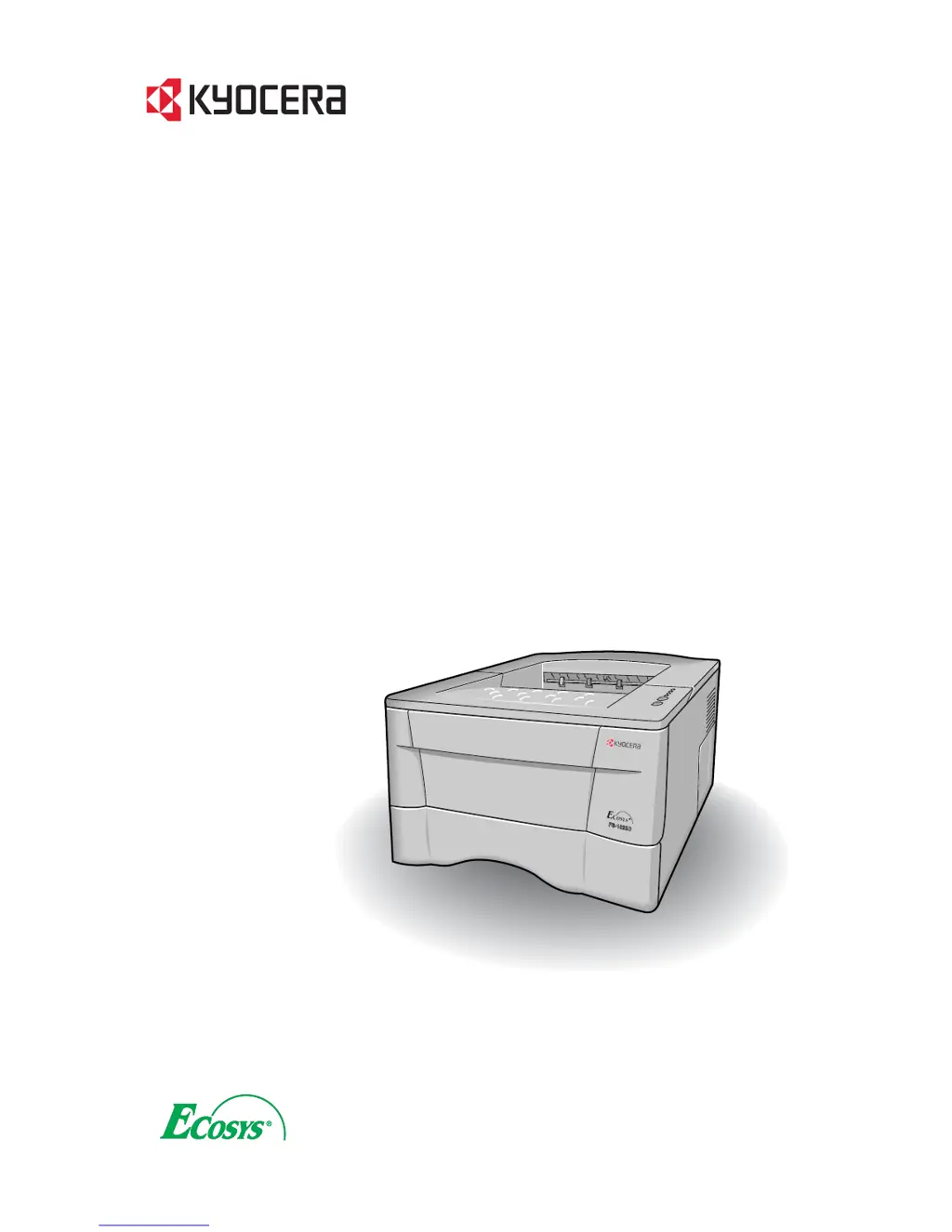
FS-1020D
Page Printer
Operation Guide

Table of Contents

Other manuals for Kyocera FS-1020D

Questions and Answers

  • E
    Elizabeth RiveraAug 13, 2025
    How to fix Kyocera Printer when it will not print from the computer?
    • S
      Sabrina GuzmanAug 13, 2025
      If your Kyocera printer isn't printing from the computer, there might be a problem with the computer’s network connection. Check relevant items to ensure proper connectivity. Also, pressing the key switches the printer to online status, so ensure the printer is online.
  • S
    Sharon StokesAug 17, 2025
    Why is my Kyocera Printer printing faint or blurred?
    • M
      Michelle RowlandAug 17, 2025
      Faint or blurred printing on your Kyocera printer can occur due to several reasons. The EcoPrint setting might be On, so switch it to Off. If the (toner) indicator is flashing, install a new toner kit. Also, try cleaning the charger wire by opening the printer’s top and front covers, removing the process unit, and sliding the charger knob back and forth. You can also try setting the thin paper mode, setting the paper type to Thin. Finally, if the toner is not being fixed well to the paper, adjust the corresponding custom paper type setting, selecting Normal 3 as the corresponding weight.
  • N
    Natalie DanielsAug 21, 2025
    How to resolve black or white vertical streaks on Kyocera Printer?
    • T
      Tanya FergusonAug 21, 2025
      Black or white vertical streaks on your Kyocera prints may be due to a low toner supply. If the (toner) indicator flashes, install a new toner kit and clean the printer after replacement. Also, clean the charger wire by opening the printer’s top and front covers, removing the process unit from the printer and sliding the charger knob back and forth. Ensure that the charger cleaner knob is restored to its home position.
  • R
    romankennethAug 25, 2025
    What to do if nothing lights up on Kyocera Printer operator panel?
    • L
      lori42Aug 25, 2025
      If nothing lights up on the operator panel of your Kyocera printer, even when the power is on and the fan makes no noise, turn off the printer’s power, plug in the power cord securely, and try turning on the printer’s power again. Also, check that the power switch is really in the ON ( | ) position.
  • J
    Jennifer HallAug 28, 2025
    What to do if Kyocera Printer prints status page but not data from computer?
    • L
      Linda MartinAug 28, 2025
      If your Kyocera printer prints a status page but not data from the computer, connect both ends of the interface cable securely and try replacing the printer cable. Also, try printing another file or using another print command; if the problem occurs only with a specific file or application, check the printer settings for that application.
  • W
    Wayne MillerSep 1, 2025
    Why does my Kyocera Printer produce a grey background?
    • B
      brittanyevansSep 1, 2025
      A grey background on your Kyocera prints might be caused by a low toner level. If the (toner) indicator flashes, install a new toner kit. Also, check that the process unit is properly installed.
  • D
    Darren SolisSep 4, 2025
    How to remove dirt from the top edge or back of Kyocera Printer paper?
    • K
      Kimberly NelsonSep 4, 2025
      To remove dirt from the top edge or back of the paper in your Kyocera printer, check whether the transfer roller is dirty. If so, print several pages to eliminate the dirt. Also, check whether the registration roller is soiled with toner; if it is, wipe it clean using the supplied wiper cloth.
  • D
    David McgrathSep 8, 2025
    How to fix dropouts, horizontal streaks, or stray dots on Kyocera Printer?
    • M
      Manuel HuffSep 8, 2025
      To fix dropouts, horizontal streaks, or stray dots on your Kyocera printer, clean the charger wire. Open the printer’s top and front covers, remove the process unit from the printer, and slide the charger knob back and forth to clean the charger wire.

Summary

Chapter 1: Basic Settings and Operations

KM-NET Remote Operation Panel Utility

Details the KM-NET utility for monitoring and controlling the printer.

Paper Handling and Settings

Covers settings for paper type, size, source, and duplex printing.

Chapter 2: Maintenance Procedures

Toner Container Replacement

Provides instructions for replacing the toner container and its interval.

Cleaning the Printer Interior

Guides on cleaning the printer's internal components.

Chapter 3: Troubleshooting Printer Issues

General Troubleshooting Guide

Offers basic steps to resolve common printer problems.

Resolving Print Quality Problems

Addresses common print quality issues and their corrective actions.

Understanding Printer Indicators

Explains the meaning of printer indicators and associated error messages.

Paper Jam Removal Procedures

Provides step-by-step instructions for clearing paper jams.

Chapter 4: Paper Selection and Usage

Appendix A: Printer Options

Appendix B: Host Computer Interface

Appendix C: Printer Specifications

Detailed Printer Specifications

Lists technical specifications including speed, resolution, and paper handling.

Kyocera FS-1020D Specifications

General IconGeneral
Time to first page (black, normal)10 s
Print speed (black, normal quality, A4/US Letter)20 ppm
Internal memory16 MB
Processor modelPower PC 405
Built-in processorYes
Maximum internal memory272 MB
Powersave acoustic emission0 dB
Sound power level (standby)32 dB
Sound pressure level (printing)53 dB
I/O portsStandard interface: High speed bi-directional parallel (IEEE 1284), USB 2.0 (Full speed), KUIO LV Option-Interface slot Multiple interface connection (MIC): MIC allows for simultaneous data transfer via up to three interfaces, with each interface having its own virtual printer.
Memory upgradeYes GB
Power supply type220~240V @ 50/60Hz
Networking featuresAs optional: 10Base-T/100Base-TX, 10Base-FL, FibreLink, TokenRing STP/UTP, Wireless LAN - IEEE 802.11b, 10Base-T/100Base-TX/100Base-FX, FibreOptic, 10Base-2/10Base-T/100Base-TX, Optional
Standard input traysUniversal paper cassette, Multipurpose tray.
Duty cycle letter size (maximum)15000 pages per month
Maximum print size210 x 297 mm
Media weight (tray 1)60 -105 g/m2
Maximum ISO A-series paper sizeA4
Maximum input capacity250 sheets
Weight and Dimensions IconWeight and Dimensions
Dimensions (WxDxH)378 x 375 x 235 mm

Related product manuals