EasyManua.ls Logo

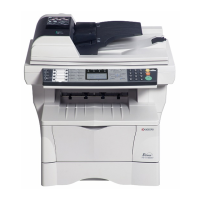
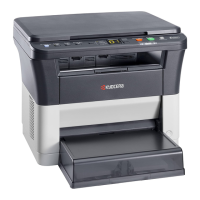
Kyocera FS-1128MFP - Service Manual

Kyocera FS-1128MFP
252 pages
Print Icon
To Next Page IconTo Next Page
Loading...
SERVICE
MANUAL
Published in August 2009
842JN112
2JNSM062
Rev.2
FS-1128MFP

Table of Contents

Other manuals for Kyocera FS-1128MFP

Questions and Answers

  • C
    Christopher FergusonSep 1, 2025
    What to do if my Kyocera All in One Printer prints blank sheets?
    • B
      browndanielSep 1, 2025
      If your Kyocera All in One Printer is ejecting blank sheets, it might be due to the originals being loaded incorrectly. If using the platen, place the originals face-down and align them with the original size indicator plates. If using the optional document processor, place the originals face-up.
  • L
    Levi PattersonAug 25, 2025
    What to do if my Kyocera Printer is not printing?
    • S
      saratateAug 25, 2025
      If your Kyocera printer is not printing, first, ensure the power cord is plugged into an AC outlet and that the main power switch is turned on. Check that the printer cable is securely connected. If the printer cable was connected before powering on the machine, power cycle the printer. Finally, verify that the print job is not paused; if it is, press the Resume key to resume printing.
  • I
    Ian MatthewsSep 23, 2025
    What does 'Scanner memory is full' mean on Kyocera All in One Printer?
    • E
      Erika LamSep 23, 2025
      If your Kyocera All in One Printer displays 'Scanner memory is full. Job is canceled', scanning cannot be performed due to insufficient memory of scanner. The job is canceled. Press the OK key.
  • R
    ryan41Sep 6, 2025
    Why does my Kyocera FS-1128MFP All in One Printer keep jamming paper?
    • B
      Bryan FischerSep 6, 2025
      If your Kyocera All in One Printer is jamming paper frequently: * Ensure the paper is loaded correctly. * Verify the paper type is supported and in good condition; try turning the stack over. * Replace curled, folded, or wrinkled paper. * Remove any loose scraps or jammed paper from the machine.
  • S
    Scott JohnsonSep 12, 2025
    Why does my Kyocera FS-1128MFP say 'Cannot duplex print on this paper'?
    • P
      parkerheatherSep 12, 2025
      If your Kyocera All in One Printer displays 'Cannot duplex print on this paper', it means the selected paper size/media type is not duplex printable. Select an available paper type, or press the OK key to print without using Duplex.
  • B
    bradyandrewSep 3, 2025
    What to do if my Kyocera All in One Printer operation panel doesn't respond?
    • C
      cgallagherSep 3, 2025
      If the operation panel of your Kyocera All in One Printer does not respond when the main power switch is turned on, ensure the power cord is plugged into an AC outlet.
  • C
    chadwarrenAug 29, 2025
    Why my Kyocera FS-1128MFP cannot perform memory reception?
    • A
      alanwheelerAug 29, 2025
      Your Kyocera All in One Printer may be unable to perform memory reception if there is not enough free space in the memory. To resolve this, try to receive after the memory has free space, or create free space in the memory.
  • Y
    Yolanda HarrisSep 13, 2025
    How to fix 'Incorrect Login User Name or Password' error on Kyocera FS-1128MFP?
    • R
      Rachel StevensSep 13, 2025
      If your Kyocera All in One Printer displays 'Incorrect Login User Name or Password', enter the correct login user name or password.
  • A
    awoodSep 8, 2025
    How to resolve 'Incorrect account ID. Job is canceled' message on Kyocera Printer?
    • J
      Julie AndradeSep 8, 2025
      If your Kyocera printer displays the message 'Incorrect account ID. Job is canceled', enter the correct login user name or password.
  • D
    david86Aug 27, 2025
    How to resolve 'Load paper in MP Tray' error on Kyocera Printer?
    • S
      Susan TuckerAug 27, 2025
      If your Kyocera printer displays the 'Load paper in MP Tray' message, load the paper in the multi purpose tray which is of the size and type indicated on the Message Display.

Summary

Safety Precautions

Safety Warnings and Precautions

Explanation of symbols and warning levels (DANGER, WARNING, CAUTION).

1. Installation Precautions

Safety measures during installation.

2. Precautions for Maintenance

Safety measures during maintenance procedures.

Specifications

Installation

1-2-1 Installation environment

Recommended conditions for installation and operation.

Maintenance Mode

1-3-1 Maintenance mode

Instructions on how to enter and operate maintenance mode.

1-3-2 Management mode

Overview of the management mode for user settings.

1-3-3 Maintenance Mode Items

List of maintenance functions, their contents, and initial settings.

Troubleshooting

1-4-1 Paper misfeed detection

Information on detecting and indicating paper misfeeds.

1-4-2 Self-diagnostic function

How the machine performs self-diagnosis and displays errors.

1-4-3 Image formation problems

Overview of common image formation issues.

1-4-4 Electric problems

Troubleshooting electrical issues with the machine.

1-4-5 Mechanical problems

Troubleshooting common mechanical issues.

1-4-6 Error codes

Explanation of error code structure and indications.

1-4-7 Send error code

Error codes related to sending functions (SMB, FTP, E-mail, Twain).

Assembly and Disassembly

1-5-1 Precautions for assembly and disassembly

General precautions before disassembling or assembling parts.

Requirements on PWB Replacement

Kyocera FS-1128MFP Specifications

General IconGeneral
Duplex printingYes
Print technologyLaser
Maximum resolution1200 x 1200 DPI
Time to first page (black, normal)6 s
Print speed (black, normal quality, A4/US Letter)28 ppm
Printing colorsBlack
Maximum duty cycle20000 pages per month
Page description languagesPCL 5e, PCL 6, PCL XL
Scan toFTP
Grayscale levels256
Image formats supportedJPG, TIF
Optical scanning resolution- DPI
Copier resize25 - 400 %
Maximum copy resolution600 x 600 DPI
Maximum number of copies999 copies
Time to first copy (black, normal)6.9 s
FaxingMono faxing
Fax memory100 pages
Modem speed33.6 Kbit/s
Fax coding methodsJBIG, MMR (Fax coding method), MR
Fax transmission speed3 sec/page
Total input capacity- sheets
Total output capacity150 sheets
Maximum input capacity800 sheets
Internal memory256 MB
Processor model440
Processor familyPowerPC
Maximum internal memory768 MB
Sound power level (standby)30 dB
Sound pressure level (copying)52 dB
Custom media sizes105 x 148mm/216 x 356mm
Dimensions (WxDxH)494 x 410 x 366 mm
Power requirementsAC 220 - 240 V, 50/60Hz
All-in-one functionsCopy, Fax, Scan
Color all-in-one functionsscan, n
Compatible operating systemsWindows 2000/XP/Server 2000/Server 2003/ Vista/Server 2008, MAC OS 9.X, MAC OS X, Linux
Maximum print size216 x 356 mm
Duplex media weight60 - 105 g/m²
Paper tray media typesEnvelopes
Paper tray media weight60 - 120 g/m²
Non-ISO print media sizesFolio
ISO A-series sizes (A0...A9)A4, A5, A6
ISO B-series sizes (B0...B9)B5
Maximum ISO A-series paper sizeA4
Multi-Purpose Tray media weight60 - 220 g/m²
Standard interfacesUSB 2.0
USB 2.0 ports quantity1
Power consumption (standby)91 W
Power consumption (PowerSave)10.2 W
Power consumption (average operating)494 W
CertificationTÜV/GS, CE
Display-
Market positioningBusiness
Supported network protocols (IPv6)SNMPv3, SSL, IPsec
Sustainability certificatesENERGY STAR
Harmonized System (HS) code84433100

Related product manuals