EasyManua.ls Logo

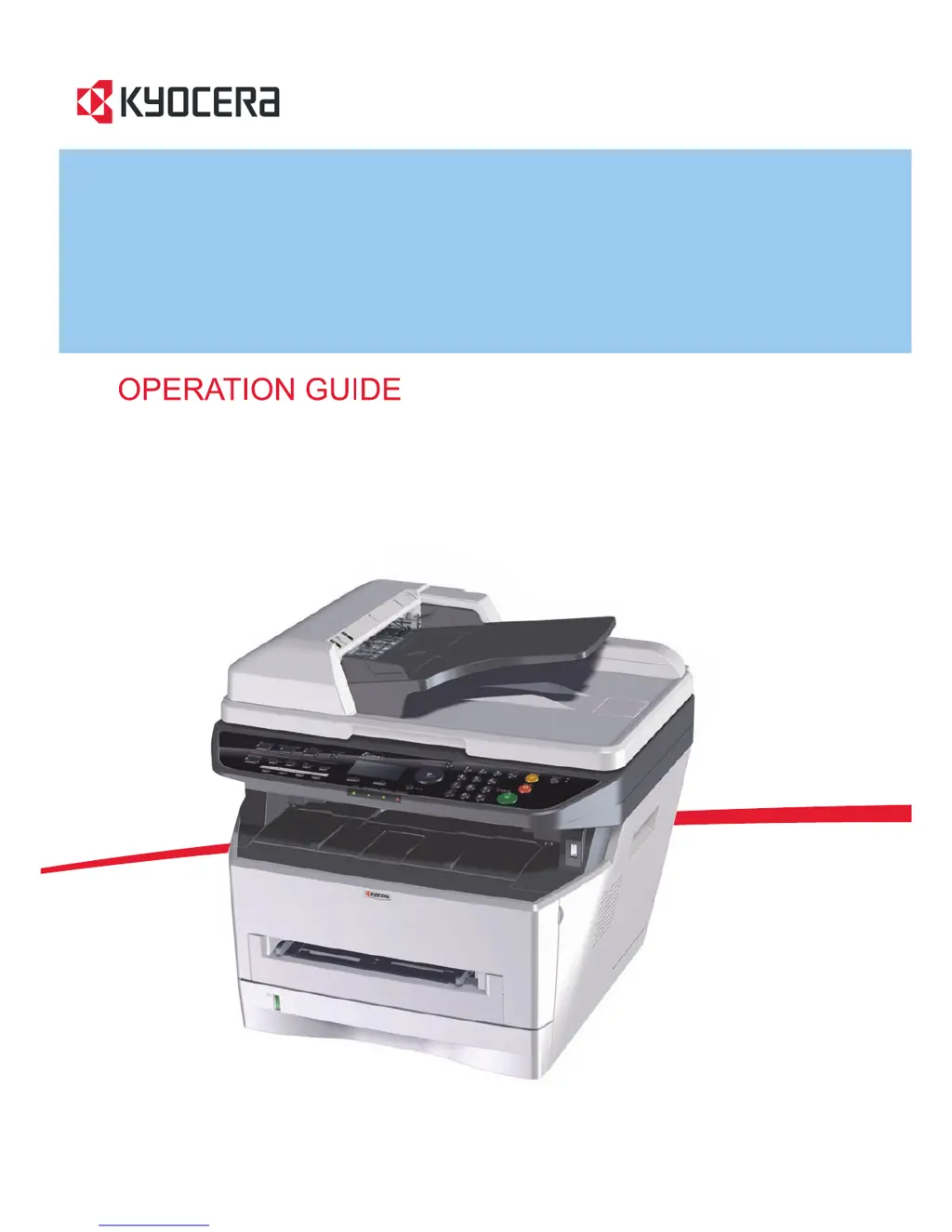
Kyocera FS-1124MFP - User Manual

Kyocera FS-1124MFP
292 pages
Print Icon
To Next Page IconTo Next Page
Loading...
FS-1024MFP/FS-1124MFP

Table of Contents

Other manuals for Kyocera FS-1124MFP

Questions and Answers

  • J
    jonathanwilkersonSep 12, 2025
    What does 'Error occurred. Turn the main power switch off and on' mean on Kyocera FS-1124MFP All in One Printer?
    • V
      Victoria CarrollSep 13, 2025
      If your Kyocera All in One Printer displays 'Error occurred. Turn the main power switch off and on', a system error has occurred. Turn the main power switch off and on.
  • K
    keithserranoAug 25, 2025
    Why my Kyocera All in One Printer cannot print?
    • K
      Kimberly RayAug 25, 2025
      There could be several reasons why your Kyocera All in One Printer isn't printing: * The power cord may not be plugged into an AC outlet. Plug the power cord into an AC outlet. * The main power switch may not be turned on. Turn on the main power switch. * The printer cable may not be connected. Connect the correct printer cable securely. * The machine may have been powered on before the printer cable was connected. Power on the machine after connecting the printer cable. * The print job may be paused. Press [Resume] (the Left Select key) to resume printing.
  • P
    Paul HooverAug 26, 2025
    How to fix light printouts on Kyocera FS-1124MFP All in One Printer?
    • J
      Joel TaylorAug 26, 2025
      If your printouts are too light, consider the following: * If the machine is in Manual Density mode, select the correct density level. * When changing the default density level, adjust the density manually and choose the desired level. * Shake the toner container from side to side several times to distribute the toner evenly. * If there's a message indicating the addition of toner, replace the toner container. * If the paper is damp, replace it with new paper. * If EcoPrint mode is enabled, disable it.
  • A
    andersoncandiceSep 23, 2025
    Why Kyocera FS-1124MFP All in One Printer cannot send fax?
    • J
      Jessica GarciaSep 23, 2025
      If your Kyocera All in One Printer cannot send a fax: * Ensure the modular cord is connected correctly. * Check that Permitted FAX No. or Permitted ID No. are registered correctly. * Check error codes in the TX/RX Result Report and Activity Report. If the error code starts with "U" or "E", perform the corresponding procedure. * The destination FAX line may be busy. Send again. * The destination FAX machine may not be responding. Send again. * For any other errors, contact your Service Representative.
  • J
    Jacob HayesSep 13, 2025
    What does 'Maximum Number of scanned pages. Job is canceled' mean on Kyocera FS-1124MFP?
    • D
      douglas08Sep 13, 2025
      If your Kyocera All in One Printer displays 'Maximum Number of scanned pages. Job is canceled': * Scanning cannot be performed due to insufficient memory of scanner. The job is canceled. Press the OK key. * If the acceptable scanning count is exceeded, press the OK key to print, send or store the scanned pages. Press the Stop key to cancel printing, sending or storing.
  • A
    Andrew WilliamsSep 22, 2025
    What does 'Top tray is full of Paper. Remove the paper' mean on Kyocera All in One Printer?
    • F
      fbennettSep 22, 2025
      If your Kyocera All in One Printer displays 'Top tray is full of Paper. Remove the paper', remove paper from the top tray, and press the OK key to resume the job.
  • L
    Lori HayesSep 6, 2025
    What to do if Kyocera FS-1124MFP says 'Load paper in MF Tray'?
    • D
      Daniel ReynoldsSep 6, 2025
      If your Kyocera All in One Printer displays 'Load paper in MF Tray', load the paper in the Manual Feed Tray which is of the size and type indicated on the Message Display.
  • E
    Eric RubioSep 7, 2025
    How to fix moire pattern on Kyocera FS-1124MFP All in One Printer copies?
    • S
      Sheila MillerSep 7, 2025
      If your Kyocera All in One Printer copies have a moire pattern, and the original is a printed photograph, set the image quality to [Photo].
  • Z
    Zachary RileySep 23, 2025
    What does 'Unknown toner Installed. PC' mean on Kyocera All in One Printer?
    • B
      bgonzalezSep 23, 2025
      If your Kyocera All in One Printer displays 'Unknown toner Installed. PC': * This message is displayed if the installed toner container's regional specification does not match the machine’s. Install the specified toner container. * This message is displayed if the installed toner container is non- genuine. The manufacturer assumes no liability for problems caused by a non-genuine toner container. We recommend that you only use genuine toner containers. When you want to use the toner container currently installed, press the OK key and Stop key simultaneously for 3 seconds or more.
  • M
    Mitchell SpearsAug 31, 2025
    How to improve print clarity on Kyocera All in One Printer?
    • R
      Raven AndersonAug 31, 2025
      To improve print clarity on your Kyocera All in One Printer, select the appropriate image quality for the original.

Summary

Safety Conventions and Symbols

Safety Conventions in This Guide

Explains safety warnings and conventions used in the operation guide.

Understanding Safety Symbols

Defines the meaning of various safety symbols used throughout the manual.

Quick Guide to Machine Operations

Quick Guide: Making Copies

Provides basic instructions for performing copy operations.

Quick Guide: Printing Documents

Offers a brief overview of printing documents from applications.

Installation Precautions and Safety Information

Environmental Considerations for Installation

Recommends suitable environmental conditions and locations for machine setup.

Consumable Handling Cautions

Provides safety guidelines for handling toner and waste toner containers.

Laser Beam Safety (USA)

Details laser beam safety standards and precautions for users in the USA.

Laser Safety (Europe)

Explains laser radiation hazards and machine classification for users in Europe.

Legal Restrictions and Other Precautions

Outlines legal limitations and other safety precautions, including power disconnection.

Chapter 1: Part Names

Operation Panel Overview

Identifies and describes the functions of the machine's operation panel keys.

Machine Component Identification

Illustrates and names the main physical parts of the machine.

Chapter 2: Preparation Before Use

Checking Bundled Items and Software Installation

Lists included items and provides instructions for installing necessary software.

Connecting Cables and Setting Date;Time

Guides on connecting cables and setting the machine's date and time.

Loading Paper and Originals

Procedures for loading paper into the cassette/manual feed and placing originals.

Specifying Paper Size and Media Type

Sets paper size and media type for the cassette and manual feed tray.

Chapter 3: Basic Operation

Power Management: On;Off and Sleep Modes

Instructions for powering the machine on, off, and entering sleep states.

Performing Basic Copying and Adjustments

Steps for making copies, adjusting density, and image quality.

Printing from Applications and Manual Duplex

Guides on printing from PC applications and performing duplex printing.

Managing Jobs: Status, Cancellation, and Toner;Paper Check

Checking job status, canceling jobs, and monitoring toner and paper levels.

Chapter 4: Copying Functions

Original Size and Orientation Settings

Specifies original size and orientation for optimal copying.

EcoPrint, Combine Mode, and Continuous Scan

Features for toner saving, combining pages, and scanning large documents.

File Name Entry and Print Override

Assigns names to copy jobs and suspends print jobs for immediate copies.

Chapter 5: Scanning Image to PC

Scanning via TWAIN;WIA Applications

How to scan documents using compatible PC software applications.

Chapter 6: Scanning Image to USB

Saving Scanned Documents to USB Memory

Stores scanned image files directly onto a USB memory device.

Configuring Scan Image Settings

Sets color mode, original size, scan resolution, and file format for USB scans.

Managing USB Memory

Provides the correct procedure for removing USB memory safely.

Chapter 7: Status and Job Cancellation

Checking Job Status and History

Monitors the status of current jobs and reviews the history of completed jobs.

Managing Jobs: Pausing, Resuming, and Canceling

Procedures for pausing, resuming, and canceling active jobs.

Device and Communication Status Checks

Checks the status of connected devices like scanners, printers, and FAX.

Chapter 8: Default Settings (System Menu)

Common Settings Configuration

Configures general settings like language, screen display, and sound.

Paper and Original Size Settings

Registers custom original sizes and sets paper size/type for cassettes.

Date, Time, and Timer Settings

Sets the machine's date, time, time zone, and various timer functions.

Function Defaults Setup

Sets default values for functions like color selection, scan resolution, and density.

Printer Settings Customization

Configures default printer settings such as EcoPrint, orientation, and copies.

Destination Management: Address Book and One-Touch Keys

Manages address book entries, groups, and registers destinations on one-touch keys.

Administrator and Interface Settings

Edits administrator details and configures interface block settings for security.

Chapter 9: Maintenance

Cleaning Machine Components

Provides procedures for cleaning the glass platen and internal parts.

Toner Container Replacement Procedure

Step-by-step guide for replacing the toner container.

Handling Prolonged Non-Use and Moving

Guidelines for storing the machine during long periods of non-use and for moving it.

Chapter 10: Troubleshooting

Solving Common Malfunctions

Table of common symptoms, checkpoints, and corrective actions for troubleshooting.

Responding to Error Messages

Guidance on how to interpret and resolve error messages displayed by the machine.

Clearing Paper Jams

Instructions for safely removing jammed paper from various locations.

Chapter 11: Management

Checking Page Counters

How to check the number of pages printed and scanned by function or size.

Appendix: Reference Information

Character Entry Method

Explains how to enter characters using the machine's keypad and screen.

Paper Specifications and Handling

Details supported paper types, sizes, and handling guidelines.

Machine and Component Specifications

Provides detailed technical specifications for the machine and its parts.

Glossary of Terms

Defines technical terms and acronyms used in the manual.

Kyocera FS-1124MFP Specifications

General IconGeneral
BrandKyocera
ModelFS-1124MFP
CategoryAll in One Printer
LanguageEnglish

Related product manuals